
Mastering HDMI Matrix EDID Management for Pro AV Systems
Imagine finishing a massive sports bar installation only to find your 4K sources defaulting to 1080p or, worse, displaying a “No Signal” error on half the screens. This isn’t a cable failure or a hardware defect; it’s a breakdown in the invisible handshake between your sources and displays. Mastering HDMI matrix switcher EDID management is the difference between a seamless professional AV deployment and a troubleshooting nightmare that eats your profit margins.
You know that in a complex environment with mixed display brands, one weak link can force the entire system to its lowest common denominator. It’s frustrating to see high-end 4K projectors limited by a single 1080p monitor in the lobby. This guide teaches you how to take total control of the Extended Display Identification Data to eliminate black screens and audio mismatches. We’ll explore how to configure WolfPack Modular Matrix Switchers for per-port EDID copying, ensuring every display receives its native resolution without compromising the rest of your system architecture.
Key Takeaways
- Understand why HDMI matrix switcher EDID management is essential for preventing “No Signal” errors and black screens in complex AV environments.
- Learn how to resolve “lowest common denominator” conflicts where a single legacy display forces high-resolution 4K sources into 1080p mode.
- Identify the functional differences between Fixed, Copy, and Mixed EDID modes to choose the right configuration for your specific system architecture.
- Discover how WolfPack Modular Matrix Switchers utilize per-port EDID control to ensure every display operates at its native resolution and audio capacity.
- Gain practical insights into pre-configuration workflows and cable requirements that guarantee signal stability before you go live.
What is EDID and Why Does Your Matrix Switcher Need It?
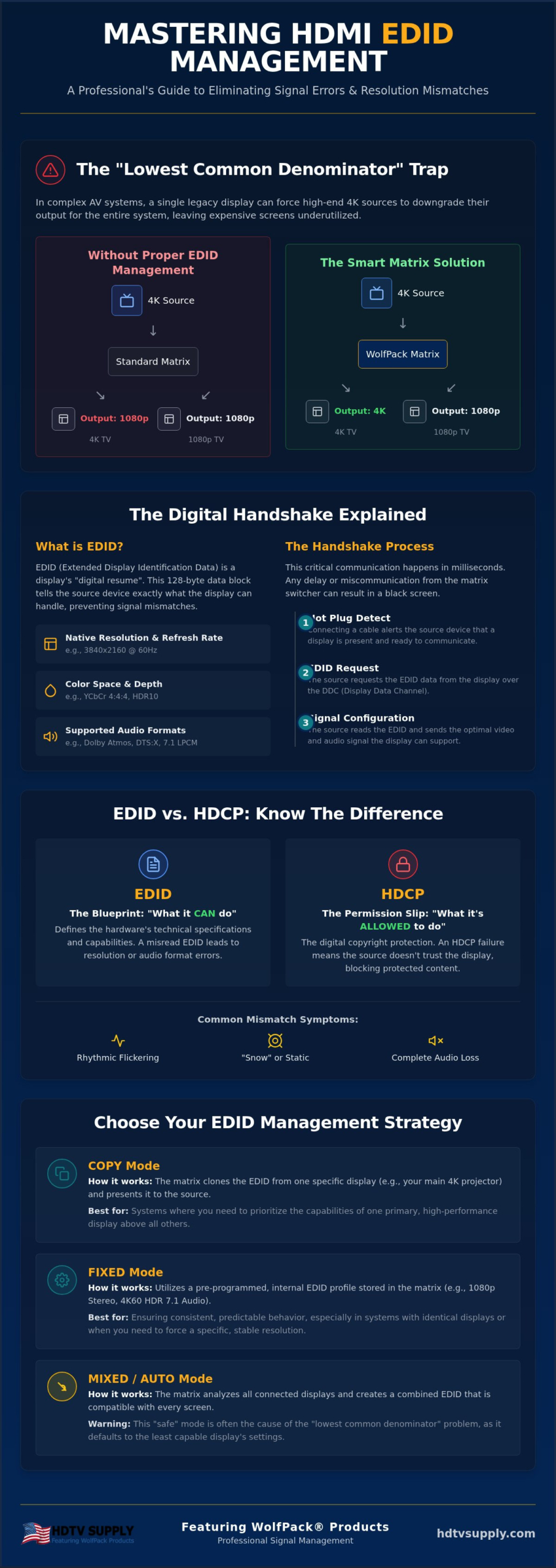
EDID is the foundational data set that makes modern AV possible. Formally known as Extended Display Identification Data (EDID), it’s a 128-byte metadata structure stored in a display’s EEPROM chip. It tells the source exactly what the screen can handle, including native resolution, refresh rates, color space, and supported audio formats. Without this information, a media player or PC has no idea if it’s connected to a high-end 4K HDR panel or a legacy 720p monitor. It’s the digital resume of the display.
In a standard one-to-one connection, the handshake is simple. However, effective HDMI matrix switcher EDID management becomes critical when you route one source to multiple displays simultaneously. If those displays have varying capabilities, the source faces a data conflict. It might default to a safe 1080p output even when 4K screens are present, or it might simply shut down the video clock. Professional systems like WolfPack Modular Matrix Switchers solve this by letting you choose which display’s identity the source should see.
The Digital Handshake Process
The process begins the moment you connect a cable. The display sends a “Hot Plug Detect” signal to the source, triggering it to read the EDID data over the DDC (Display Data Channel). Timing is everything. If the matrix switcher doesn’t provide this data within milliseconds of the request, the source will often time out. This results in the dreaded black screen. High-capacity switchers maintain a constant, virtual handshake so sources stay active even when you switch inputs or outputs.
EDID vs. HDCP: Understanding the Difference
Don’t confuse EDID with HDCP. Think of EDID as the technical specifications of the hardware, while HDCP is the digital permission slip for protected content. If a display’s EDID claims it supports 4K but it lacks the required HDCP 2.2 encryption support, the handshake will break. Common symptoms include:
- Rhythmic flickering or intermittent signal drops.
- “Snow” or static across the entire screen.
- Complete loss of audio despite a perfect video signal.
Properly managed systems ensure the source receives an EDID profile that aligns with the physical limits of the screen and the legal requirements of the content. This prevents the source from attempting to send high-bandwidth data that the display or the switcher’s internal processing can’t handle. For a deeper understanding of how content protection interacts with your signal chain, reviewing a comprehensive guide to HDCP 2.2 matrix switcher deployment for 4K AV distribution will clarify how to align your EDID profiles with the correct encryption standards.
Solving the ‘Lowest Common Denominator’ Conflict
In large installations like a sports bar TV distribution system, you often face a mix of hardware. You might have brand-new 4K panels in the main dining area and older 1080p sets in the restrooms or patio. Without active HDMI matrix switcher EDID management, your source will detect the 1080p display and automatically downgrade the signal for the entire system. This ensures that every screen shows a picture, but it leaves your high-end 4K displays looking soft and underutilized. It’s a common point of failure that technicians often misdiagnose as a bad cable or a faulty source.
This issue stems from the way sources prioritize signal stability over quality. According to PCMag’s explanation of EDID, the data exchange is designed to prevent “No Signal” errors by finding a mutually compatible format. While this prevents a total system failure, it creates a performance bottleneck in professional environments. The matrix switcher must act as a sophisticated negotiator to prevent this downgrade and maintain system integrity.
Resolution Mismatches in Multi-Zone Systems
Consider a scenario where you send a 4K 60Hz feed to a premium theater room and a secondary 1080p projector. By default, the source reads the capabilities of both. To avoid a black screen on the projector, the source locks the output to 1080p. This is the “safe” mode. It’s highly reliable but technically inferior for your high-end zones. The source isn’t broken; it’s simply following the rules of the digital handshake.
Advanced matrix switchers act as a buffer between the source and the destination. They can “trick” the source by presenting a fixed 4K EDID profile regardless of what the secondary displays support. This maintains high-resolution video for the primary zones. If you’re managing a complex layout, investing in professional hardware like WolfPack Modular Matrix Switchers provides the per-port control needed to handle these mismatches. This ensures your high-end hardware isn’t throttled by the oldest screen in the building.
Audio EDID Conflicts: Soundbars vs. TV Speakers
Audio presents an even more complex challenge. If your media player sees a Dolby Atmos soundbar in the main lounge and basic stereo speakers on a patio TV, it will likely default to 2.0 channel stereo. Your premium audio hardware is effectively silenced. The source assumes it must provide a signal that every device can decode, which usually results in the lowest quality audio stream available.
Active management allows the switcher to negotiate these demands independently. It can tell the source to output 7.1 surround sound for the audio-capable zones while simultaneously downmixing or extracting audio for the stereo zones. This prevents the “lowest common denominator” from ruining the high-fidelity experience in your primary listening areas. Just remember that every time an EDID profile changes, the system may experience a brief moment of signal latency. This occurs because the hardware must re-sync the digital clock to the new parameters, which is a normal part of the HDMI matrix switcher EDID management process.
Comparing EDID Management Modes: Copy, Mixed, and Fixed
Choosing the right operational mode is the most important step in configuring HDMI matrix switcher EDID management. Most professional hardware offers three distinct methods: Fixed, Copy, and Mixed. Each serves a specific architectural purpose. Fixed mode relies on an internal library of pre-set profiles stored on the switcher. Mixed mode, often called Auto mode, forces the switcher to analyze every connected display and generate a compromise profile that all screens can support. Copy mode allows the switcher to clone the exact technical footprint of one specific display and present it to the source.
The best mode depends on your application. Sports bars usually benefit from Mixed or Fixed modes to ensure consistent playback across dozens of screens. Home theaters typically require Copy mode to preserve HDR and high-bitrate audio metadata. For mission-critical command centers, Fixed mode is the standard because it eliminates the risk of a signal drop during a re-negotiation event. Understanding the architectural differences between chassis options is equally important; a detailed WolfPackSecure vs WolfPack Modular matrix switcher comparison can help you select the right platform for your specific EDID management requirements and bandwidth demands.
When to Use Copy Mode
Use Copy mode when your system features a “Master” display that dictates the quality of the entire zone. If you have a flagship 4K projector, you want the source to optimize its output for that specific lens. The switcher captures the EEPROM data from the projector and clones it to the input port. This prevents secondary, lower-resolution monitors from dragging down the quality of your primary viewing experience. It’s a precise tool, but it carries risks. If you copy a high-bandwidth profile to a source and then route that signal to an incompatible secondary display, you’ll likely face a “No Signal” error on that screen. As display technology evolves, organizations like VESA are refining these handshakes through the VESA DisplayID Standard, which provides better support for the tiled displays and extreme resolutions found in modern video walls.
The Benefits of Fixed EDID Profiles
Fixed EDID profiles provide the highest level of system stability. By using a pre-defined profile, you remove the “negotiation” phase from the startup sequence. This results in faster switching times and fewer sync errors. For high-performance installations, utilizing WolfPackSecure 4K 60 4:4:4 HDMI Matrix Switchers with a fixed 4K 60Hz profile ensures your sources always output the maximum possible bandwidth. If you encounter a signal failure during setup, switching to a fixed 1080p profile with 2-channel stereo is the industry-standard first step for troubleshooting. It isolates whether the problem is a bandwidth limitation or a hardware handshake failure.
Best Practices for Configuring EDID in Large-Scale Installations
Professional AV success requires a proactive workflow. Don’t wait until the system is live to troubleshoot handshake errors. Always configure your HDMI matrix switcher EDID management settings before connecting your media players or PCs. This prevents the source from receiving conflicting data during its initial boot sequence. In a complex sports bar TV distribution system, documenting these settings is vital. Create a spreadsheet listing every port, its assigned EDID profile, and the native resolution of the connected display. This documentation saves hours of labor during future maintenance or hardware upgrades.
Cable quality is the most common point of failure for metadata transfer. Use high-quality HDMI 2.0b or 2.1 cables to ensure the Display Data Channel (DDC) remains stable. For legacy sources that refuse to sync, a dedicated EDID emulator can provide a constant, reliable signal to the source. This is particularly useful for older cable boxes that lack modern handshake protocols. If you’re building a high-capacity system, start with WolfPack Modular Matrix Switchers to gain the granular control needed for professional-grade stability. For venues planning to scale their video distribution infrastructure, a modular HDMI matrix switcher offers the future-proofing required to handle HDCP 2.3 and HDMI 2.1 standards without a total hardware overhaul.
Troubleshooting ‘Black Screen’ Issues
When a screen goes dark, you must isolate the failure point immediately. Start by forcing a fixed 1080p EDID profile on the switcher. If the image returns, you’ve identified a bandwidth or compatibility issue rather than a physical cable break. Check for HDCP 2.2 handshake failures. Often, an EDID profile will request a resolution that the display supports, but the display lacks the necessary HDCP version to play the content. This mismatch triggers a black screen or static. A professional HDCP 2.2 matrix switcher eliminates these handshake failures by ensuring full compliance across every port in your signal chain. Always verify that your matrix firmware is current. Manufacturers frequently release updates to fix handshake bugs with new display models.
Managing EDID over Long Distances
Long-distance signal runs introduce significant variables. Standard HDMI over Cat6 extenders can sometimes strip or corrupt EDID metadata during the conversion process. This results in intermittent signal drops or “No Signal” errors. To combat this, use matrix switchers with built-in signal equalization and EDID re-clocking. These features rebuild the digital signal to ensure the metadata remains intact. For 4K 60Hz environments, active optical cables (AOC) are the preferred choice. They offer superior EDID stability compared to traditional copper or basic HDBaseT extenders because they’re immune to electromagnetic interference.
The WolfPack Advantage: Professional Signal Management
Reliability in professional AV isn’t accidental. It’s the result of precision engineering. WolfPack Modular Matrix Switchers represent the pinnacle of HDMI matrix switcher EDID management, offering granular per-input and per-output control. This level of specificity allows you to tailor the digital handshake for every individual display in your network. Whether you’re managing a corporate boardroom or a massive stadium, these systems ensure that signal dropouts are a thing of the past. By leveraging WolfPackSecure technology, you guarantee full compliance with HDCP 2.2 standards and maintain 4:4:4 color space integrity across all zones. If you’re evaluating which chassis best fits your signal path requirements, reviewing the WolfPackSecure vs WolfPack Modular matrix switcher architecture differences will clarify which platform delivers the uncompressed 18Gbps bandwidth your 4K 60Hz 4:4:4 deployment demands.
Integration is seamless. You can pair these switchers with WolfPad TV Control Systems for intuitive, iPad-based management of your entire signal path. This eliminates the need for complex, proprietary programming and puts total control in the palm of your hand. If you encounter a unique architectural challenge, HDTV Supply provides expert technical support via our toll-free number. We assist with complex system design to ensure your EDID configuration is optimized for maximum uptime and performance.
Modular Flexibility for Growing Venues
Modern venues are rarely static. They grow. Our modular card-based architecture allows you to mix and match HDMI, HDBaseT, and SDI inputs as your requirements evolve. You can scale from a 4×4 setup to a 16×16 or 32×32 system without the need to re-learn your entire network protocol. The WolfPack modular system utilizes unique per-port EDID memory to ensure instantaneous signal recall across every input and output card. This architecture protects your investment by allowing for easy hardware swaps while maintaining a stable metadata environment for your existing sources. If you’re evaluating your options for a scalable deployment, our 2026 Pro AV guide to modular HDMI matrix switchers covers how to build a system that grows with your facility without replacing entire hardware generations.
Reliability for Sports Bars and Casinos
In 24/7 high-traffic environments like sports bars and casinos, downtime is expensive. WolfPack systems are designed for constant operation. They reduce the signal latency often associated with source switching and display power-cycling. By maintaining a constant virtual EDID handshake, the switcher keeps sources active even when the destination screen is turned off. This prevents the source from going into sleep mode or resetting its resolution, which is a common cause of service calls in large-scale distribution networks. Ready to upgrade your signal infrastructure? Explore our full range of WolfPack HDMI Matrix Switchers to find the perfect fit for your next project.
Future-Proofing Your Signal Infrastructure
Effective HDMI matrix switcher EDID management is no longer optional for high-stakes AV environments. By mastering the handshake process and utilizing professional modes like Copy or Fixed EDID, you eliminate the resolution mismatches that plague large-scale installations. You now understand how to isolate signal failures and leverage modular hardware to maintain 4K 60Hz 4:4:4 integrity across every zone. This technical mastery ensures that legacy displays don’t throttle your high-end sources or cause intermittent blackouts during critical events.
HDTV Supply supports your mission with over 12,000 AV products in stock and expert technical support for installers navigating complex configurations. Our specialized WolfPack Modular systems provide the reliability and per-port control needed for high-traffic sports bars and global venues. We’re ready to help you design a system that works perfectly from the first power-on. Take control of your distribution network today and ensure every screen delivers its peak performance without compromise. Your clients expect a flawless visual experience; we provide the hardware to make it happen.
Shop Professional HDMI Matrix Switchers with Advanced EDID Management
Frequently Asked Questions
What happens if I don’t manage EDID on my matrix switcher?
If you ignore HDMI matrix switcher EDID management, your system will likely experience unpredictable signal behavior. Sources often fail to initialize, or they default to the lowest possible resolution and stereo audio to ensure a basic connection. This leads to frequent “No Signal” errors and flickering as the hardware tries to re-establish a stable handshake. Proactive management prevents these disruptions by providing a consistent, pre-defined technical profile to every connected source.
Can EDID management fix HDCP 2.2 ‘unauthorized’ errors?
EDID management doesn’t directly fix HDCP “unauthorized” errors, as these are two separate digital protocols. EDID defines the display’s technical capabilities, while HDCP handles content protection and encryption. However, using a WolfPackSecure matrix ensures that the EDID profile correctly aligns with the required HDCP 2.2 hardware standards. If the EDID profile and HDCP version don’t match, the source will often block the video signal entirely to prevent unauthorized copying.
Do I need a separate EDID emulator if my matrix has built-in management?
You typically don’t need a separate emulator if your hardware features advanced internal controls. WolfPack Modular Matrix Switchers include per-port management that mimics the functionality of a standalone emulator. You might only need a separate device for extremely “stubborn” legacy hardware that refuses to communicate with modern switching logic. For 99% of professional installations, the built-in library of profiles is sufficient to maintain a stable and reliable digital handshake.
How does EDID affect HDR and Dolby Vision signals?
EDID is the carrier for all HDR and Dolby Vision metadata. If the switcher presents a profile that doesn’t explicitly list HDR support, the source will only output a standard Dynamic Range (SDR) signal. This happens even if the display is a high-end 4K HDR panel. To ensure peak performance, you must select or copy an EDID profile that includes the specific high-bitrate metadata required for advanced color spaces and brightness levels.
What is the ‘Lowest Common Denominator’ in HDMI switching?
The “Lowest Common Denominator” refers to a source defaulting to the capabilities of the weakest link in the signal chain. If you route one 4K source to five 4K TVs and one 1080p TV, the source will often drop to 1080p for everyone. This ensures that every screen in the system shows a picture. Effective HDMI matrix switcher EDID management allows you to override this behavior and prioritize high-resolution output for your primary zones.
Can I copy the EDID from a TV to a source that doesn’t support that resolution?
You can copy the data, but the source is still limited by its own internal hardware. If you copy a 4K EDID to an old 1080p media player, the player won’t suddenly start outputting 4K video. Instead, the source might crash, output a distorted image, or display a “Resolution Not Supported” error. Always ensure that the EDID profile you apply is within the physical operating limits of the source device you are configuring.
Is EDID management necessary for 1080p systems, or only for 4K?
Management is essential for both 1080p and 4K systems. While 4K introduces more bandwidth variables, 1080p installations frequently suffer from audio format mismatches and handshake timing errors. For example, a source might try to send 5.1 surround sound to a display that only supports 2.0 stereo, resulting in total audio loss. Active management resolves these conflicts by forcing the source to output a signal that is compatible with all connected downstream hardware.
How do I reset the EDID handshake on a WolfPack matrix switcher?
To reset the handshake on a WolfPack matrix, you should first re-select the desired EDID profile through the web interface or front panel. If the signal doesn’t restore immediately, power-cycle the source device while it’s connected to the active matrix port. This forces the source to trigger a “Hot Plug Detect” event and re-read the EEPROM data. This process clears any cached settings in the source and establishes a fresh, stable digital connection.
Leave a Reply
Want to join the discussion?Feel free to contribute!