
How to Build Your Own WolfPack HDMI Matrix Switcher
Deploying a fixed-frame video distribution unit in an expanding commercial venue is an operational dead end. You already know the daily headaches: sudden EDID handshake dropouts, the friction of mixing long-distance HDBaseT runs with local SDI feeds, and the frustration of running out of ports when new displays arrive. If you want lasting operational flexibility, learning how to build your own WolfbPack HDMI Matrix switch shifts your facility from rigid hardware to an agile, modular infrastructure built directly around your floor plan.
Approaching matrix configuration as a disciplined systems engineering exercise eliminates costly third-party control programming while locking in full 4K 60Hz 4:4:4 video routing across every zone. In this guide, you will learn how to size the correct modular chassis for future expansion, select the ideal input and output blade cards for your source distances, and deploy intuitive WolfPad tablet control that non-technical staff can operate right out of the box.
Key Takeaways
- Master the engineering process of how to build your own WolfbPack HDMI Matrix switch to eliminate costly port constraints and hardware obsolescence.
- Size your card-cage chassis from 8×8 up to 160×160 frames to accommodate immediate sources while preserving open expansion bays for future displays.
- Mix and match input and output blade cards, including local HDMI, long-range HDBaseT, and broadcast SDI, across a single unified backplane.
- Prevent black screens and handshake latency by properly configuring centralized EDID tables and HDCP key authentication across mixed display models.
- Deploy zero-programming IP switching via the Web GUI and WolfPad tablet management system to give non-technical staff intuitive layout control.
Understanding Modular Architecture: Why Build a Custom WolfPack Matrix?
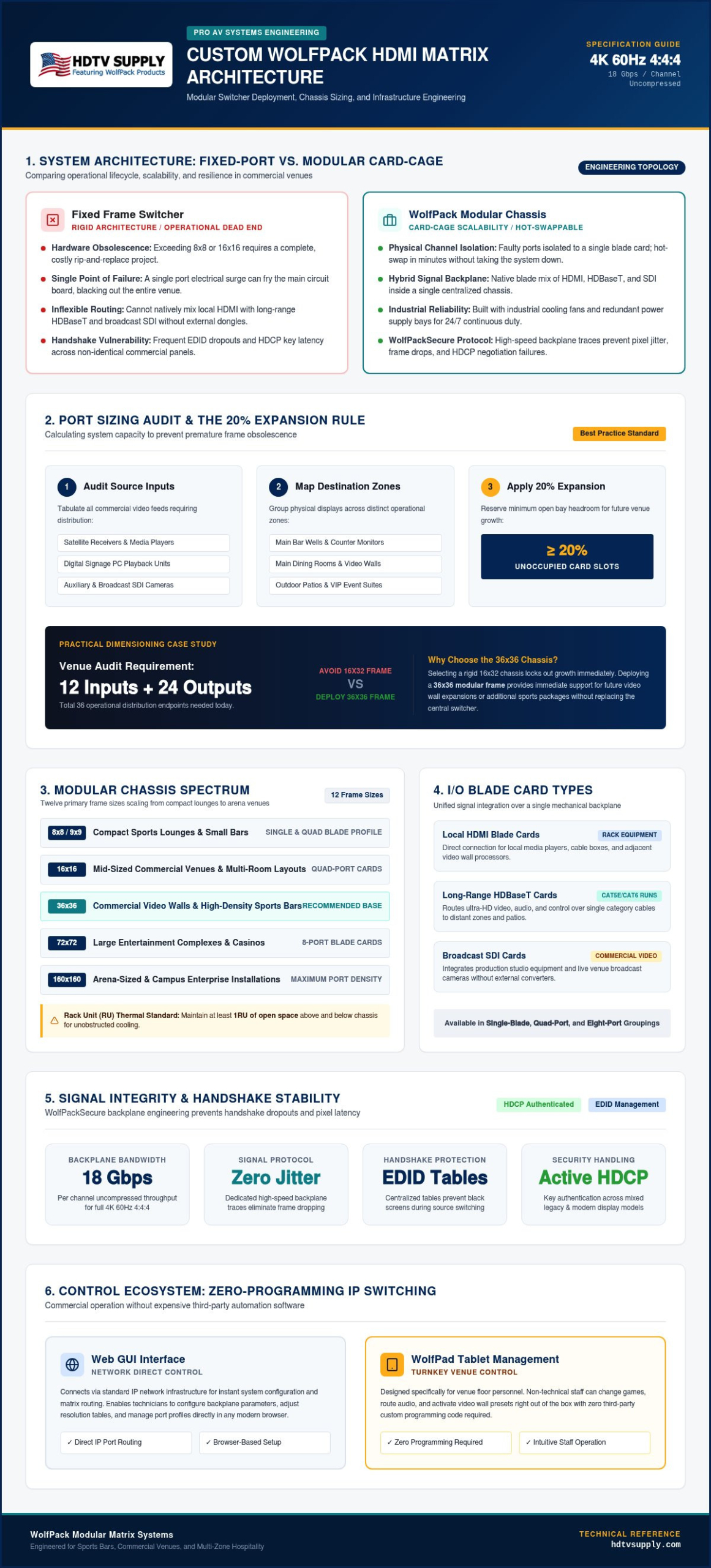
Fixed-port matrix switchers trap commercial AV systems in rigid boxes. When a facility outgrows an 8×8 or 16×16 fixed frame, the entire unit becomes scrap, forcing a costly rip-and-replace project. Understanding how to build your own WolfbPack HDMI Matrix switch centers on adopting a card-cage chassis design. WolfPack modular matrix switchers separate the core routing backplane from the input and output interface blades. This mechanical approach allows field technicians to hot-swap cards, mix signal types, and scale port density without disturbing existing rack infrastructure.
Commercial signal distribution demands massive internal bandwidth. Modern video formats require uncompressed transmission speeds up to 18 Gbps per channel to maintain full 4K 60Hz 4:4:4 color depth. WolfPackSecure technology delivers dedicated high-speed backplane traces that eliminate frame dropping and pixel jitter across every connected display. This internal architecture actively handles complex encryption protocols such as High-bandwidth Digital Content Protection (HDCP) across legacy and modern endpoints alike, preventing sudden handshake dropouts in the middle of live broadcast distribution.
Fixed Frame vs. Modular Chassis Architecture
Fixed switchers create severe operational liabilities. An electrical surge on a single HDMI port can fry the system’s main circuit board, disabling all video routing across the property. Modular frames isolate every connection. If an input channel fails, you swap out a single blade card in minutes while keeping the rest of the venue fully operational. Additionally, modular chassis incorporate industrial-grade cooling fans and redundant power supply bays. This thermal and electrical isolation protects your investment under continuous commercial operation.
Sizing Your Inputs and Outputs for Venue Growth
Precision sizing prevents premature hardware obsolescence. Before ordering hardware, execute a thorough device audit:
- Audit source inputs: Tabulate all media players, satellite receivers, digital signage PCs, and auxiliary broadcast cameras.
- Map destination zones: Group displays by physical location, including bar wells, main dining rooms, outdoor patios, and private event suites.
- Apply the 20% expansion rule: Always select a chassis that leaves at least 20 percent of total card slots unoccupied.
If your audit requires 12 inputs and 24 outputs, do not choose a tight 16×32 frame. Instead, build around a 36×36 modular chassis. Mastering how to build your own WolfbPack HDMI Matrix switch means engineering headroom directly into the rack, ensuring immediate support for future video wall expansions or additional sports packages without replacing the central switcher frame.
Selecting Your Chassis and I/O Blade Cards
Every commercial distribution project demands a tailored balance of frame density and signal transmission types. When mastering how to build your own WolfbPack HDMI Matrix switch, you build your system around a central chassis that connects directly to input and output interface blades via a high-density backplane. Explore our deep dive on modular HDMI matrix switcher architecture to review detailed bus topologies. Sourcing the right frame ensures card slots match your operational density, keeping rack footprints clean while avoiding external converter clutter.
Commercial hardware configurations span twelve primary chassis sizes, ranging from compact 8×8 and 9×9 enclosures up to arena-sized 160×160 frames. Reviewing confirmed WolfPack matrix switcher specifications ensures every selected card slot aligns with the frame’s mechanical backplane. If you are planning an upcoming commercial build, request a system layout from HDTV Supply to lock in your hardware specifications early.
Matching Chassis Size to Port Density
WolfPack modular frames use card slot grouping configurations, typically housing single-blade, quad-port, or eight-port cards depending on the chassis profile. A small sports lounge might utilize a 9×9 or 16×16 rack unit, while massive entertainment complexes require 36×36, 72×72, or 160×160 industrial enclosures. Always calculate total rack unit (RU) height before finalizing your chassis. Larger frames occupy substantial vertical rack real estate and require at least 1RU of open space above and below the chassis to maintain unobstructed intake and exhaust cooling.
Choosing HDMI, HDBaseT, and SDI Input Blades
Input card selection directly mirrors source hardware locations:
- Direct HDMI input blades: Populate these for local rack devices like cable boxes, media players, and digital signage players installed within 15 feet of the matrix.
- HDBaseT input cards: Use these cards to receive audio and video from remote wall plates, stage presentation lecterns, or distant conference room tables over Category 6 cable runs up to 330 feet.
- SDI input blades: Standardize on SDI cards for production cameras, broadcast switchers, and studio gear that require robust BNC locking connections.
When routing PC or graphics workstations into your matrix, ensure your video card drivers and adapters fully support the DisplayPort interface standard before stepping into native HDMI matrix blade inputs.
Selecting Output Cards: Local HDMI vs. Extended Category Cable
Destination cable length dictates your output blade choice. Local HDMI output cards serve nearby hardware, such as local preview monitors, HDMI video wall processors, or rack-mounted audio extractors. However, driving remote displays across a commercial venue requires HDBaseT output blades. These cards push uncompressed 4K video, audio, and bidirectional control over twisted-pair copper up to 230 or 330 feet. Always pair each HDBaseT output port with a matched receiver balun at the display side to maintain clean handshake signaling throughout the entire run.
Step-by-Step Guide: Assembling and Wiring Your Custom Switcher
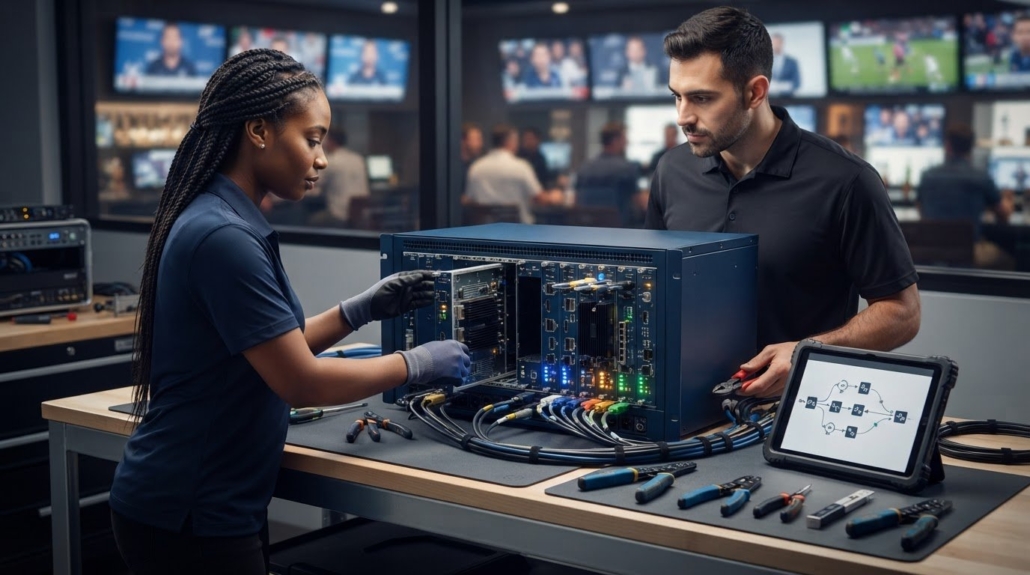
Precision assembly separates clean enterprise AV deployments from unstable systems. When mastering how to build your own WolfbPack HDMI Matrix switch, assembling your modular frame on a controlled workbench ensures high-density multi-pin connectors mate securely without physical stress. Field assembly allows technicians to populate chassis frames rapidly while verifying connector alignment before rack installation.
- Prepare an electrostatic-safe bench: Clear a static-dissipative work area. Ground your work mat and clip on an ESD wrist strap before unboxing your WolfPack modular chassis and card boxes.
- Inspect card slots and backplane traces: Remove protective chassis blank panels. Use a task light to verify that the internal multi-pin backplane headers are free of dust, debris, or bent pins.
- Slide and seat blade cards: Align each input and output blade into the designated chassis guide channels. Slide the card in smoothly until the rear edge connector meets the backplane socket. Apply firm, even thumb pressure until the faceplate sits flush. Hand-tighten top and bottom retaining thumb-screws to ground the card assembly.
- Connect dual redundant AC feeds: Run separate heavy-gauge IEC power cables from the chassis power supply inputs to two independent, surge-protected circuits or uninterruptible power supply (UPS) banks.
- Terminate and dress signal lines: Route incoming sources and outgoing trunk lines through horizontal rack cable managers. Provide strain relief for every connection so heavy wire looms do not place mechanical leverage on matrix card ports.
Physical Hardware Installation and Blade Insertion
Disconnect all main power before inserting or swapping modular blades during initial assembly. Never force a card that resists movement. If an input card catches along the chassis wall, withdraw it entirely and re-align the edges with the plastic card guides. Tightening the captive faceplate screws does more than hold the card in place. It bonds the card bracket directly to the metal frame, completing the electromagnetic shielding loop that blocks outside RF interference.
Cable Management and Signal Isolation in Server Racks
Proper cabling layout preserves video integrity across crowded racks. Run AC power cables down one side of your equipment enclosure and route all audio, video, and control cables down the opposite side. To prevent alien crosstalk on high-speed runs, deploy shielded Cat6a STP cables for all HDBaseT links, grounding the drain wire at the patch panel. Never cinch high-bandwidth video cables with tight plastic zip ties. Use wide hook-and-loop straps and maintain a minimum bend radius of four times the cable diameter to prevent high-frequency packet degradation.
Configuring EDID, HDCP, and Video Resolution Handshakes
A modular matrix switcher is only as reliable as its handshake protocol. Even after correctly mounting your blades, improper Extended Display Identification Data (EDID) settings can cause persistent video dropouts, audio muting, or prolonged black screens during channel changes. Learning how to build your own WolfbPack HDMI Matrix switch involves configuring centralized handshake management to trick video sources into outputting the optimal resolution and audio format continuously. If you run into persistent sync anomalies during commissioning, consult our comprehensive guide on HDMI matrix switcher troubleshooting to isolate physical cabling faults from logic-level communication errors.
WolfPack modular systems incorporate downscaling engine blades that allow high-resolution 4K 60Hz source feeds to route simultaneously to cutting-edge 4K displays and legacy 1080p monitors. Without independent downscaling, sending a 4K feed to an older display forces the entire matrix to throttle down to 1080p for every connected screen. To protect pristine resolution across your main zones, configure the specific output card ports tied to 1080p displays to scale down locally, preserving uncompromised 4K delivery everywhere else. If you need assistance mapping complex mixed-resolution zones, contact HDTV Supply to discuss custom switcher engineering support for your facility.
Mastering Matrix EDID Management Modes
WolfPack systems provide three distinct EDID operating modes through the control interface:
- Factory Presets: Assign fixed internal tables, such as 4K@60Hz 2.0ch or 1080p@60Hz 2.0ch, across all inputs to force standard broadcast media players into predictable operational profiles.
- EDID Copy Mode: Read and duplicate the exact parameter block from a primary zone monitor and push that profile back to source transmitters, guaranteeing full feature compatibility.
- Custom GUI Upload: Import custom binary or hex EDID profiles using the matrix configuration tool to address specific aspect ratios on specialty architectural screens.
Eliminating Black Screens and HDCP Handshake Delays
Traditional digital routing experiences brief blackouts when switching inputs because the display and source renegotiate HDCP encryption keys. WolfPack modular frames resolve this latency by continuously maintaining active HDCP authentication locks across all source inputs and receiver outputs. Set your matrix HDCP configuration to auto-negotiate between legacy HDCP 1.4 hardware and modern HDCP 2.2 or 2.3 content streams. This continuous clocking prevents display engines from resetting their internal scalers, achieving rapid, clean video cuts with an average switching response around 100 milliseconds.
Integrating Control Systems: Web GUI, IP, and WolfPad Tablet Management
Routing signals reliably is half the battle; day-to-day operation demands frictionless management. In commercial facilities, staff should never touch rack wiring or struggle with arcane command line inputs. As you finalize how to build your own WolfbPack HDMI Matrix switch, setting up unified control streamlines your daily video distribution. WolfPack modular matrix switchers feature onboard network processors that support standard web browser control as well as third-party IP and RS-232 automation. Review our comprehensive guide to 2026 sports bar TV distribution systems to see how scaled venues manage dozens of feeds simultaneously.
Network Configuration and Web GUI Navigation
Isolate your matrix network card onto a dedicated AV VLAN. Assign a static IP address outside your standard DHCP scope to avoid IP conflicts with guest networks or POS terminals. Access the embedded Web GUI via any modern browser to configure custom input and output names, such as “Media Player 1” or “Patio North.” Before accessing the interface for the first time, follow the model-specific steps for how to set up a web GUI for WolfPack HDMI Matrix switchers to confirm the correct default IP address and network path for your exact chassis. Within the Web GUI, program up to 40 global routing presets. This lets shift managers recall complete game-day layouts with a single click.
Deploying WolfPad for Zero-Code Touchscreen Control
Traditional commercial AV systems often require costly control programmers just to build a simple touch interface. WolfPad TV Control Systems bypass this bottleneck completely. By communicating directly with the matrix processor over local Wi-Fi, WolfPad provides a responsive, tablet-driven interface without custom coding. Technicians upload venue floor plans directly into the system, enabling floor staff to tap an input and drag it onto a target display visually. Lock administrative menus behind passcodes to keep shift workers from altering backplane parameters.
Commissioning, Testing, and Final AV Sign-Off
Before launching daily operations, execute a comprehensive cross-point stress test. Route every active 4K 60Hz source to all outputs simultaneously to verify backplane stability under peak load. Check audio de-embedding ports to ensure sound feeds route cleanly to commercial zone amplifiers without hum or ground loops. For complex project topologies, HDTV Supply provides complete pre-sale engineering layouts and global technical support to validate your routing architecture before final sign-off.
Scale Your Commercial Video Infrastructure with WolfPack
Mastering how to build your own WolfbPack HDMI Matrix switch transforms your commercial facility into a future-ready entertainment hub. By selecting an expandable chassis frame, matching blade cards to physical transmission distances, and deploying zero-code WolfPad tablet control, you lock in uncompressed 4K distribution without ongoing programmer costs. Card-cage engineering protects your operation, letting you expand displays or service ports without replacing your central switcher.
With over 12,000 professional audio-visual products available online, HDTV Supply supplies the commercial hardware and pre-sale engineering backing you need for flawless field execution. Custom systems are built and bench-tested prior to shipment to ensure immediate operational stability right out of the crate. If you have questions about chassis slot capacities or card configurations, contact toll-free expert technical phone support at 833-WOLFPACK (833-965-3722). Explore WolfPack Modular Matrix Switchers at HDTV Supply to start engineering your custom matrix architecture today.
Frequently Asked Questions
Can I build a custom WolfPack HDMI matrix with an unequal number of inputs and outputs?
Yes, you can build asymmetrical cross-point configurations within any WolfPack modular chassis. When determining how to build your own WolfbPack HDMI Matrix switch, you populate input and output card slots independently based on venue layout. For example, a 36×36 chassis easily configures as an 8×28 distribution hub, providing eight source feeds across twenty-eight screens while reserving open card bays for future facility expansion.
Do I need special tools to insert or replace modular blade cards in the chassis?
No specialized extraction or crimping tools are required for routine blade installation. WolfPack input and output cards slide along integrated guide rails and seat directly into high-density backplane connectors. Each blade features captive knurled thumb-screws that technicians tighten by hand to ground the assembly and secure the faceplate firmly against the steel chassis frame.
What is the maximum cable distance supported by WolfPack HDBaseT output cards?
WolfPack HDBaseT output blades transmit uncompressed 4K video, multichannel audio, and bidirectional control up to 330 feet (100 meters) over quality Category 6a STP cabling. For legacy 1080p transmission runs, the same twisted-pair infrastructure reliably pushes signals up to 492 feet (150 meters), terminating directly into matched receiver baluns mounted behind each destination television.
How does a modular matrix handle displays with different native resolutions?
WolfPack systems prevent display handshake mismatching through dedicated downscaling output cards and dynamic EDID management. If you mix 1080p lobby screens with 4K sports bar arrays, downscaling output ports scale incoming 4K 60Hz content down to 1080p locally. This prevents older screens from forcing source media players to downgrade resolution across the entire facility.
Is third-party programming required to control a WolfPack matrix from an iPad?
No expensive control system programming is required to achieve wireless tablet switching. The WolfPad TV Control System connects directly over the local network via secure Wi-Fi. It provides an intuitive, pre-configured graphical layout where venue staff can easily drag and drop video inputs onto specific displays without touching line-by-line automation code or calling external AV programmers.
What happens if a single card fails inside the modular chassis during operation?
Card failures remain strictly isolated to the affected blade without bringing down the rest of your video distribution network. Because WolfPack modular matrix switchers separate the routing backplane from interface cards, technicians simply loosen the retaining screws and swap in a replacement blade. All other active input channels and zone displays continue operating without system-wide interruption.
Can I add SDI or wireless input cards to my WolfPack chassis later on?
Yes, you can add broadcast SDI cards to open input bays whenever your production needs change. WolfPack card-cage backplanes accept hot-swappable HDMI, SDI, and HDBaseT interface cards across common slot channels. While wireless feeds require external receivers connected to standard inputs, modular architecture ensures you never need to replace your core chassis frame to adopt new formats.
Leave a Reply
Want to join the discussion?Feel free to contribute!