
How to Control Everpass in Your Sports Bar Easily
What if the biggest game-day challenge isn’t finding the EverPass stream, but getting the right game onto the right screens without juggling remotes? If you’re learning how to control EverPass in your sports bar, you already know streaming adds moving parts: device inputs, switching delays, and network demand alongside satellite or cable feeds. A packed venue needs more than another app.
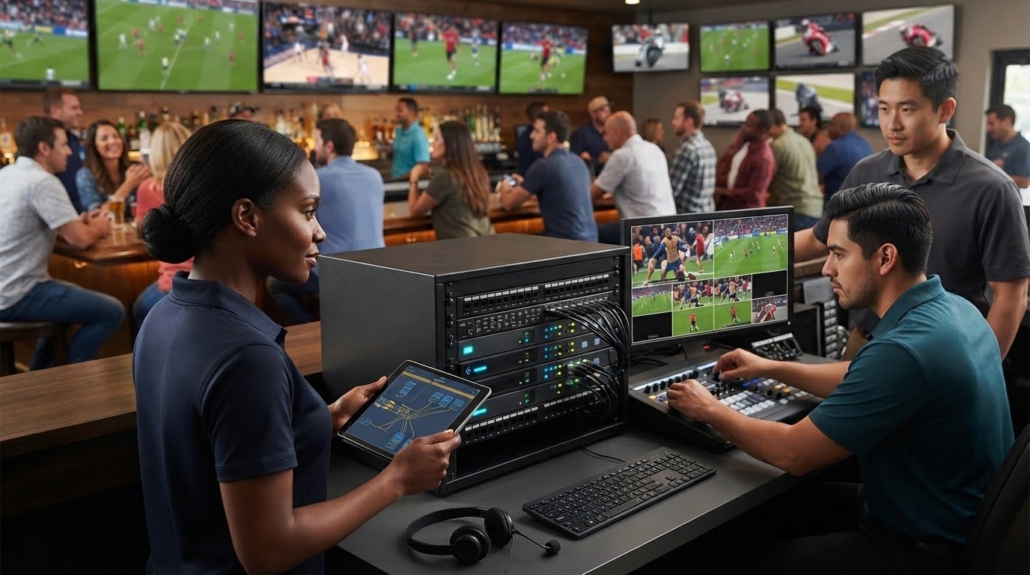
EverPass delivers sports content, but a centralized AV setup helps staff route that content across the bar. WolfPack modular matrix switchers distribute multiple sources to the screens you choose, while WolfPad provides iPad control of 30+ TVs without programming. Together, they can simplify game changes and reduce remote-control clutter. A well-planned signal path and network also help manage the demands of high-definition streams.
This guide explains how to connect EverPass streaming devices to a matrix system, organize screen assignments, and use tablet-based control for faster switching. You’ll also learn what to consider when balancing streaming with satellite or cable broadcasts, so your setup is easier to manage when the games are on.
Key Takeaways
- EverPass provides commercial sports streams, but your AV system determines how those feeds reach screens across the venue.
- To learn how to control EverPass in your sports bar, map each streaming source to a matrix input and assign feeds to the TVs that need them.
- Plan for the number of different games you want to show at the same time. You may not need a separate streaming device for every TV.
- Check streaming hardware for compatibility with your commercial setup, and consider a modular system that can accommodate additional sources as your needs grow.
Understanding EverPass and the New Era of Sports Bar Streaming
EverPass changes how commercial venues access certain live sports, but it doesn’t replace the AV system that routes a game to each screen. Think of it as the connection between streaming rights and commercial venues: EverPass provides access to sports content, while compatible streaming devices and distribution hardware carry that content through your bar.
The shift from satellite-exclusive setups to app-based delivery gives venues more options, but it also adds operational steps. Staff may need to select the correct player, app, and source before routing a game to a TV group. That’s the practical challenge behind how to control EverPass in your sports bar: access to a stream is only one part of game-day control.
The 2026 Sports Rights Landscape
Commercial sports rights and subscriptions vary by service. EverPass is the exclusive commercial provider of NFL Sunday Ticket in the United States; the package’s history and commercial rights to NFL Sunday Ticket help explain why commercial access differs from a residential subscription. EverPass also announced Apple TV sports programming in its Core package and a Netflix agreement covering five NFL games in the 2026 season and NFL Honors.
Don’t assume every sports app is included in one EverPass account or bill. Confirm the commercial terms and access method for each service, including Peacock Sports Pass and ESPN+ for Business, with the provider. ESPN+ for Business has its own commercial content offering. Your venue’s internet connection matters, too: simultaneous high-definition streams compete for available bandwidth, so assess capacity, wired connections, and network traffic before game day.
Satellite vs. Streaming: The Hardware Gap
Satellite and coaxial systems deliver signals through a physical distribution path, while streaming depends on an internet connection, a player, and the service’s app. Streaming can expand content choices, but congestion or connection problems can interrupt playback. A matrix switcher such as a WolfPack can route connected sources to selected displays; it won’t repair an internet outage or override a rights restriction.
Blackouts and playback restrictions are generally tied to content rights, account eligibility, or service rules, not the choice of matrix hardware. Verify that each feed is authorized for commercial viewing and available to your venue. Then plan signal routing around the number of distinct games you want to show at once. EverPass devices, Apple TV, and other compatible players may serve different content sources, but managing several apps and remotes can become cumbersome without centralized control.
Hardware Requirements: Bridging EverPass to Your TV Matrix
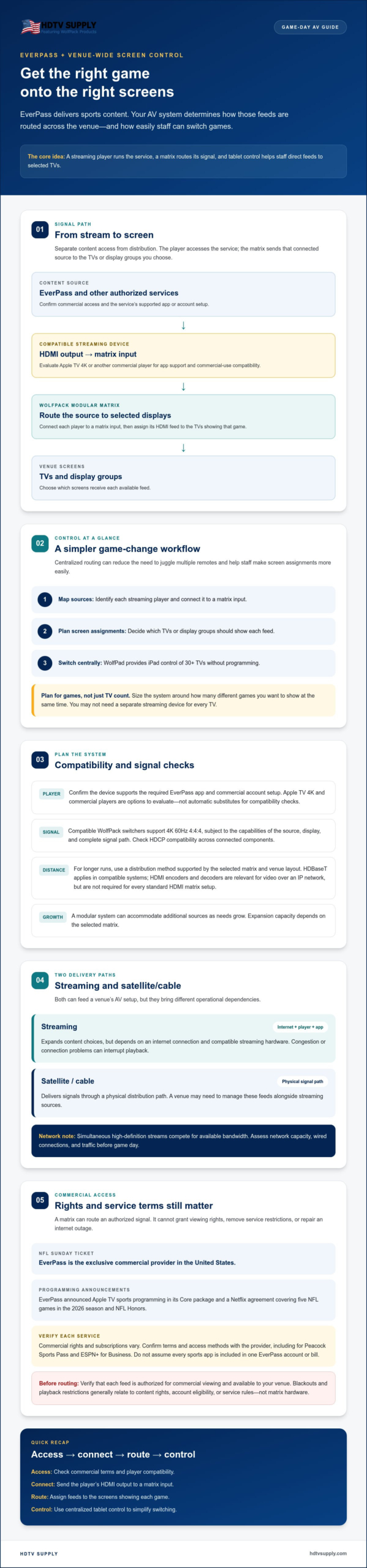
An EverPass stream reaches the TV matrix through a compatible streaming device’s HDMI output. The matrix then routes that source to the screens or display groups you select. This separates content access from venue-wide distribution: a player runs the service, while the WolfPack Modular Matrix Switcher handles source-to-screen routing. Before choosing a player, confirm it supports the required EverPass app and commercial account setup. Apple TV 4K and commercial players are options to evaluate, not automatic substitutes for checking compatibility and commercial-use terms.
Sports broadcasting rights apply to the content itself, as explained by the World Intellectual Property Organization’s overview of sports broadcasting rights. Distribution hardware can route an authorized signal, but it can’t grant viewing rights or remove service restrictions.
The WolfPack Matrix Advantage
A matrix helps avoid relying on Wi-Fi alone to deliver each viewing signal throughout a busy venue. Connect each player to a matrix input, then route its HDMI feed to the TVs showing that game. Compatible WolfPack switchers support 4K 60Hz 4:4:4, subject to the capabilities of the source, display, and full signal path. Check HDCP compatibility across every connected component when handling protected streams.
For longer runs, select a distribution method supported by the specific matrix and venue layout. HDBaseT can be used in compatible systems, while HDMI encoders and decoders are relevant when a design distributes video over an IP network. They aren’t required for every standard HDMI matrix setup. Confirm supported distance and format with the equipment specifications. Don’t assume an encoder or extender will overcome a source, cable, or rights limitation.
Input Management: Organizing Your Streams
Size the system for the number of different games you want to show simultaneously, not simply the total TV count. A modular design can accommodate additional EverPass streams as needs grow. Expansion capacity depends on the selected matrix model and configuration, so confirm the available inputs and supported expansion before planning a jump from a small setup to dozens of sources.
- Connect: Assign each streaming player to a designated matrix input.
- Label: Use clear source names such as “NFL 1” or “Peacock 2” in the control interface.
- Route: Send each source to the intended TVs, while keeping existing cable or satellite receivers available as additional matrix inputs.
This source map makes game-day switching more predictable and gives staff a clear path from app to screen. Review WolfPack matrix switcher options to compare input and expansion needs for your venue.
How to Control EverPass in Your Sports Bar with WolfPad
Streaming players add more remotes, menus, and input changes to an already busy game day. WolfPad TV Control Systems bring supported AV controls to an iPad interface, helping staff manage TVs without reaching for a separate remote at each screen. WolfPad can control 30+ TVs without programming, making it a practical way to simplify screen changes across a venue.
To understand how to control EverPass in your sports bar, separate two tasks: choosing the game inside the streaming app and routing that player’s signal to the correct screens. WolfPad can centralize supported controls, while a WolfPack matrix handles source routing. Confirm that your specific streaming devices and control configuration support the commands you need.
Tablet-Based Matrix Control
A tablet interface gives staff a consistent control point instead of a pile of remotes. Arrange the controls around how employees think about the venue, such as grouping screens by bar area or seating section. This reduces the chance of changing the wrong input during a rush. For planning considerations and system questions, see The Essential WolfPad TV Control System Checklist for 2026.
Before opening, test common actions: select a source, route it to the intended display group, and confirm the result on-screen. If the control setup supports named scenes or presets, label them clearly for recurring situations, such as a featured game on the main screens. Preset availability and behavior depend on the configured system, so verify them before relying on a one-tap change.
If you also plan to control a WolfPack matrix from an iPhone or iPad, this guide on how to set up an iOS app for WolfPack HDMI Matrix switchers covers verifying app and model compatibility before you change any network settings.
Managing Streaming App Navigation
A matrix switches the HDMI source sent to a display; it doesn’t select a game within an app. That distinction matters. Staff may need to navigate a streaming player’s menus first, then route its live output to the desired TVs. WolfPad’s role depends on compatible device control and configuration, so confirm that menu navigation commands are supported for each player rather than assuming the matrix can control the app.
Use a game-day check to keep players ready: verify the account is signed in, open the correct app, select the intended event, and confirm the player’s output before routing it across the venue. Check sleep and power settings on each device, too. A player that has gone to sleep or needs an app update can delay the changeover.
For a broader look at distributing sources and coordinating screens, HARMAN Professional Solutions explains Networked AV distribution in sports bars. Combine clear source labels, tested control commands, and staff-ready screen groups to make switching more consistent under pressure.
Step-by-Step Integration Guide for Game Day
A dependable setup starts with the signal path: the streaming device produces the HDMI feed, the WolfPack matrix routes it to selected screens, and the control interface lets staff choose sources and displays. Use this sequence to prepare your system before a major event. Confirm device, matrix, and control compatibility against the specifications for your configuration.
- Configure the commercial account and players. Confirm the venue’s EverPass access, sign in on each compatible streaming device, and check that the required apps and events are available. Prepare each player for the game it will supply.
- Connect players to matrix inputs. Run each streaming device’s HDMI output to a designated WolfPack input. Label inputs clearly, such as “NFL 1,” so staff can identify sources quickly.
- Connect the control system. Follow the equipment requirements to connect the WolfPad tablet and any network-capable control components. Keep control traffic on the intended venue network, not the public guest connection.
- Map the interface to the venue. Organize screen groups by recognizable areas, such as the main bar or dining section, and use clear source names. Make sure the displayed labels match the physical TVs and matrix routing plan.
- Run a stress test 24 hours before the event. Test the expected mix of simultaneous streams and screen routes, then check for playback interruptions, incorrect sources, and control delays. Resolve issues before doors open.
Network Optimization and Pre-Game Checks
Separate guest Wi-Fi from the AV and control network where your network equipment supports segmentation. VLANs can help isolate traffic, while configured quality-of-service rules may prioritize relevant video or control traffic. Confirm settings with the network administrator and equipment documentation. A correctly configured managed switch can separate AV traffic from guest use and apply traffic priorities, reducing avoidable congestion that may contribute to stream stutter.
- Check for available firmware updates on streaming players and matrix hardware, and schedule updates with enough time to retest the system.
- Verify HDCP handshakes across the protected signal path, including every 4K display, source, and connected matrix input.
- Test audio routing separately so game commentary plays through the intended speakers and follows the selected source where required.
- Switch each source to its assigned screen group using the control interface, then confirm the picture and sound at the displays.
Use the test results to refine labels, routes, and staff steps. To compare hardware for your signal path, review WolfPack matrix switchers and WolfPad control systems.
Optimizing Your Venue for EverPass with HDTV Supply
Plan for growth around the number of distinct streams you expect to show at once, not only the number of TVs in the venue. A modular WolfPack system can accommodate additional EverPass sources as your needs change, subject to the selected chassis, input cards, and system configuration. That can help you avoid designing around today’s game schedule alone, while keeping expansion decisions tied to actual content and routing requirements.
For fast-moving sports, the signal path matters. Compatible WolfPack switchers support 4K 60Hz 4:4:4, which can preserve detailed color and motion when the source, cabling, matrix, and displays all support the format. Verify compatibility across the complete chain; a single component with lower capabilities can limit the output. Pairing reliable source routing with authorized EverPass content gives staff a clearer way to distribute games across the venue.
Scalability: From a Small Setup to a Larger Venue
Adding screens doesn’t always mean adding one streaming player per TV. The number of players depends on how many different events you want to show simultaneously, while the matrix routes those sources to selected displays. Modular expansion may let a compatible system add inputs without replacing the entire chassis, but confirm the specific model’s card options and capacity before planning a larger deployment.
As new sports packages become available, review how many simultaneous feeds you need and whether your current inputs, network, and control layout can support them. If you are also exploring diverse internet-delivered channel line-ups, check out Edge IPTV. For a framework on planning screen growth, see 2026 Sports Bar TV Distribution: Scaling for Success.
Support, Warranty, and System Planning
Before selecting WolfPack or WolfPad equipment, confirm the technical support channels, warranty coverage, and response terms that apply to the specific products you’re considering. Don’t assume an extended warranty or around-the-clock support is included. Ask what documentation is available, which system details are needed to assess compatibility, and whether any design assistance is offered for your venue.
Share your TV count, desired simultaneous streams, existing cable or satellite sources, signal distances, and control preferences when discussing system requirements. Those details help clarify the matrix configuration and expansion path to evaluate. Browse the HDTV Supply catalog or call the toll-free number for assistance with product options for your setup.
Build a More Manageable Game-Day Setup
Controlling EverPass across a sports bar takes more than reliable streaming. The right signal path connects each player to a WolfPack matrix, which routes games to selected screens, while WolfPad brings supported controls together on an iPad. Clear source labels, a tested network, and a pre-game check help staff switch feeds with fewer steps and less remote clutter.
As you plan how to control EverPass in your sports bar, consider both your current screen layout and the number of simultaneous games you want to show. A modular system can support future expansion, while 4K 60Hz 4:4:4 support helps preserve picture detail when every component in the signal chain is compatible. HDTV Supply offers professional AV equipment, including WolfPack matrix switchers, WolfPad TV Control Systems, and TV distribution systems.
Ready to plan your setup? Browse HDTV Supply’s WolfPack and WolfPad products and contact the team through the website or by phone for assistance choosing equipment for your signal path. Give staff a clearer way to manage screens, so they can focus on the guests and the game.
Frequently Asked Questions
Do I need a separate EverPass account for every TV in my bar?
No, you generally plan EverPass access around the number of different games you want to show at the same time, not the total number of TVs. A matrix can route one player’s game to multiple screens. The number of authorized devices and streams depends on your EverPass commercial subscription and its terms, so confirm those limits with EverPass or your authorized provider before configuring the venue.
Can I still use my DirecTV for Business boxes with EverPass?
Yes, you can generally use both sources in the same venue if your AV system supports them. Connect the DirecTV for Business box and EverPass player to separate compatible matrix inputs, then route each source to the screens that need it. Check the output formats and content access for each device. Keeping cable or satellite sources available can also provide channels that aren’t included with EverPass.
Why is my EverPass stream lagging behind the live radio broadcast?
Streaming video can arrive later than radio because it passes through internet delivery, buffering, and playback processing. Network congestion or a weak connection can add interruptions or delay. Check whether the lag affects one player or all streams, test the player on a wired network connection if supported, and reduce competing network traffic. Some delay may remain because streaming and radio use different delivery paths—though if your venue or media team broadcasts its own internet radio coverage, services like ReliaStream specialize in ShoutCast and IceCast hosting for stable audio feeds.
What is the best streaming device to use with a WolfPack Matrix for EverPass?
There isn’t one universal best device. Choose a player that supports your commercial EverPass access, the required app, and an HDMI output compatible with the matrix and displays. Apple TV 4K or an EverPass-supported commercial player may be options, but verify current service compatibility and commercial account requirements before purchase. Test the complete signal path, including resolution, audio, and copy-protection handshakes.
Can I control EverPass from my phone or does it have to be an iPad?
WolfPad is documented for iPad control, including control of 30+ TVs without programming. Phone compatibility isn’t confirmed by the information available here, so don’t assume a personal phone can replace the iPad interface. Check the specific WolfPad system’s device requirements and supported control features. Regardless of controller, staff may still need to navigate the streaming player’s app to select the event before routing its feed.
How much internet bandwidth do I need to stream 4 different games via EverPass?
There isn’t enough verified information here to give a reliable bandwidth figure for four simultaneous EverPass streams. The required capacity depends on each stream’s bitrate, other network use, and the venue’s connection performance. Check EverPass’s current network recommendations and ask your internet provider about available upload and download capacity. Test all four streams at once on the venue network, including during typical guest Wi-Fi use.
Does the WolfPad control system require monthly subscription fees?
HDTV Supply sells WolfPad TV Control Systems as AV hardware, but the available information doesn’t confirm whether a particular configuration has recurring software or service fees. Confirm the current terms for the exact system before purchase. Also separate WolfPad costs from EverPass subscription charges: sports content access is arranged through its provider and may have its own commercial pricing and account terms.
What happens to my EverPass control if the internet goes down?
If the venue loses internet access, internet-delivered EverPass streams may stop or become unavailable until connectivity returns. A matrix can still route other sources that remain active, such as a functioning cable or satellite receiver, depending on your system configuration. Whether WolfPad controls continue to work locally depends on the control setup and network design. Test an internet-outage scenario in advance and identify backup viewing sources.
Leave a Reply
Want to join the discussion?Feel free to contribute!