

How to Set Up WolfPack HDMI Matrix Web GUI
What if the default IP address you found online isn’t the right one for your WolfPack matrix? A mismatched network path or assumed setting can stop you before you reach the controls. This guide explains how to set up a web GUI for Wolfpack HDMI Matrix switchers using the instructions for your exact model, rather than guesswork.
Browser access may seem straightforward, but network addresses and access procedures can vary by model. Addresses such as 192.168.0.80 and 192.168.1.80 are common defaults, not universal settings. Before changing your computer’s network configuration or attempting to log in, check the switcher’s manual, especially if the matrix is carrying live signals.
You’ll learn how to connect a computer to the appropriate network, locate and open the switcher’s interface, configure input-to-output routes, and verify the source shown at each display. You’ll also learn what to document so another operator can use the system confidently. For unresolved model-specific questions, consult the relevant product information or contact HDTV Supply for available technical support.
Key Takeaways
- Confirm your switcher’s model and consult its manual before using network settings or interface details.
- Follow the model-specific connection and access instructions instead of assuming every unit uses the same method.
- Learn how to set up a web GUI for Wolfpack HDMI Matrix switchers and assign source inputs to display outputs.
- Check routing, picture, and audio before considering the setup complete. A failed browser connection alone doesn’t prove the matrix has failed.
- Record approved network details, the route map, and the manual location so another operator can take over confidently.
Before You Open the WolfPack HDMI Matrix Switcher Web GUI, Confirm the Model and Network
Start by identifying the exact switcher and confirming its documented control method. This helps you reach the right browser interface without changing unverified network settings or interrupting an active AV system. A web page is a graphical user interface (GUI) that lets you manage controls through a browser. Available functions and access steps can differ by unit.
Before connecting, gather the information an operator or support specialist may need:
- Model identifier: Check the product label, purchase record, or original product documentation.
- Firmware information: Record the installed version if it’s available in the unit’s documentation or an existing status screen. Don’t assume a version applies across models.
- Control and network options: Note the installed ports or other documented control interfaces, and identify which connection the manual specifies for browser access.
- System context: Record how the matrix connects to sources, displays, and the network before making changes.
For an overview of chassis, signal paths, and system planning, see this modular HDMI matrix switcher guide. Use it for general context, then follow the documentation for your exact unit when setting it up.
Find the exact WolfPack model and its supported control method
Match the full model identifier to its manual. Check whether the model supports browser-based control and whether the manual lists hardware or firmware requirements. An Ethernet port alone doesn’t confirm web GUI support. The connection may serve a different documented purpose, and interface options can vary.
Keep browser setup separate from Android and iOS app workflows. They are distinct control methods, so app instructions may not explain browser access. If the model documentation doesn’t clearly confirm web interface support or its requirements, pause and verify the details before proceeding.
Check the network path before attempting access
Prepare an authorized network connection, Ethernet cabling if the manual specifies it, and a computer with a web browser. Confirm which switcher port is designated for control and whether the manual calls for a direct connection or connection through the venue network. Follow the documented topology instead of choosing a port by appearance.
Before changing DHCP, IP addressing, VLAN, or firewall settings, check with the network administrator. These changes can affect other equipment or interrupt existing routing. Confirm the computer is permitted to communicate with the switcher, and document the approved network path before moving on.
How to Connect to a WolfPack HDMI Matrix Switcher Web GUI
Use the manual for your exact model as the access plan. Port assignments, address discovery, login requirements, and interface options may differ, so don’t treat another WolfPack unit’s settings as universal defaults. The steps below help you check the connection method without making changes that could affect other equipment.
Connect the switcher and computer using the documented network method
Use the control port and network topology specified in the manual. Ethernet control is separate from the HDMI signal path: HDMI connections carry video and audio, while the documented network connection provides access to browser-based controls. Don’t select a port simply because it accepts the cable.
Before connecting, confirm that you’re authorized to use the network and that the computer and switcher are permitted to communicate. Don’t connect to an unfamiliar VLAN or production network without approval from the network administrator.
Locate the verified IP address and open the interface
Confirm the applicable address using the model’s manual, approved network records, or the network administrator. Don’t assume an address listed for another switcher applies to yours. Then follow these steps:
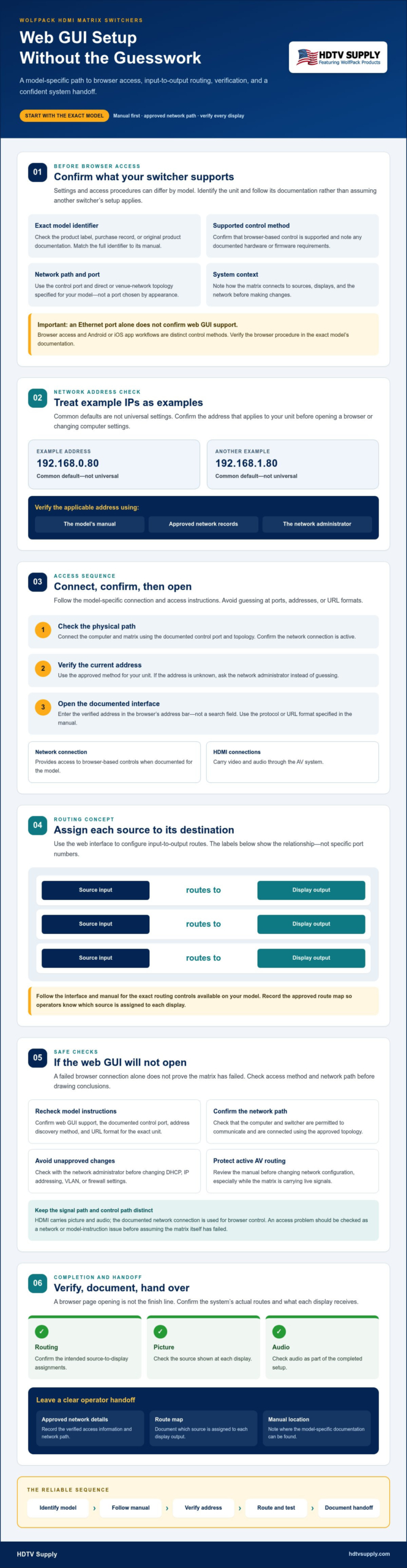
- 1. Check the physical path. Connect the computer and matrix using the documented port and topology. Confirm the network connection is active.
- 2. Verify the address. Use the approved method for your unit to identify or confirm its current IP address. If you don’t know the address, ask the network administrator instead of guessing.
- 3. Open the browser. Enter the verified address in the browser’s address bar, not a search field. Use the protocol or URL format specified in the manual.
- 4. Follow the model-specific login instructions. Use only credentials confirmed for the exact unit and its current configuration. Don’t try assumed defaults or reset the switcher as a first troubleshooting step.
- 5. Confirm the interface. Check that the page corresponds to the switcher and that its displayed information matches your documentation before changing settings.
If the page doesn’t load, stop before changing the switcher’s address or your computer’s network configuration. Recheck the model instructions, cable and port, verified address, and network permissions. These checks help distinguish an access-path issue from a device fault. When learning how to set up a web GUI for Wolfpack HDMI Matrix switchers, use model-specific documentation as the authority. App setup steps aren’t a substitute for browser instructions.
If the manual or product information doesn’t clarify access for your unit, review WolfPack product information and support before making network changes.
Configure HDMI Input-to-Output Routing in the Web Interface
Matrix routing assigns a source input to a display output, determining which connected source appears on each display. Use the controls documented for your exact switcher model. Control names and route behavior can differ, so don’t assume that instructions or port numbering from another unit apply.
Map physical HDMI inputs and outputs before making changes
Identify what’s connected before selecting a route. Label each source and display using the names used at the installation, then compare those connections with the physical port labels and identifiers shown in the interface. For example, don’t assume chassis Input 1 corresponds to an on-screen identifier unless the unit’s documentation confirms it.
A simple worksheet makes the mapping easier to check. The labels below are generic examples, not WolfPack interface text or recommended port assignments:
| Example source | Example display | Intended route |
|---|---|---|
| Source A | Display A | Source A to Display A |
| Source B | Display B | Source B to Display B |
Use labels that match your site records, such as a media player’s name or a display’s room location. If the physical port labels and interface identifiers don’t clearly correspond, check the manual before changing routing.
Apply and verify a source-to-display route
Make changes carefully, especially when displays are in use. Select one known source and one intended output, then apply the route as directed by the model’s interface and manual. Confirm how that selection behaves before changing multiple routes.
- Confirm the selected source is connected and active.
- Choose the corresponding input and output using the documented controls.
- Apply or confirm the selection only as directed for that model.
- Check the intended display for the expected source before configuring other routes.
If the picture doesn’t match the route, verify the physical connections and port mapping before trying another selection. Once the test route works, apply the remaining planned routes and check each destination against your worksheet. Record the final input-to-output map, including site-specific source and display names. That record helps operators make changes consistently and gives future troubleshooting a clear starting point.
This mapping step is central to how to set up a web GUI for Wolfpack HDMI Matrix switchers: verify the physical signal path, make one documented change at a time, and check the result at the display.
If the WolfPack Web GUI Will Not Open, Check Access Safely
A browser page that won’t load doesn’t automatically mean the matrix hardware has failed. The problem may be limited to the control path, such as an incorrect address, an unplugged Ethernet cable, or network access restrictions. Check access first and avoid changes that could affect live routing.
Diagnose a page that will not load
Work through these checks in order, using the manual for your exact model. Supported browsers, connection requirements, and recovery procedures can vary. Don’t guess at an address or switcher setting.
- Confirm the model and port. Make sure you’re following the correct manual and using the documented control connection.
- Inspect the cabling. Check that the Ethernet cable is seated at the intended switcher and network ports. Don’t confuse a control connection with an HDMI signal connection.
- Recheck the browser address. Compare it with the verified address in the manual or approved network records. Enter it in the address bar.
- Confirm network permission. Verify that the computer is on the intended network. Ask the network administrator to check reachability, segmentation, and access rules.
- Consult model documentation. Check any stated browser or connection requirements before trying another device or recovery step.
This sequence helps troubleshoot how to set up a web GUI for Wolfpack HDMI Matrix switchers without mistaking a connection issue for a hardware failure. Don’t factory-reset the matrix or alter its network settings until the manual and site administrator confirm what those actions could change.
Separate control access issues from HDMI signal faults
First check whether the web interface is reachable. If it isn’t, continue troubleshooting the browser-to-network path. If the interface opens but a display has no picture or audio, troubleshoot the signal path separately. A control-access failure and an HDMI output problem are different symptoms, and one doesn’t by itself prove the other.
For picture or audio problems, use the HDMI matrix switcher troubleshooting guide. If symptoms point to EDID compatibility or display capability reporting, consult the matrix switcher EDID management guide. Don’t change EDID or routing settings just to fix a page that won’t load.
If the issue persists, record the model, observed symptoms, verified network details, and settings you checked before contacting support. For product information or unresolved access questions, contact HDTV Supply technical support.
Verify the Setup, Document Access, and Plan the WolfPack System Handoff
Before handing over the system, confirm that the web interface is accessible and the matrix routes match the installation plan. A successful login alone isn’t enough. Check the actual displays and audio path, then leave clear, secure notes so the next operator can manage the system without guesswork.
Run a controlled end-to-end check
Compare each configured source-and-display combination with the route map. Confirm the expected image and audio at each destination, and note any exception that needs follow-up. If you find a problem, record the affected input, output, or connection rather than changing unrelated settings. Recheck that browser access still works after testing, and don’t adjust controls you can’t identify in the model’s manual.
- Browser access: Confirm the authorized computer can reopen the verified interface.
- Routing: Check each intended source-to-display assignment against the documented plan.
- Signal: Verify expected picture and audio at the relevant displays.
- Exceptions: Record any missing or unexpected signal, and clearly mark unresolved issues.
Prepare clear documentation for the next operator
Create a handoff record with the exact switcher model, firmware information, final route map, and location of the matching manual. Include only network details approved for handoff, such as the documented connection method or other permitted access information. Follow the venue’s credential policy, and never place passwords in unsecured notes or general-purpose route sheets.
Also note the approved access procedure and where an operator can find model-specific information. Keep the record current if an authorized change is made later. If you’re planning a custom chassis rather than documenting an existing installation, review the WolfPack matrix build guide for system-planning context.
A complete handoff makes how to set up a web GUI for Wolfpack HDMI Matrix switchers a repeatable operating process: verify access, validate routes, record approved details, and make the manual easy to find. For product information or unresolved model-specific questions, contact HDTV Supply for WolfPack technical support.
Make Your WolfPack Setup Ready for the Next Operator
A reliable web GUI setup starts with the exact switcher model and its documented access method, not an assumed address or setting. Map physical inputs and outputs before changing routes, then test the intended picture and audio at each display. Finish by recording the verified configuration, route map, and manual location while keeping credentials and restricted network details secure.
This model-aware process makes how to set up a web GUI for Wolfpack HDMI Matrix switchers easier to repeat and safer to hand off. If you’re selecting hardware or still have questions about a specific unit, HDTV Supply sells WolfPack Modular Matrix Switchers and offers technical support to customers and integrators worldwide.
Browse WolfPack matrix switchers and contact HDTV Supply for product guidance. With the right documentation and a clear route map, you can leave the system ready for confident operation.
Frequently Asked Questions
How do I access the web GUI on a WolfPack HDMI matrix switcher?
Use the manual for your exact model to confirm that it supports browser control, which network port to use, and how to find its current IP address. Connect an authorized computer using the documented network path, then enter the verified address in the browser’s address bar. Follow the model-specific login instructions. This is the safest starting point for how to set up a web GUI for Wolfpack HDMI Matrix switchers without relying on assumed settings.
What IP address do I use for a WolfPack HDMI matrix switcher?
There isn’t one address that applies to every WolfPack switcher. Common defaults include 192.168.0.80 for LAN 1 and 192.168.1.80 for LAN 2; some models may use 192.168.1.168. Treat these as possibilities, not confirmed settings. Check the manual for your exact model or ask the network administrator to verify the current address and correct port before entering it in a browser.
Can I control a WolfPack HDMI matrix switcher from a web browser?
Yes, if your specific model supports a web GUI and the documented network connection is available. Check its manual for browser access, connection requirements, and any model-specific firmware or hardware dependencies. An Ethernet port alone doesn’t confirm browser control. Once connected through an authorized network, use the verified address and model instructions to access the interface. Browser control is separate from control through mobile apps.
Why will my WolfPack matrix switcher web interface not load?
A page that won’t load can point to an incorrect address, a disconnected cable, the wrong network port, or network permissions, rather than a failed matrix. Confirm the model and documented control port, then check the cable, verified address, computer’s network connection, and administrator-approved access rules. Consult the manual for browser requirements. Avoid factory resets or network changes until you understand their effect on the system.
How do I route an HDMI input to an output in the WolfPack web GUI?
Routing assigns a source input to a display output. First compare the physical source and display connections with the identifiers shown in the interface, using the model’s documentation to confirm port numbering. Select one known input and its intended output using the documented controls, then verify the expected picture and audio at that display. Once confirmed, apply the remaining planned routes and record the final route map for operators.
Do I need to change my network settings to set up the WolfPack GUI?
Not necessarily. First confirm the switcher’s current address, the documented connection method, and whether your computer is authorized to reach it on the existing network. If the manual indicates that addressing changes are required, ask the network administrator before changing DHCP, IP settings, VLANs, or firewall rules. Unverified network changes can affect access to other equipment or interrupt system operation, so don’t change settings simply to make a guessed address work.
Is the WolfPack web GUI setup the same as setting up the Android or iOS app?
No. The browser-based web GUI and the Android or iOS app are separate control methods, and their setup instructions may differ. Follow the manual for your exact switcher and the method you intend to use. For browser access, confirm the supported interface, documented network path, and verified address. Don’t assume app instructions, menus, or connection steps apply to the web GUI, or the reverse.
Leave a Reply
Want to join the discussion?Feel free to contribute!