

4K 60 4:4:4 vs. 4:2:0: Why Chroma Subsampling Matters
If you’re asking, “what’s the difference between 4K 60 4:4:4 and 4:2:0,” the main distinction is color detail, not resolution. Both formats can deliver a 4K image, but 4:4:4 preserves more color information at each pixel. The format with the most chroma detail isn’t automatically the right choice for every 4K 60Hz system.
Subsampling may be difficult to notice in movies, but it can make colored text and computer graphics look less crisp. And even when a source supports your preferred format, every device in the signal path, including a matrix switcher, must support the signal you want to send.
This guide explains how chroma subsampling works, where its trade-offs are visible, and how to choose a format for your content and complete AV signal chain. You’ll also learn what to check across HDMI bandwidth, source and display settings, and switching hardware before selecting equipment or commissioning a system.
Key Takeaways
- Learn what’s the difference between 4K 60 4:4:4 and 4:2:0, and which format better suits your content.
- Understand how resolution, refresh rate, bit depth, and chroma format combine to affect signal bandwidth.
- Assess whether your text, graphics, and video need full chroma detail or can use a bandwidth-saving format.
- Follow a source-to-display check to identify where an AV signal chain may limit the format you want.
- Use a specification checklist to compare switching hardware without assuming HDR or bit-depth support.
What 4K 60 4:4:4 and 4:2:0 Mean: Resolution Versus Color Detail
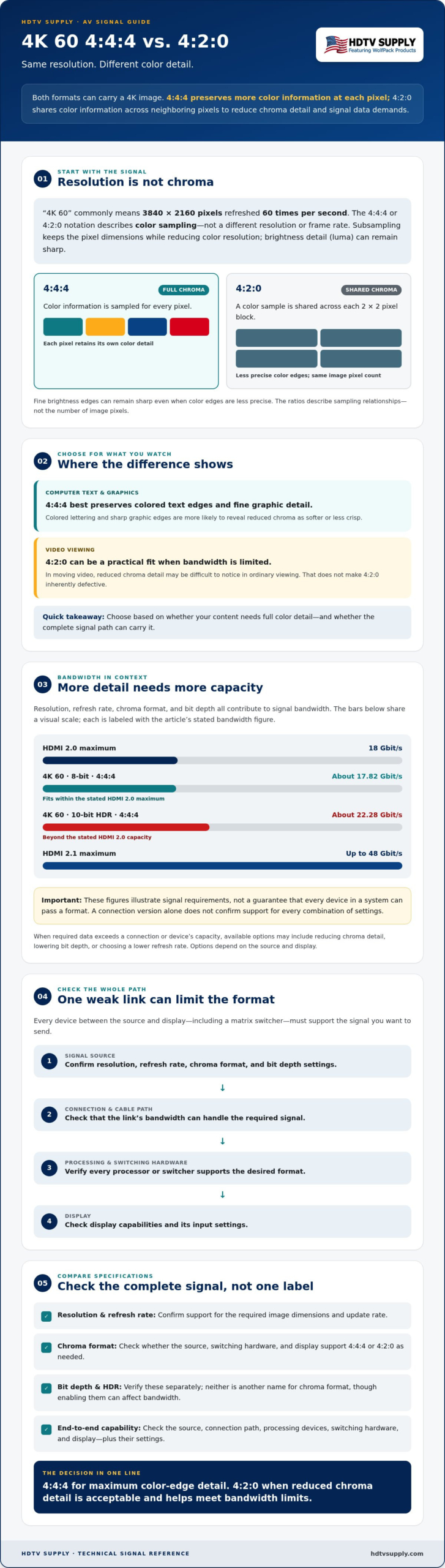
To understand what’s the difference between 4K 60 4:4:4 and 4:2:0, separate the image’s pixel dimensions from the way its color is sampled. “4K 60” commonly refers to a 3840 × 2160 image refreshed 60 times per second. The numbers that follow describe chroma sampling, not a different resolution or frame rate.
4:4:4 retains full chroma detail at every pixel, while 4:2:0 reduces the color sampling shared across neighboring pixels. Both formats can carry a 4K image. Chroma subsampling reduces color resolution while retaining luma detail, the brightness information that defines much of an image’s fine structure. The Chroma subsampling reference explains how these sampling ratios relate to one another.
How to read the 4:4:4 and 4:2:0 notation
Imagine a small grid with four pixel columns across two rows. Each pixel has luma information. In 4:4:4, color information is sampled for every pixel. In 4:2:0, a color sample is shared across each 2 × 2 pixel block, reducing chroma detail horizontally and vertically. The ratio describes sampling relationships, not a count of the image’s pixels. Fine brightness edges can remain sharp even when color edges are less precise.
Subsampling does not lower the 4K pixel count. The display still receives the same number of image pixels; some pixels share color information rather than each having an independently sampled color value.
Why resolution alone does not describe the whole signal
A video signal has several distinct specifications: resolution is its pixel dimensions, refresh rate is how often the image updates, chroma format describes color sampling, and bit depth describes the number of levels available for each component. Compare all four when checking source, switching-device, and display capabilities.
Device menus may also show RGB or YCbCr. RGB carries red, green, and blue components; YCbCr separates luma (Y) from two color-difference components (Cb and Cr). Chroma sampling ratios commonly appear with YCbCr, while RGB is typically represented without subsampling as 4:4:4. The table summarizes the practical distinction:
| Format | Chroma retention | Typical use | Text-edge clarity |
|---|---|---|---|
| 4:4:4 | Full, color detail per pixel | Computer text and graphics | Best preserved |
| 4:2:0 | Reduced, shared across 2 × 2 pixels | Common video distribution | Colored edges may look softer |
How Chroma Subsampling Affects 4K 60Hz Bandwidth and Image Detail
A 4K 60Hz signal carries a large amount of image data. Preserving more color detail generally requires more bandwidth. Moving from 4:4:4 to 4:2:0 can help a signal fit within a link’s capacity, but chroma is only one part of the calculation. Resolution, refresh rate, bit depth, and color format all contribute to the total data rate.
For context, HDMI 2.0 has a maximum bandwidth of 18 Gbit/s. A 3840 × 2160 signal at 60Hz with 8-bit color and 4:4:4 requires about 17.82 Gbit/s, so it fits within that limit. At 10-bit HDR with 4:4:4, the requirement rises to about 22.28 Gbit/s, beyond HDMI 2.0’s capacity. HDMI 2.1 supports up to 48 Gbit/s, providing more bandwidth for demanding formats. These figures illustrate why a connection’s version alone doesn’t confirm support for every combination of settings. Check the source, cable path, processing devices, and display specifications.
For another bandwidth reference, see standard industry bandwidth calculators and documentation. Use the figures as a guide to signal requirements, not as a guarantee that every device in a particular chain can pass the format.
What changes when bandwidth is limited?
If the required data rate exceeds what a connection or device can handle, the system may need a less demanding signal mode. Depending on the source and display, options could include reducing chroma detail, lowering bit depth, or choosing a lower refresh rate. Available options vary by device and may not be offered in every setup.
Bit depth and HDR are separate from chroma format. Bit depth determines how many tonal levels can be represented; HDR describes an image presentation with a wider brightness range. Neither is another name for 4:4:4 or 4:2:0, although enabling them can affect the bandwidth a signal requires.
Why 4:2:0 can still deliver detailed 4K video
Moving video often contains broad areas of color and changing detail, so reduced chroma resolution may be difficult to notice in ordinary viewing. Fine colored lettering and sharp graphic edges can reveal it more readily. That doesn’t make 4:2:0 inherently defective; it can be a practical fit for video when bandwidth is limited.
Bandwidth trade-off: 4:2:0 reduces color detail to lower signal data demands, while 4:4:4 uses more bandwidth to preserve color detail at each pixel. In a working system, the difference between 4K 60 4:4:4 and 4:2:0 comes down to chroma detail and the capacity of every link in the chain, not a change in 4K resolution. Before selecting switching hardware, compare your source and display requirements with the published specifications for the full signal path. HDTV Supply lists professional AV hardware for system planning.
4:4:4 Vs. 4:2:0: Which Format Fits Text, Graphics, and Video?
The useful question isn’t which format always looks better. It’s which one preserves the details your content depends on while fitting your source, display, and signal path. On a desktop used for spreadsheets or small text, reduced color detail may be visible around letter edges. For movie playback, the difference may be much less noticeable. Let the viewing task guide your choice.
When 4:4:4 matters most
Test 4:4:4 if the display also serves as a computer monitor. Open a spreadsheet and inspect small colored text against a contrasting background, thin interface lines, and detailed graphics. These edges can reveal chroma softness that’s easy to miss in ordinary video. The visible effect still depends on the content, display, viewing distance, and picture settings. Test representative material from your normal seating position rather than relying on a format label alone.
When 4:2:0 may be a practical choice
For a video-focused installation, 4:2:0 may be a reasonable option, particularly if bandwidth or device support limits the available signal modes. Movie images generally don’t contain as much sharp, static colored text as desktop content, so reduced color resolution may be less apparent. Confirm the intended resolution, refresh rate, HDR mode, and bit depth together, then assess the result with the content viewers will actually use.
| Typical use | 4:4:4 to consider when… | 4:2:0 to consider when… | Practical check |
|---|---|---|---|
| Desktop work | Small text, spreadsheets, or colored interface elements need clear edges. | Bandwidth or device limits require a lower-data format and text remains acceptable. | Inspect fine colored text and thin lines. |
| Graphics and presentations | Detailed diagrams or sharp color boundaries are important. | Slides are mainly viewed as images and the reduced chroma detail isn’t distracting. | Check icons, labels, and graphic edges. |
| Movies and TV | You want full chroma detail and the system supports the required signal. | Video is the main use and this mode better fits system constraints. | Compare familiar scenes on the actual display. |
For everyday viewing, the difference between 4K 60 4:4:4 and 4:2:0 is the trade-off between color-edge precision and signal demands, while the 4K pixel dimensions stay the same. Neither format guarantees a particular result by itself: source processing, display settings, and every active device in the path affect what reaches the screen. Choose based on your content and confirm that the complete system can carry the selected mode.
How to Verify 4K 60 4:4:4 or 4:2:0 Across an AV Signal Chain
A device’s advertised maximum doesn’t prove that the entire system can pass the format you need. Check every active link, from source to display, for the same combination of resolution, refresh rate, chroma format, and bit depth. Use this workflow before commissioning a system or troubleshooting an unexpectedly soft image.
- Check the source. Confirm the output settings and manufacturer specifications for the player, computer, or other source. Verify that it can produce the required resolution, refresh rate, chroma format, and bit depth together, not just each capability separately.
- Check processing devices. Review the specifications for every matrix switcher, extender, adapter, or AV receiver in the path. Confirm support for the intended input and output formats. An HDMI connector alone doesn’t confirm a device’s maximum bandwidth or format support.
- Check the transmission path. Verify that the cables and any intermediate connection points are rated for the signal’s requirements. If one link can’t carry the selected mode, the system may fall back to a lower-data format or refresh rate.
- Check the display. Consult its documentation for supported input formats and settings. Some displays offer different capabilities by input or require a setting to be enabled before accepting a particular format.
- Verify the active signal. Inspect the source’s output menu and the display’s information screen, where available. Confirm what is actually being transmitted and received rather than relying only on the selected source setting.
Check EDID and HDCP if the signal changes or disappears
EDID is the display capability information shared with a source. The source uses it to determine which output modes to offer or select. A matrix switcher or other processor can affect that exchange, so the source may choose a lower format than expected if the EDID presented to it doesn’t advertise the desired mode. If the screen is black or the signal falls back unexpectedly, review EDID configuration and confirm HDCP compatibility across the devices. HDTV Supply’s published guide, Mastering HDMI Matrix EDID Management for Pro AV Systems, covers this configuration topic.
Check the current specification sheets for every component, including the exact combination of settings you plan to use. Don’t assume that confirmed 4K 60 4:4:4 support also confirms a particular HDR mode or bit depth. To compare switching hardware with your source and display requirements, contact HDTV Supply for product-selection assistance.
Choosing 4K 60 4:4:4 AV Equipment Without a Compatibility Guess
Select switching hardware only after defining the signal your system needs to carry. A specification that states 4K 60 4:4:4 doesn’t automatically confirm support for every HDR mode or bit depth. Check the complete combination in the current documentation, then verify that each source, device, cable path, and display can handle it.
Questions to answer before selecting a matrix switcher
- What signal must pass? Record the required resolution, refresh rate, chroma format, and bit depth for each source and display. Note HDR requirements separately.
- How many devices need to connect? Count sources and displays, then map the required routing. Identify whether each output needs the same signal or different modes.
- What sits in the signal path? Include switchers, extenders, adapters, receivers, and cables. Check the full chain’s specifications rather than relying on one device’s headline capability.
- What does the documentation actually confirm? Look for the exact combination of settings you intend to use. Don’t infer HDR or a particular bit depth from a stated 4K 60 4:4:4 capability.
For broader matrix-switcher planning, consult the published Modular HDMI Matrix Switchers: 2026 Pro AV Guide. Use it as a starting point, then verify the current specification sheet for the specific equipment under consideration.
Where HDTV Supply fits into the equipment decision
HDTV Supply is an online source for professional AV hardware, with technical assistance available to customers. Its offerings include WolfPackSecure 4K 60 4:4:4 HDMI Matrix Switchers. The product name identifies a relevant category, but it isn’t a substitute for checking a particular unit’s specifications against your source, display, and required signal format.
If you’re comparing formats, consider the difference between 4K 60 4:4:4 and 4:2:0 for your actual content and signal path. A computer-based setup with small colored text may call for different criteria than a video-only system. Set your requirements first, then compare equipment documentation and confirm compatibility across every connection.
Before selecting a matrix switcher, verify your source count, display count, routing needs, and the exact signal modes each device must support. Contact HDTV Supply for assistance reviewing product-selection requirements. Confirm the system specifications before choosing equipment, especially if HDR or a specific bit depth is required.
Choose the Signal Format Your System Can Reliably Support
The key difference between 4K 60 4:4:4 and 4:2:0 is the balance between color-edge detail and bandwidth. 4:4:4 is worth prioritizing for computer text and fine graphics; 4:2:0 can be a practical fit for video-focused use. Neither changes the 4K pixel count.
Before choosing equipment, confirm the required resolution, refresh rate, chroma format, bit depth, and HDR mode across the entire signal chain. Check every source, switcher, transmission link, and display. One device’s stated capability doesn’t confirm that the complete system supports the same signal combination.
HDTV Supply is a global online retailer of professional AV hardware, with more than 12,000 products in its catalog and technical support for customers. Its offerings include WolfPackSecure 4K 60 4:4:4 HDMI Matrix Switchers. Compare current specifications with your system requirements before selecting hardware.
Contact HDTV Supply to review your AV system requirements and make your next equipment decision with greater confidence. A verified signal path is a strong foundation for clear, reliable AV performance.
Frequently Asked Questions
What is the difference between 4:4:4 and 4:2:0?
4:4:4 retains full chroma sampling, while 4:2:0 reduces color sampling relative to brightness information. Both formats can carry a 4K image, so the difference is color detail, not pixel resolution. Reduced chroma may be easier to see around fine colored text and computer graphics than in ordinary video. What you notice depends on the source, display, content, viewing conditions, and settings.
Is 4:4:4 better than 4:2:0 for 4K 60Hz?
Not for every use. 4:4:4 can preserve fine color detail, making it useful for desktop text, spreadsheets, and graphics. 4:2:0 reduces chroma detail and may work well for video-focused systems where bandwidth or device support is a constraint. Compare both formats using the content you actually view, then confirm every component supports the required resolution, refresh rate, chroma format, and bit depth.
Can you tell the difference between 4:4:4 and 4:2:0?
You may notice the difference around small colored text, sharp interface elements, or graphics with fine color boundaries. It can be less apparent in typical video, where reduced color detail may be less noticeable. The result varies by display and settings. Test representative content at your normal viewing distance, and check the source’s output settings to confirm which format it’s sending rather than relying on a menu selection alone.
Does 4:2:0 mean the signal is not true 4K?
No. 4K refers to image resolution, while 4:2:0 describes chroma sampling. A 4:2:0 signal can retain 4K pixel dimensions while carrying less color detail than 4:4:4. Evaluate resolution, refresh rate, chroma format, and bit depth as separate specifications. The chroma label alone doesn’t determine whether the signal is 4K, nor does it describe every aspect of image quality.
Why does my 4K 60Hz device switch from 4:4:4 to 4:2:0?
A source may select 4:2:0 if bandwidth is limited or if the display or an intermediate device reports that 4:4:4 isn’t supported for the selected mode. Check source output settings, device specifications, the transmission path, and display-supported formats. EDID information can influence the available output modes. If the image is downgraded or missing, review the full signal chain and HDCP compatibility before changing settings or replacing equipment.
Do all HDMI matrix switchers support 4K 60 4:4:4?
No. An HDMI connector doesn’t confirm support for a particular resolution, refresh rate, chroma format, or bit depth. Check the specific switcher’s documentation alongside the source, display, extenders, and adapters in the system. Verify the exact signal combination required, including HDR or HDCP requirements where applicable. Confirm end-to-end compatibility before purchasing or commissioning a matrix switcher, and don’t assume one listed capability proves support for every mode.
Leave a Reply
Want to join the discussion?Feel free to contribute!