

HDMI Matrix Switcher Troubleshooting: The Professional’s Guide to Signal Integrity
A black screen during a high-stakes broadcast isn’t just a technical glitch; it’s an immediate threat to your venue’s revenue and reputation. Most professionals realize that “No Signal” messages rarely stem from a faulty cable. Instead, these failures typically signal a breakdown in complex digital handshakes between EDID and HDCP protocols. Effective HDMI matrix switcher troubleshooting requires more than a simple power cycle. It demands a systematic approach to identifying exactly where the communication chain has fractured.
You understand the pressure of intermittent flickering and the confusion caused by mixing HDCP 2.2 and 1.4 hardware in a commercial environment. This guide provides the technical mastery needed to resolve these conflicts and restore signal integrity across your entire network. We will examine expert techniques for stabilizing digital handshakes, managing EDID settings, and utilizing modular architecture for rapid hardware recovery. You’ll gain the specific knowledge required to eliminate signal dropouts and ensure your sports bar or commercial venue maintains 24/7 reliability.
Key Takeaways
- Identify “lowest common denominator” resolution issues by mastering EDID management across diverse display networks.
- Execute professional HDMI matrix switcher troubleshooting to isolate HDCP 2.2 and 1.4 compatibility conflicts that cause intermittent flickering.
- Leverage modular system architecture to isolate hardware failures and perform rapid card-level replacements without system-wide downtime.
- Utilize a systematic diagnostic checklist to verify signal chain integrity through bypass testing and thermal monitoring.
- Optimize system reliability using WolfPad control interfaces to simplify user operations and reduce common configuration errors.
Decoding the HDMI Handshake: Why Matrix Switchers Fail
Successful HDMI matrix switcher troubleshooting begins with a technical understanding of the bidirectional communication known as the handshake. The HDMI standard dictates that every device in the signal chain must agree on resolution, frame rate, and encryption before a single pixel appears on screen. In a pro-AV environment, this isn’t a simple two-way street. It’s a three-part negotiation involving the source, the matrix itself, and the end display. When any link in this chain fails to provide the correct metadata, the system defaults to a “No Signal” state or a restricted resolution.
Matrix switchers act as the primary negotiators in these complex architectures. They don’t just pass signals; they manage the logic flow. High-performance systems like WolfPackSecure 4K 60 4:4:4 HDMI Matrix Switchers require extreme precision to maintain signal integrity. While consumer-grade switches might handle compressed 1080p without issue, commercial 4K 60Hz signals demand a full 18Gbps bandwidth. Any minor impedance or timing error within the matrix logic will break the handshake, resulting in immediate signal loss across the distribution network.
Distinguishing between hardware failure and protocol errors is essential for rapid recovery. A “No Signal” or “Check Connection” message usually points to a physical hardware break or a disconnected port. However, a solid black screen often indicates a successful physical connection but a failed HDCP (High-bandwidth Digital Content Protection) negotiation. Understanding these symptoms allows technicians to bypass irrelevant components and focus on the specific protocol causing the outage.
The Role of the Matrix in Digital Negotiation
The matrix performs a dual-mimicry role. It presents itself as a display to the source while simultaneously acting as a source to the destination TVs. This process, often managed through EDID (Extended Display Identification Data), can create logic loops if the switching speed isn’t optimized. In high-bandwidth 18Gbps paths, even a millisecond delay in the handshake can cause the source to stop transmitting. Reliable commercial systems prioritize handshake stability to prevent the “cycling” effect often seen in lower-tier hardware.
Identifying Symptoms: Flickering vs. Total Signal Loss
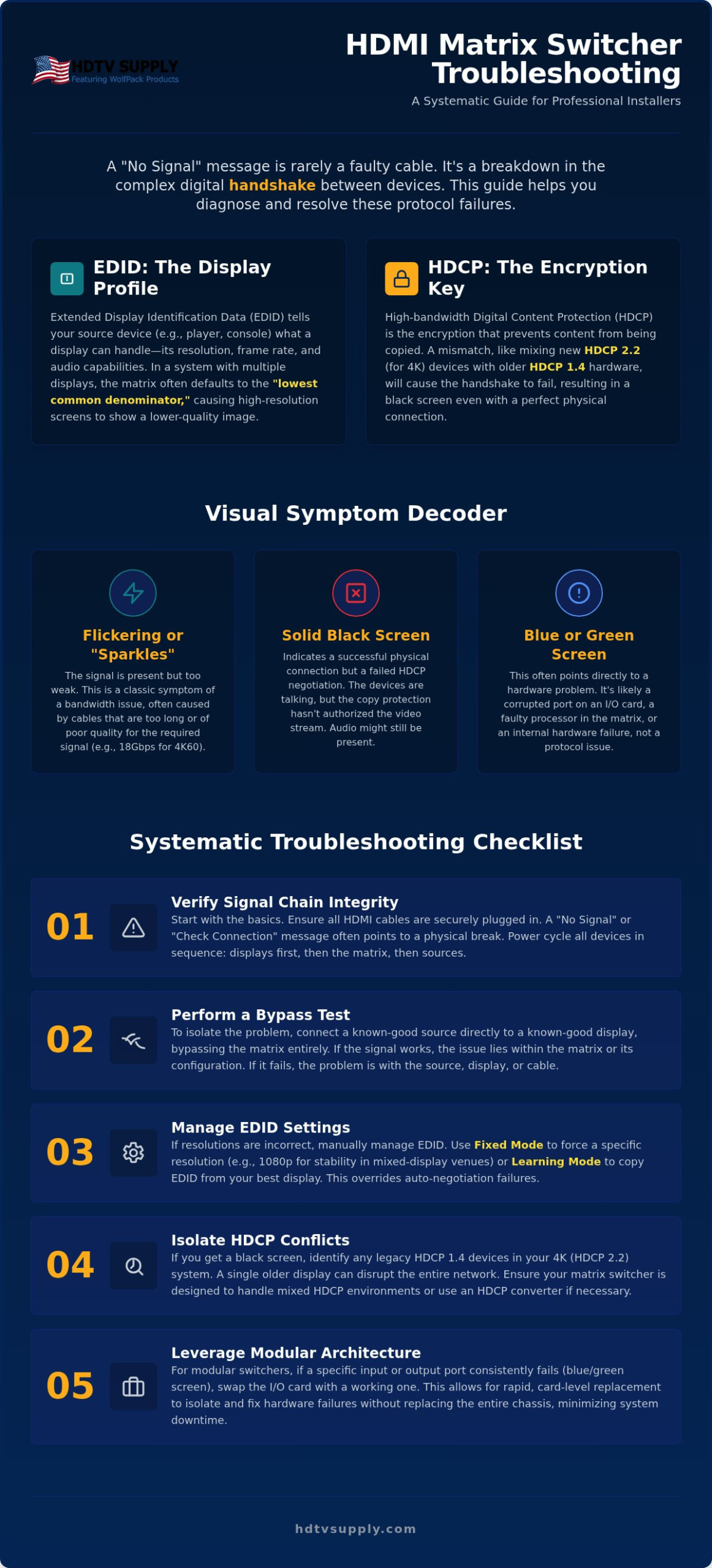
Pinpointing the exact visual symptom accelerates the repair process. Use this categorical breakdown to diagnose the root cause:
- Flickering or “Sparkles”: These are typically bandwidth or cable distance issues. It suggests the signal is reaching the display but is too weak to maintain a stable clock.
- Solid Black Screen with Audio: This is a classic HDCP encryption mismatch. The devices have connected, but the copy protection hasn’t authorized the video stream.
- Blue or Green Screen: These colors often indicate a physical hardware failure or a corrupted port on the I/O card.
Resolving EDID and HDCP Conflicts in Pro AV Environments
EDID is the foundational metadata protocol that tells a source device exactly what a display can handle. In complex distribution, the matrix switcher often defaults to a “lowest common denominator” setting. If you have nine 4K displays and one legacy 1080p screen, the source may downscale the entire output to 1080p to accommodate that single unit. Effective HDMI matrix switcher troubleshooting requires identifying these bottlenecks early. This is a primary focus during Resolving EDID and HDCP Conflicts, as mismatched metadata is the most frequent cause of resolution drops.
HDCP versioning adds another layer of complexity to signal distribution. HDCP 2.2 is required for 4K content, but it isn’t backward compatible with HDCP 1.4. In a Sports Bar TV Distribution System, one older TV can trigger a system-wide blackout if the matrix isn’t configured to handle mixed encryption standards. Older HDCP devices also suffer from key limits. Legacy sources often have a limited number of internal keys, meaning they can only transmit to a few displays before the encryption fails and the signal cuts out.
EDID Management Strategies
Professional switchers offer Fixed and Learning EDID modes to bypass auto-negotiation failures. Fixed mode uses a pre-set profile, such as 4K @ 60Hz, to force the source to stay at a specific resolution regardless of what the displays report. Learning mode copies the EDID from a specific high-performance output and applies it to all other inputs. For mixed-resolution venues, setting a global 1080p EDID often provides the most stability. You can also use audio-mapping via EDID to ensure 2-channel PCM audio reaches all TVs even if some displays support advanced surround sound formats. To ensure your venue’s audio performance matches your video quality, SoundXcel provides premium Bose solutions tailored for professional AV environments.
Maintaining HDCP 2.2 compatibility across every cable, extender, and display is the only way to secure a true 4K signal chain. WolfPackSecure technology is specifically designed to manage these high-bandwidth encryption handshakes reliably. It provides robust key management for 4K 60 4:4:4 signals, preventing the authorization timeouts that plague consumer-grade hardware. For venues requiring rock-solid stability, integrating WolfPack Modular Matrix Switchers ensures these protocol conflicts are managed at the hardware level, allowing for seamless integration of legacy displays without compromising the rest of the network.
Analyzing Modular Hardware and Signal Chain Integrity
Effective HDMI matrix switcher troubleshooting requires a shift from protocol analysis to physical layer diagnostics. High-capacity systems like WolfPack Modular Matrix Switchers offer a significant advantage through compartmentalization. In a standard fixed-chassis switch, a single port failure often necessitates replacing the entire unit. Modular architecture allows technicians to isolate faults to specific 4-port or 8-port I/O cards. This ensures that a failure on one display doesn’t compromise the rest of your Sports Bar TV Distribution System. Before selecting a chassis size for your venue, reviewing a comparison of HDMI matrix switcher 16×16 versus 32×32 architectures can help you avoid choosing a system that becomes a bottleneck as your display count grows.
Environmental management is equally critical for 24/7 commercial reliability. Thermal throttling occurs when the matrix processor exceeds its safe operating temperature, leading to intermittent signal drops or “ghosting” on the video wall. Professional rack integration must include active cooling to prevent heat buildup. Additionally, installers should follow the “Last On, First Off” power sequencing rule. Powering the matrix and displays before the source ensures the distribution network is ready to receive the handshake metadata immediately upon source activation.
Troubleshooting Modular I/O Cards
If a specific group of ports fails, the issue is likely the physical interface with the internal backplane. Begin by powering down the chassis and reseating the suspect input or output card. Thermal expansion can occasionally loosen card connections over time. To determine if the failure is the card or the cable, swap the suspect card with a known working one from a different slot. If the problem follows the card, the hardware requires service. Always check the LED status indicators on the card faceplate; a solid “Link” light confirms a successful physical connection, while a dark LED suggests a power rail failure within the chassis.
Long-Distance Signal Distribution Failures
Pro-AV systems often rely on HDBaseT or Active Optical Cables (AOC) for runs exceeding 50 feet. HDBaseT failures are frequently tied to Power-over-Cable (PoC) issues. If a remote receiver isn’t powering up, verify your CAT6 terminations; unshielded twisted pair (UTP) cables are highly susceptible to EMI if run parallel to high-voltage lines. For fiber-optic HDMI solutions, the bend radius is the most common point of failure. Fiber cores are fragile. A tight turn in a conduit can fracture the glass, causing “sparkles” or total signal loss. If you suspect a cable break, test the path with a short, high-speed HDMI cable to bypass the long-distance run entirely.
A Systematic Troubleshooting Checklist for Installers
Adopting a logical sequence is the most effective way to minimize downtime during HDMI matrix switcher troubleshooting. In high-stakes commercial venues, time is revenue. Technicians shouldn’t waste hours on trial-and-error cable swaps. Instead, follow a tiered diagnostic process that moves from the physical layer to software logic. This methodology ensures you identify the root cause before attempting complex re-configurations.
- Step 1: Simplify the Path. Perform a direct source-to-display bypass test to confirm the source device is actually outputting a signal.
- Step 2: Verify Power and Cooling. Inspect chassis fans for dust accumulation and verify that the power supply is delivering consistent voltage. Thermal buildup often causes the processor to drop signals intermittently.
- Step 3: Update Firmware. Commercial distribution hardware requires the latest WolfPack kernels to maintain compatibility with evolving streaming box protocols.
- Step 4: Audit EDID Settings. Reset the matrix to a known standard, such as 1080p, to establish a baseline connection before attempting 4K handshakes.
- Step 5: Factory Reset. If logic errors persist after firmware updates, a full factory reset clears corrupted memory registers and allows for a clean reconfiguration.
The 5-Minute Bypass Test
Isolating the matrix from the rest of the signal chain is the fastest way to find a failure point. Connect a source directly to a portable monitor using a short, high-speed HDMI cable. If the image appears, move the monitor to the matrix output port. This process confirms whether the failure exists within the switcher or the long-run HDBaseT or fiber cabling. Signal Isolation is the primary goal of the bypass test. By removing variables like extenders and wall plates, you can definitively prove if the matrix hardware is functioning correctly.
Firmware and Software Audits
Modern matrix systems are essentially specialized computers. Access the web interface (GUI) to review system logs; these logs often reveal exactly which port is triggering an HDCP violation. Firmware updates resolve 90% of new HDCP 2.2 handshake bugs by updating the encryption key database. Ensuring your system runs the latest software also stabilizes IP control for WolfPad TV Control Systems, preventing communication timeouts between the matrix and the user interface. If you encounter persistent software instability, verify that the matrix and control tablet are on the same VLAN to avoid network-induced lag.
Professional Support: Leveraging HDTV Supply Expertise
Recognizing when internal HDMI matrix switcher troubleshooting has reached its limit is vital for maintaining uptime. While protocol resets and cable swaps resolve most issues, certain symptoms indicate non-serviceable hardware failures. If a chassis fails to initialize or a power rail stops delivering voltage to modular slots, professional intervention is required. Relying on an established leader ensures you don’t waste time on irreparable components. Mission-critical venues often utilize service contracts to guarantee immediate hardware replacement, keeping their distribution networks operational during peak hours.
Upgrading legacy systems to WolfPackSecure 4K 60 4:4:4 HDMI Matrix Switchers provides the ultimate layer of protection against future signal dropouts. These systems are engineered for 24/7 commercial reliability, featuring robust encryption management that consumer-grade hardware lacks. By standardizing on professional-grade architecture, you eliminate the compatibility bottlenecks caused by mismatched HDCP standards and low-bandwidth cabling. This proactive approach to system architecture reduces the frequency of technical interventions. For a comprehensive overview of current bandwidth requirements and hardware specifications, the 2026 Pro AV professional HDMI distribution system buyer’s guide provides an essential technical roadmap for future-proofing your commercial venue infrastructure.
WolfPack Technical Support Resources
Accessing expert assistance shouldn’t be a hurdle. We provide lifetime technical support via our toll-free assistance line for all professional AV products. To accelerate your session, have your model number, signal type, and specific display specifications ready for the technician. Our team draws from a catalog of over 12,000 professional AV products to identify exact replacement I/O cards or compatible extenders. This level of readiness allows for real-time diagnostics that can often restore a video signal immediately without a site visit.
Simplifying Control with WolfPad
User error remains a leading cause of reported system failures. Remote control clutter often leads to staff selecting the wrong inputs, which mimics a signal loss event. Implementing WolfPad TV Control Systems eliminates this confusion through a centralized, tablet-based interface. This simplified control layer stabilizes matrix switching commands by sending precise IP or RS232 signals, preventing the logic loops caused by rapid, manual button presses. If your current system feels unstable, Contact HDTV Supply for WolfPack Support to explore control and distribution optimizations.
Securing Long-Term Signal Integrity for Your Venue
Maintaining a seamless video distribution network requires more than reactive fixes. It demands a technical understanding of digital handshakes and the use of professional-grade hardware designed for 24/7 operation. By implementing a systematic approach to HDMI matrix switcher troubleshooting, you can isolate card-level failures and resolve protocol conflicts before they impact your guests. Transitioning to modular architectures ensures your sports bar or commercial venue remains resilient against individual port failures and evolving encryption standards.
Professional support is the final link in a reliable AV chain. We specialize in large venue TV distribution and provide expert technical assistance on all WolfPack systems. With 1-year and extended warranties available, you can focus on your business while we handle the complexities of signal distribution. Don’t let technical glitches disrupt your revenue or reputation any longer. Troubleshoot with the Pros: Shop WolfPack Matrix Systems and ensure your displays stay bright, clear, and perfectly synchronized.
Frequently Asked Questions
Why is my HDMI matrix switcher showing a ‘No Signal’ message on only one TV?
This localized failure typically points to a specific break in the physical signal path rather than a system-wide processor error. You should inspect the HDMI cable, the output port on the matrix, and any HDBaseT extenders in that specific run. Swap the cable with a known working one to isolate the fault. If your system uses a modular chassis, try reseating the output card to ensure the physical interface with the backplane is secure.
How do I fix an HDCP error on my professional matrix switcher?
HDCP errors occur when the encryption standards don’t match across the entire signal chain, often when mixing 4K and 1080p displays. Access the matrix web interface to synchronize these standards. You can often resolve this by forcing the matrix to output a lower HDCP version for legacy displays. WolfPackSecure systems manage these handshakes automatically, but manual adjustment of EDID settings is sometimes required to accommodate older hardware limitations.
What is the best way to reset a WolfPack HDMI matrix?
Perform a hard power cycle followed by a factory reset through the web GUI or front panel menu. Disconnect the power cable for 60 seconds to clear the volatile memory registers. For a deeper logic reset, select “Factory Default” in the system menu to clear corrupted switching kernels. Always backup your port configurations and IP assignments before initiating a factory reset, especially in complex commercial environments with specific naming conventions.
Can a bad HDMI cable cause the entire matrix switcher to freeze?
Yes, a shorted cable or one with excessive electromagnetic interference can trigger a logic lockup in the main processor. Faulty cables send electrical noise back into the I/O card, overwhelming the error-correction logic of the switcher. If your system freezes, disconnect all inputs and outputs. Reconnect them one by one to identify the specific cable run causing the interference. High-quality, certified cables are essential for preventing these system-wide failures.
How does EDID management help with different TV resolutions?
EDID management forces the source device to output a specific resolution that is compatible with your entire display network. This prevents the “lowest common denominator” problem where one 1080p TV forces a 4K source to downscale for every screen. Setting a fixed EDID is a vital step in HDMI matrix switcher troubleshooting. It ensures consistent video quality and prevents the intermittent blackouts caused by sources constantly trying to re-negotiate resolution parameters.
Why does my video flicker when I switch inputs on my matrix?
Flickering during switching is usually caused by a delay in the re-negotiation of the digital handshake between the source and the display. When you change inputs, the matrix must re-establish EDID and HDCP parameters. If your cables are near their maximum bandwidth or distance limits, this process becomes unstable. Upgrading to 18Gbps high-speed cables or active optical cables often stabilizes these transitions and eliminates the visual artifacts seen during input changes.
Is it necessary to use shielded CAT6 for HDMI over Ethernet extensions?
Shielded CAT6 (STP) is mandatory in commercial environments to prevent EMI from disrupting the high-frequency HDBaseT signal. Unshielded cables act like antennas, picking up noise from power lines, fluorescent ballasts, and other electronics. This interference causes signal dropouts, “sparkles,” or total handshake failure. Ensure you use shielded connectors and properly ground the drain wire to maintain the signal integrity required for reliable long-distance distribution in sports bars and large venues.
How do I update the firmware on my WolfPack matrix switcher?
Download the latest firmware kernel from the official support portal and upload it through the system’s web GUI. Log into the matrix using its assigned IP address, navigate to the “Update” tab, and select the firmware file. It’s critical not to power off the unit during this process to avoid corrupting the internal memory. Regular updates are necessary to maintain compatibility with new streaming hardware and to resolve protocol bugs in the switching logic.
Leave a Reply
Want to join the discussion?Feel free to contribute!