
HDCP-Compliant HDMI Splitter: Troubleshooting and Selection Guide
Will an HDCP compliant HDMI splitter keep protected video playing across every connected display, or leave you with a blank screen? A compliant splitter can distribute a protected signal without removing HDCP, but compatibility depends on the entire signal chain. A mismatch between the source, splitter, cables, or displays can interrupt playback, even when the splitter’s listing claims HDCP support.
Product labels can be confusing. HDCP version numbers don’t tell the whole story, especially when displays support different resolutions, audio formats, or protection standards. One screen’s capabilities can affect the signal sent to all the others.
This guide explains how HDCP affects HDMI splitting, how compliant distribution differs from HDCP removal, and how to isolate the source of handshake failures. You’ll also learn what to check across the signal chain, including EDID management, before choosing a splitter for your system’s required format. The goal is a reliable match between your source, distribution hardware, and every display.
Key Takeaways
- See how an HDCP compliant HDMI splitter distributes one source to multiple displays while preserving content protection.
- Compare source, splitter, and display capabilities to identify the signal format your system needs to support.
- Use a step-by-step test sequence to narrow down whether a blank screen comes from the source, a connection, or a display.
- Define source and display counts, cable paths, and control needs before selecting distribution equipment.
- Record system components and protected-content requirements to make planning and troubleshooting more precise.
What an HDCP-Compliant HDMI Splitter Does, and What It Does Not Do
An HDMI splitter takes one source signal and distributes it to multiple outputs at the same time. For example, a streaming player can feed two displays through a splitter. An HDMI switch does the opposite: it selects between multiple sources for one display. This distinction matters when planning a system. A splitter lets more screens show the same source; it doesn’t create additional sources or let each screen show different content.
HDCP, or High-bandwidth Digital Content Protection, is designed to protect certain copyrighted video as it travels between devices. A compliant splitter supports playback by passing protected content through compatible equipment. It does not remove that protection. The source, splitter, and destination devices must complete a compatible authentication exchange before protected video can display. For 4K protected content, HDCP 2.2 is widely required; HDCP 1.4 is an older standard associated with 1080p content. The High-bandwidth Digital Content Protection (HDCP) overview provides further background on the standard and its versions.
Compliance is necessary, but it doesn’t guarantee that a system will work. A source may support the required HDCP version while one display or intermediate device does not. Displays can also differ in resolution and audio capabilities, so the selected format must be supported throughout the signal path. Cables don’t perform HDCP authentication, but a cable that can’t reliably carry the required signal format can still cause dropouts or a blank screen. The splitter’s label alone can’t confirm that every combination of devices and settings will work.
How HDCP affects a source-to-display signal path
Trace the signal in order: source output, splitter input, splitter outputs, cables, and each connected display. The source and receiving devices exchange authentication information through the connected equipment. If a display fails to authenticate, protected playback may stop or show an error. The selected resolution and audio format matter too. A chain that works at one setting may fail at a higher-bandwidth format or with a less capable display connected.
HDCP-compliant splitter versus an HDCP stripper
A compliant splitter distributes protected content while maintaining HDCP protection across the connection. A stripper or bypass device is intended to remove or evade that protection, which is not compliant distribution. Terms such as “bypass” in a product description aren’t proof of legitimate compatibility or reliable operation. Avoid circumvention methods. Bypassing content protection may conflict with a content provider’s terms or applicable rules.
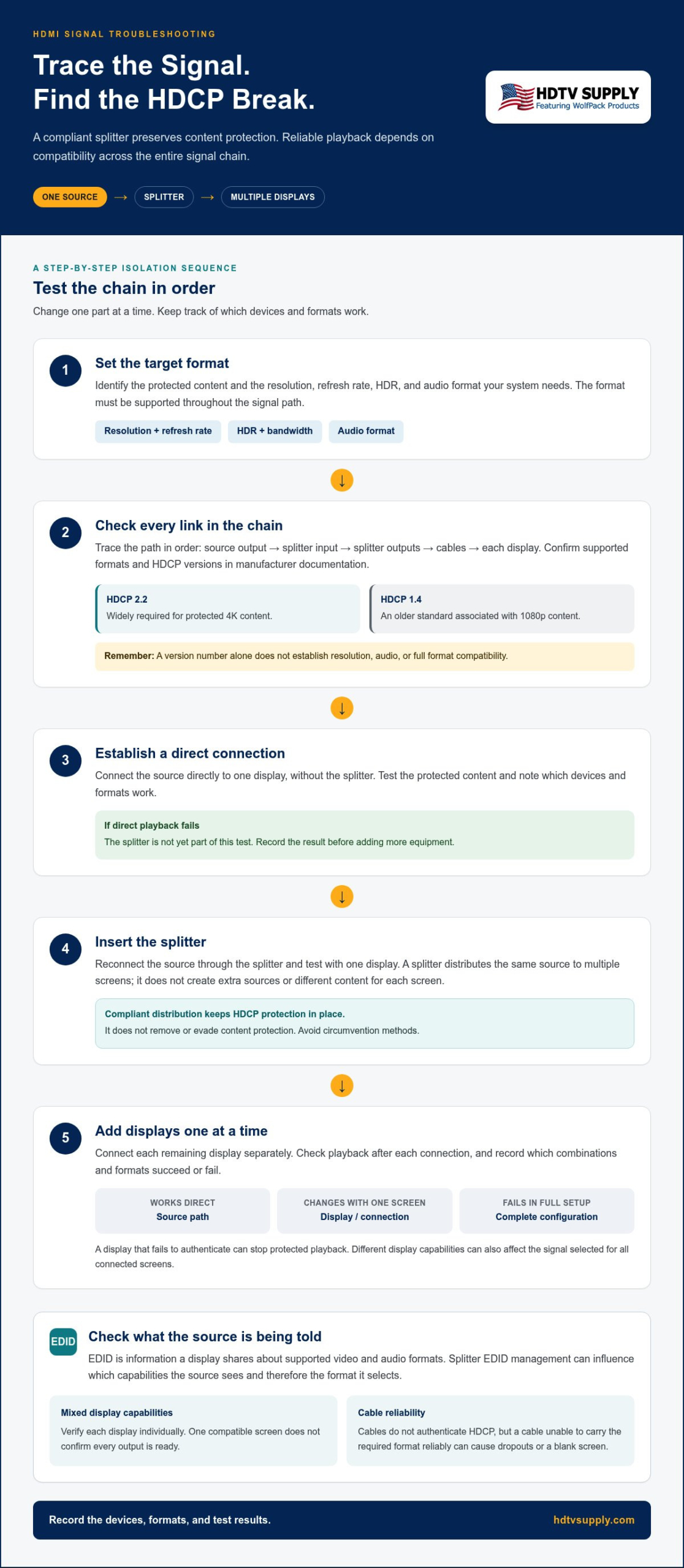
For troubleshooting, treat the system as a chain rather than blaming the splitter right away. Test the source directly with a display, then add the splitter and connect outputs one at a time. Record which devices and formats work. This helps identify whether the issue follows the source, a display, a connection, or the complete configuration, and gives you a clear starting point for the compatibility checks in the next section.
How to Match HDCP, Resolution, and EDID Across the HDMI Chain
Choose a splitter by comparing the complete signal path, not by relying on one HDCP label. Start with the protected content you need to play, then check the source output, splitter capability, cables, and each display input. The target format must work across the path. A model that supports a particular resolution or HDCP version can still be unsuitable if another device or output can’t handle the required combination.
Which specifications must match before choosing a splitter?
List the source’s available output formats and the formats accepted by every display. Match resolution and refresh rate to your viewing requirements, then account for HDR and bandwidth. These specifications work together: a higher resolution, refresh rate, or HDR format can increase signal demands. Confirm HDCP support in manufacturer documentation for the source, splitter, and displays. HDCP 2.2 is widely required for protected 4K content, while HDCP 1.4 is an older standard associated with 1080p. HDCP 2.3 is a newer version, but the version number alone doesn’t establish format compatibility.
| Specification | What to compare | Why it matters |
|---|---|---|
| HDCP | Source, splitter, and each display’s supported version | A mismatch can prevent protected playback. |
| Resolution and refresh rate | Source output against splitter handling and display inputs | Every link must support the target format. |
| HDR and bandwidth | Format requirements against device and cable capabilities | These affect whether the chosen signal can pass reliably. |
| Audio and EDID | Source options and the capabilities reported through the splitter | Negotiation can affect the format selected by the source. |
Use the Digital Content Protection LLC (DCP) as the official reference point for HDCP information. If your system uses multiple displays, verify each device individually rather than assuming that one compatible screen means all outputs are ready. This is the practical basis for selecting an HDCP compliant HDMI splitter: match its documented capabilities to the actual source and every destination.
Why EDID matters when displays have different capabilities
EDID, or Extended Display Identification Data, is information a display shares with the source about supported video and audio formats. The splitter’s EDID management can influence what capabilities the source sees. When a 4K display and a 1080p display are connected together, the source may select a lower common format so both screens can receive a usable signal. Exact behavior depends on the equipment and EDID mode.
EDID and HDCP solve different problems. EDID communicates supported formats; HDCP handles authentication for protected content. Changing an EDID setting may affect the selected format, but it won’t correct an HDCP incompatibility or guarantee a universal fix. Compare the available EDID options in the device documentation, then choose based on whether the system prioritizes a shared format or a particular display’s capabilities. For broader system planning, consider professional AV distribution equipment alongside the source and display specifications.
HDCP Splitter Troubleshooting: Isolate the Source of a Blank Screen
A blank screen is a symptom, not a diagnosis. Test the system in stages so you can identify where protected playback stops working instead of changing several settings at once. Keep the same source, protected content, resolution, and refresh rate throughout the initial tests. Record each result, including the display and splitter output used. This gives you a repeatable comparison and helps distinguish a device or format mismatch from a connection problem.
A step-by-step test for protected HDMI playback
- Test the source directly. Connect the source to one display with a cable suitable for the format. Play the same protected content you plan to distribute. If playback fails, test another input or known-good cable and review the source’s output settings and display compatibility before adding distribution equipment.
- Introduce the splitter. Connect the source to the splitter input and one display to a single output. Keep the test format unchanged. Confirm that the display is set to the correct HDMI input, then check whether the same content plays.
- Add displays individually. Connect one additional display at a time, testing playback after each connection. Note the exact output port and display that first causes a failure. If possible, swap cables or outputs separately to see whether the problem follows the display, cable, or splitter port.
- Review settings and connections. Reseat HDMI connections and confirm that the devices are powered and set to the intended inputs. Then review documented HDCP, resolution, refresh-rate, HDR, and EDID settings. Change one setting at a time and retest so each result remains useful.
What the test results can reveal
If direct playback fails, the splitter isn’t part of the tested path yet. First focus on the source’s output configuration, the selected display input, the cable, and whether the display supports the content’s required format and HDCP version. A successful direct test establishes a useful baseline, but it doesn’t prove that the complete multi-display system will work.
If the splitter works with one display but fails when another is connected, compare that display’s supported formats and input settings with the working screen. The newly connected display may affect the format negotiated for the system. Check the splitter’s documented EDID options and test any adjustment one at a time. EDID changes affect capability information, not HDCP authentication.
If every output fails only after the splitter is introduced, verify that the source is connected to the correct input and that the tested splitter configuration supports the required signal and protected content. Check its documentation against the source and displays, including relevant HDCP versions and format limits. If an HDCP compliant HDMI splitter still won’t pass the direct-test combination, record the source model, display models, output used, cable path, content, and settings. Those details make the failure reproducible and keep troubleshooting focused on restoring compliant playback, not bypassing content protection.
Choosing a Compliant HDMI Splitter for One Source and Multiple Displays
Choose distribution equipment around the system you need to run, not a headline feature or output count alone. Before selecting an HDCP compliant HDMI splitter, document the number of sources and displays, the required video and audio formats, the cable paths, and how users need to control playback. These details show whether a splitter fits the job or the system needs a different distribution architecture.
Choose the output count and required signal format
Start with the displays that must show the same source at the same time. Select enough outputs for those screens, then note any planned expansion so the design doesn’t immediately run out of connections. More outputs alone don’t ensure compatibility. The device must also support the format you intend to distribute.
- Source count: Identify whether the system has one source or several, and whether they need to be available simultaneously.
- Display count: Count every destination and record which screens need the same feed.
- Required format: Specify the resolution, refresh rate, HDR, audio, and HDCP requirements for the content and displays.
- Cable path: Map the source-to-distribution and output-to-display runs, including any intermediate equipment.
- Control needs: Decide how users will select content or manage the system, especially if sources or viewing areas may change.
Prioritize the required format over a product’s advertised maximum. A “maximum” claim doesn’t establish that the signal will work through every output, cable path, and connected display in your configuration. If displays have different capabilities, decide whether they should use a shared format or a particular screen must receive a specific format. Check the documentation for downscaling or EDID functions instead of assuming those features are available or behave the same across devices.
Decide whether a splitter or matrix fits the system
A splitter is the straightforward choice when one source needs to feed multiple displays with the same content. It isn’t designed to let each display select a different source. If viewers need independent source-to-display routing, the system needs a matrix. For multi-source systems, consider HDMI matrix EDID management as part of format planning, since routing and display capabilities need to be considered together.
Before finalizing the layout, sketch the signal flow and label each source, output, display, and cable run. Note which screens share content and which need independent choices. This simple system map helps reveal when one-to-many distribution is sufficient and when routing flexibility matters. For more routing context, review this modular HDMI matrix switcher guide.
Ready to plan around your source, display, and control requirements? Explore professional AV equipment for system-level distribution options.
Plan a Reliable HDCP-Compliant HDMI Distribution System
A reliable system starts with a written signal plan, not a product label. Bring together the source and display documentation, intended content formats, cable layout, and user requirements before selecting equipment. This creates a practical reference for checking compatibility, comparing options, and diagnosing issues if the system changes later. It also helps distinguish a straightforward one-source distribution requirement from a project that needs more flexible routing.
Build a compatibility record before purchasing
Capture the details that determine what the system must carry and where. Use manufacturer documentation to confirm HDCP versions and supported inputs or outputs, and note the exact format required for protected content. A clear record keeps requirements visible instead of relying on memory or broad marketing labels.
- Sources: Record each model, available output settings, and the protected-content formats it must play.
- Displays: Document each model, input capabilities, supported formats, and manufacturer-stated HDCP version.
- Signal route: Map source connections, distribution outputs, cable runs, intermediate devices, and the number of displays.
- EDID needs: Note whether the displays share capabilities or whether the system needs a particular format to reach a specific screen. Record any required EDID behavior without assuming all devices offer the same modes.
- Control requirements: Describe how users will select or manage sources and whether every display shows the same feed.
Turn the record into a system decision
Compare the required format with the documented capabilities of every component in its path. If one source feeds multiple displays with the same content, evaluate one-to-many distribution. If displays must receive different sources independently, plan for a routing system instead. Keep protected playback compliant: bypass terminology is not a substitute for matching HDCP support across the chain.
Before ordering, use the record as a final review. Confirm that the output count covers the displays, the required resolution and refresh rate fit the path, and the planned cables and intermediate equipment suit the signal. If the project may expand, document the likely change now. Clear planning can prevent selecting equipment around a current layout that won’t meet the system’s operating needs.
Find equipment and technical assistance for the project
HDTV Supply is a global online retailer of professional AV equipment serving installers and integrators. Its catalog includes more than 12,000 AV products, and customers can purchase online or call for assistance. When seeking technical guidance, have the source and display models, required protected-content formats, cable routes, output count, and control needs ready. This keeps the discussion grounded in system specifications rather than broad product claims.
Ready to put your compatibility record into action? Explore HDTV Supply’s AV equipment with your source, display, and signal requirements in view.
Put Your HDMI Distribution Plan Into Action
Treat your system record as a working document. Update it whenever a source, display, cable route, or required content format changes. It gives installers and integrators a consistent reference for future adjustments and helps keep equipment decisions tied to the system’s real needs, not a label alone.
Use that specification-led approach as you evaluate an HDCP compliant HDMI splitter or broader AV distribution equipment. HDTV Supply serves installers and integrators worldwide, with a catalog of more than 12,000 AV products, online purchasing, and phone assistance. Explore HDTV Supply’s professional AV equipment with your system plan in hand.
A clearly documented signal path makes the next decision easier. Build around the formats and routing your displays actually need.
Frequently Asked Questions
Can an HDCP-compliant HDMI splitter show protected content on multiple TVs?
Yes. Compliant distribution can support protected playback on multiple TVs if the source, splitter, displays, and selected format are compatible. “Compliant” by itself doesn’t guarantee that every combination will work. Check manufacturer documentation for HDCP versions and video capabilities across the chain. If playback fails, test one TV at a time and note whether the problem follows a particular display, input, or output.
What is the difference between an HDCP splitter and an HDCP stripper?
A splitter sends one source signal to multiple outputs while preserving supported content protection. A stripper is generally described as removing or bypassing HDCP, which is a different function and not compliant distribution. Don’t use bypass terminology as a compatibility solution or attempt to circumvent protection. Circumvention may conflict with content-provider terms or applicable rules. Instead, use equipment and settings that support protected playback.
Why does my HDMI splitter show a black screen with protected content?
A black screen can mean authentication or format negotiation is failing somewhere between the source, splitter, cable, and display. Connect the source directly to one display and test the same content first. If that works, add the splitter and outputs one at a time. Confirm the display’s selected input, then compare resolution and refresh-rate settings with documented HDCP and format support. This helps identify the failing link without assuming the splitter is solely responsible.
Does an HDMI splitter need to support the same HDCP version as my devices?
The source, splitter, and display chain must support a compatible protection path for the content and format in use. Matching version labels alone doesn’t guarantee playback, since the selected resolution, refresh rate, and other video features also affect compatibility. Review each manufacturer’s specifications, including those for the display input you’re using. If a device offers multiple HDMI inputs, capabilities can differ by input, so check the documentation for that specific connection.
Can one HDMI splitter connect a 4K TV and a 1080p TV?
It can, depending on the splitter’s capabilities, EDID behavior, source negotiation, and each TV’s supported formats. In some setups, the source may choose a shared lower format that both displays accept; independent formats aren’t assured. For example, a 4K screen may not receive 4K when paired with a less capable display. Check documentation for the exact combination and test both TVs together at the intended settings.
Will an HDMI splitter extend my desktop across two monitors?
A standard splitter generally mirrors one source output, so both monitors show the same desktop rather than separate work areas. Extended desktop behavior depends on the computer’s graphics outputs and the wider display architecture. Before choosing equipment, decide whether you need identical content or independent screens. Check the computer’s supported display configuration and available outputs; a splitter alone typically won’t create additional independent desktop areas.
Does EDID fix HDCP errors on an HDMI splitter?
Not necessarily. EDID communicates display capabilities and can influence the video format the source selects; HDCP handles content-protection authentication. Adjusting EDID may help with a format-negotiation issue, but it can’t guarantee a fix for an authentication failure. Review the splitter’s documentation before changing settings, then test the source, displays, and outputs individually. Record which configuration works so you can reverse an adjustment if it causes a new issue.
Leave a Reply
Want to join the discussion?Feel free to contribute!