

HDBaseT Troubleshooting Guide: Diagnose Signal Issues Step by Step
What if the fastest fix for an HDBaseT signal failure is to stop swapping hardware and trace the signal path instead? When a display shows no image or loses signal intermittently, the source, cable, extender, and display can all seem like possible causes. This HDBaseT troubleshooting guide gives you a practical way to find the fault before changing several variables at once.
Repeated tests and unnecessary component swaps waste time, especially when the problem persists. Follow a step-by-step process to isolate each link, interpret symptoms, and decide what to test next. The goal is to restore a stable picture while retaining the resolution and control functions your system is designed to support.
Start at the source and trace the signal through the cabling, extender, and display. Include a matrix switcher if one is part of the chain. Check connections, signal settings, and likely configuration or hardware issues in sequence, so you can distinguish a useful adjustment from a component that may need replacement.
Key Takeaways
- Trace the complete signal path to narrow down which connection or component needs attention.
- Match symptoms to diagnostic tests instead of assuming a single cause for a blank or intermittent image.
- Compare the selected format with the equipment documentation before changing system settings.
- Start with non-invasive checks, then isolate components one variable at a time.
- Record repeatable failures, affected paths, and test results to guide the decision to reconfigure, repair, or replace equipment.
HDBaseT Troubleshooting Guide: Start with the Symptom and Signal Path
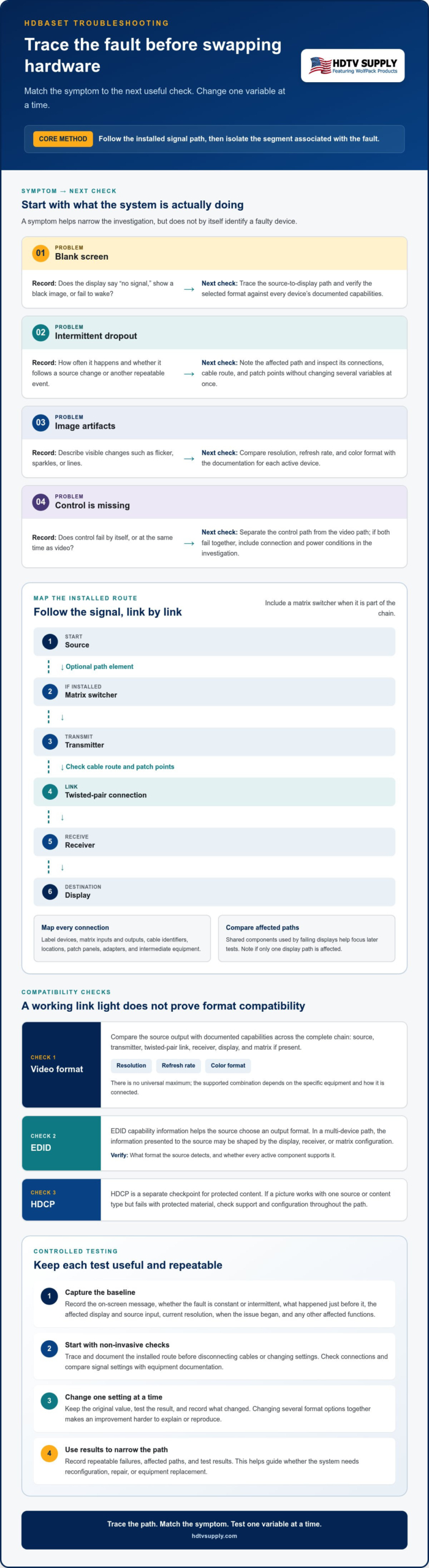
Start by tracing the signal path rather than swapping components. Follow video, control, and power through the system, then identify the segment associated with the fault. A typical chain includes a source, transmitter, twisted-pair link, receiver, and display. A matrix switcher may sit between the source and transmitter, or provide transmission as part of its output design.
Featured snippet definition: HDBaseT troubleshooting is the process of tracing a system’s signal, control, and power paths to isolate the component or connection causing a fault.
Basic signal path: Source → optional matrix → transmitter → twisted-pair link → receiver → display
Control and power paths vary by system, so note which functions the equipment is designed to carry. For an overview of the technology and its capabilities, see HDBaseT technology explained. Map the installation you have rather than assuming every HDBaseT system uses the same layout.
Which HDBaseT symptoms should you record first?
Describe the fault before testing. A blank screen, intermittent dropout, image artifacts, and missing control are different symptoms, even if they occur at the same display. Record the exact on-screen message, whether the problem is constant or intermittent, and what happens immediately before it appears.
- Blank screen: Note whether the display reports “no signal,” shows a black image, or fails to wake.
- Intermittent dropout: Record how often it occurs and whether it follows a source change or another repeatable event.
- Image artifacts: Describe flicker, sparkles, lines, or other visible changes.
- Missing control: Check whether control fails on its own or at the same time as video.
Also record the affected display and source input, current resolution, when the issue began, and whether other transported functions are affected. These details help distinguish a fault on one path from a wider system problem.
How to map the HDBaseT installation before testing
Map the route from source to display before disconnecting cables or changing settings. Label each device and connection in sequence, including matrix inputs and outputs, transmitter and receiver locations, patch panels, adapters, and intermediate equipment. Note the cable route and any patch points along the twisted-pair link. A simple diagram or annotated signal-flow document is enough if it reflects the installed path.
- Mark each source, matrix connection, transmitter, receiver, and display.
- Note cable identifiers, route, and patch locations.
- Flag components shared by working and failing displays.
Shared components provide useful clues. If several displays fail through one matrix output or common link segment, prioritize that area in later tests. If only one display path is affected, keep that distinction in your notes. A clear map helps prevent a disconnected cable or changed route from becoming a new variable during diagnosis.
How HDBaseT Carries Video, and Why Link Compatibility Matters
An HDBaseT picture depends on a compatible, working path: the source output, transmitter, twisted-pair connection, receiver, and display must work together. If a matrix switcher is in the route, its input, output, and signal-handling settings are part of that path. A device powering on or showing a link indicator does not prove every component can pass the selected video format.
End-to-end compatibility matters across every active component in an HDBaseT link. Check the documentation for each device in the actual chain. Do not assume that a format supported by the source is also supported by the transmitter, receiver, matrix, and display. The official HDBaseT standard and best practices provide a reference point, while each device’s documentation specifies its supported formats and behavior.
Separate video symptoms from problems with other transported functions. A stable picture with failed control points to a different diagnostic path than a blank image. If video and control fail together, or a receiver behaves inconsistently, include connection and power conditions in your investigation when the system uses HDBaseT power. A symptom alone does not identify a faulty device, but it can help narrow down what to verify next.
Which signal-format settings can interrupt an HDBaseT picture?
Compare the source’s current output with the documented capabilities of every device in the chain. Check resolution, refresh rate, and color format separately. There is no universal maximum: the supported combination depends on the specific equipment and how it is connected. If the source was recently changed, verify that its output settings are still within the capabilities of the downstream devices.
Change one setting at a time, then check whether the picture changes. Record the original setting and the result of each test. If you change several format options together, it becomes harder to explain an improvement or reproduce the original fault.
How EDID and HDCP can affect the signal chain
EDID is capability information that helps a source choose an output format. In a multi-device path, the information presented to the source may be shaped by the display, receiver, or matrix configuration. If the source selects a format that another active component cannot handle, the result may be no image or unstable video. Check what the source detects and compare it with the equipment documentation.
HDCP is a separate checkpoint for protected content. If a picture works with one source or content type but fails with protected material, check HDCP support and configuration throughout the path. That pattern alone does not prove a cable or hardware failure. If a matrix is involved, review the HDMI matrix EDID management guide for configuration context.
When testing points to a matrix or another distribution component, HDTV Supply’s AV hardware catalog and technical assistance can help you assess the wider signal chain. Browse HDTV Supply AV hardware for professional AV equipment.
Match HDBaseT Symptoms to the Most Useful Diagnostic Tests
Use symptoms to choose the next test, not to declare a component faulty. A blank screen, intermittent loss, visible artifacts, and missing control can involve different parts of the system, and similar symptoms can have different causes. Use this HDBaseT troubleshooting guide to pair each symptom with likely areas to investigate and a controlled next step.
Blank screen: Check device power, selected source and display inputs, connections, and then format compatibility. Test the source directly with the display if the layout permits.
Intermittent loss: Inspect connectors, patch points, cable routing, and shared equipment. Compare the affected route with a working display path.
Artifacts or flicker: Investigate the signal path and format settings. Note whether the symptom changes with the source, resolution, or route.
Control missing, video present: Focus on control settings, connections, and the intended control path instead of assuming the video link is at fault.
Video and other functions fail together: Check for a shared connection or equipment issue, including power-related conditions when the system uses HDBaseT power.
These are starting points, not definitive diagnoses. Record each test result before moving on. If a change affects several displays at once, investigate components or settings shared by those paths. If only one route changes, keep the focus on that route.
What to test when HDBaseT video is completely blank
Begin with simple checks, then isolate the path. Confirm that the source is active and outputting a signal. Verify the selected source input, matrix route if present, and display input. Check that equipment is powered and connections are seated. Then compare the configured format with the documented capabilities of the equipment in the path.
If the picture remains blank, connect the source directly to the display if the layout and equipment allow it. A working direct connection narrows the investigation to components or connections removed from the test path, but it does not identify a single culprit. Restore the original path, then bypass one intermediate component at a time. Keep settings constant and note the exact change that restores or fails to restore the image.
How to investigate dropouts, artifacts, or missing functions
Look for a repeatable trigger. Record whether dropouts follow a source change, equipment restart, or another consistent event. Inspect connectors and patch points along the affected route, and review the cable path for changes or nearby sources of interference. Avoid disturbing several connections at once, since that can make the original condition harder to reproduce.
Compare the failing display with a working one that shares equipment. If both show the same symptom, prioritize their common source, matrix route, or other shared component. If video remains stable but control fails, test the control configuration and path separately. For matrix-based systems, the modular HDMI matrix switcher guide offers useful context for tracing routes and shared components.
Follow a Controlled HDBaseT Troubleshooting Checklist
A repeatable process helps prevent troubleshooting from creating new faults. Start with non-invasive checks, record the original state, and make one change per test. Changing one variable at a time makes it easier to identify which connection or setting affects the fault. Before unplugging equipment, restarting it, or changing its configuration, note the current setup and follow the equipment’s operating instructions.
- Document the baseline. Record the symptom, active source, selected inputs and outputs, current format settings, and affected displays or functions. Note whether the fault is constant or intermittent.
- Inspect without disturbing the path. Check device status indicators and look for loose connections, visible cable damage, or an unexpected input selection. Photograph or mark existing connections before touching them.
- Verify configuration. Compare source output, matrix routing, and device settings with the equipment documentation. Confirm the intended source and display route, and note any setting that differs from the documented configuration.
- Isolate one segment. Bypass or substitute one component or connection at a time, where the system layout permits. Leave all other settings and connections unchanged.
- Test and log the result. Reproduce the original symptom after each change. Record what you altered and whether the fault disappeared, changed, or stayed the same.
- Restore and verify. Return temporary bypasses and settings to their intended state. Confirm the original routes and functions work as expected, then document any unresolved fault and the tests completed.
A step-by-step process for isolating an HDBaseT fault
Before bypassing equipment, verify power, selected inputs, matrix output assignments, and secure connections at both ends of the link. If a known-good compatible component or path is available, use it only when its compatibility is documented. A successful substitution narrows the suspect area but does not prove the removed device is defective. After testing a bypass, reintroduce removed components individually. If the symptom returns after one is restored, record that repeatable result.
Checks for cabling, connectors, and equipment configuration
Inspect accessible RJ45 connectors, patch panels, couplers, and visible cable sections for damage, poor seating, or an unexpected intermediate connection. Compare the installed cable type and termination approach with the requirements in the specific equipment documentation. Do not assume a cable meets the system’s needs based on appearance alone. Keep a change log, and restore each setting after its test unless you intend to adopt the corrected configuration.
For a matrix-based signal chain, clear test records can help show whether the issue points to routing or another AV component. Explore HDTV Supply AV hardware and technical support for professional AV equipment and technical assistance.
When to Repair, Reconfigure, or Replace HDBaseT Equipment
Use test results, not a hunch, to choose the next step. Correct a setting or route when the fault follows a configuration change and the equipment supports the intended format. Repair or correct a connection when inspection or controlled testing points to a loose, damaged, or incorrectly terminated link. Consider replacement only when a fault repeatedly follows one component through controlled tests and the system requirements are clear.
A single blank screen or dropout is not enough to declare hardware defective. The troubleshooting process should leave you with repeatable evidence: which paths fail, under what settings, and what happens when a specific component or connection is isolated. That record helps prevent unnecessary swaps and gives technical support a clear starting point.
How to decide whether the fault is configuration or hardware
Prioritize configuration checks when the symptom follows a source change, output assignment, or video-format adjustment. Restore the previous working setting or route, then test the change again. Consider hardware fault isolation when the same failure follows one component through controlled tests while other compatible paths or components operate normally. Do not decide from a single result. Repeat the test and keep the rest of the system unchanged.
Use these decision cues:
- Reconfigure: The fault appears after a route or setting change and clears when the documented working configuration is restored.
- Correct the connection: Inspection or testing consistently points to a connector, patch point, or cable termination.
- Consider replacement: A component repeatedly reproduces the fault in a controlled path after configuration and connections have been checked.
Before replacing equipment, compare the proposed component’s documented interfaces and format support with every device it must connect to. Include required control functions and the system’s routing needs. Similar connector types alone do not establish compatibility.
Prepare the system details needed for a solution
Compile model identifiers for the source, matrix if present, transmitter, receiver, and display. Add the connection order, cable type and termination details, current settings, exact symptom, and affected paths. Note the required video format and control functions, along with which tests changed the outcome. This concise system record helps distinguish a configuration adjustment from a connection issue or a component that may need replacement.
Keep the change log with the system map. Record temporary test settings and the final restored configuration, so the next person can reproduce the fault without repeating every step or introducing new variables. If the system has working and failing outputs, mark the shared equipment and the components unique to each path.
Once the likely fault area and system requirements are clear, browse professional AV hardware and technical support for relevant equipment and technical assistance. Share the documented signal path and test results when seeking guidance on a configuration or hardware decision.
Put Your Signal-Path Findings to Work
A fault you can reproduce and describe clearly gives you a stronger basis for the next decision. Use your findings to determine whether the system needs a settings adjustment, a connection correction, or a component that better fits its documented requirements. Keep test notes with the system records so future changes can be assessed against a known baseline.
If the next step involves reviewing professional AV equipment, compare your documented interface, format, routing, and control needs with the system design. HDTV Supply offers direct online purchasing from a catalog of more than 12,000 products, along with technical support for installers and integrators worldwide.
Explore professional AV hardware and get technical assistance to help inform your next system decision. With clear test results and the right equipment details in hand, you can move forward with greater confidence.
Frequently Asked Questions
Does HDBaseT require a network switch?
Typically, no. A standard HDBaseT link connects compatible transmitting and receiving equipment directly; it does not route ordinary IP traffic through an Ethernet switch. Do not insert network hardware unless the documentation for your specific system explicitly supports that topology. RJ45-style connectors can be misleading: a familiar socket and cable do not make an HDBaseT link interchangeable with a LAN connection.
Can I connect an HDBaseT transmitter directly to a television?
It depends on the television’s inputs and the HDBaseT equipment design. Many setups use a compatible receiver at the display end to present the signal for the television’s HDMI input. Check the transmitter and receiver documentation for the required endpoint arrangement. An RJ45-style connector on a display does not, by itself, mean it accepts an HDBaseT signal.
Will an HDBaseT system work with every HDMI source?
No. Compatibility depends on the source’s output format and the documented capabilities of each device between it and the display. An HDMI connector alone does not guarantee that every source format will pass through the system. Start with a straightforward format supported across the chain, then adjust resolution, refresh rate, or color settings individually. This helps pinpoint which setting affects the result.
Can HDBaseT carry control signals as well as video?
Some HDBaseT equipment transports control functions, but support depends on the transmitter, receiver, and system configuration. A working picture confirms only that the video path is operating. It does not confirm that control is connected or configured. Treat control as a separate test: identify its interface and wiring in the equipment documentation, then test it independently.
Why does HDBaseT work with one source but not another?
Sources can differ in output format, content-protection behavior, and how they negotiate capabilities with downstream equipment. Keep the display path unchanged and compare the sources’ output settings, changing only the source during the test. If one works at a supported lower format, record that result and compare it with the failing source’s settings. This gives you a specific compatibility difference to investigate.
Should I restart all devices when an HDBaseT link fails?
Record the symptom and current configuration before restarting devices. If the equipment documentation recommends a restart, follow its sequence and avoid changing other settings during the test. Restarting may temporarily clear a fault without revealing its cause. Note which devices were restarted, whether the picture returned, and whether the problem recurs, including any consistent event that precedes the failure.
Leave a Reply
Want to join the discussion?Feel free to contribute!