
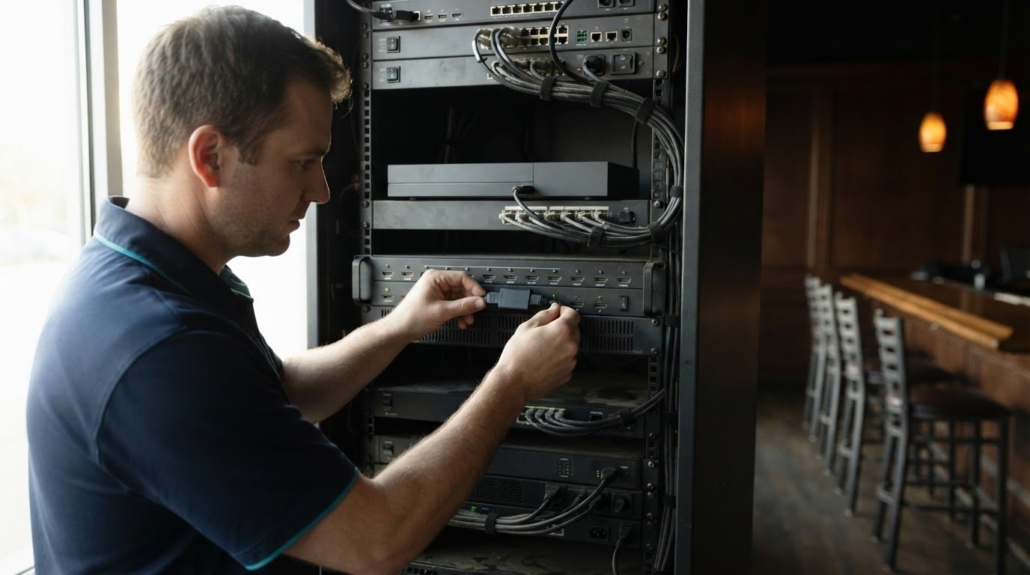
EDID emulation for HDMI troubleshooting and black screens
A black HDMI screen can result from a failed handshake, not a failed display. EDID emulation for HDMI troubleshooting helps a video source receive the display’s capability information when the normal handshake is disrupted. EDID tells the source which resolutions, color formats, and refresh rates the display supports. A problem along the signal path can therefore leave the image blank or limit the available modes.
If your monitor supports a high refresh rate but the source offers only a lower one, the display may seem like the obvious cause. But the entire path matters: receivers, switchers, docks, KVMs, adapters, cables, and input settings can all affect whether the intended mode is communicated and carried successfully.
This article explains how EDID and HDMI handshakes work, why communication failures can cause black screens or missing refresh rates, and when an emulator can help. It also explains why an emulator cannot replace a signal path that supports the target resolution and refresh rate.
Key Takeaways
- Understand how hot plug detect and the HDMI handshake establish communication between a source and display, and why startup order can matter.
- Isolate a black-screen or missing-mode problem by simplifying the signal chain and testing whether an intermediate device is affecting EDID communication.
- Use an EDID emulator to preserve or present display capability data when a connection needs a stable profile, while ensuring the full signal path supports the target mode.
- Learn what EDID data contains and how capturing or copying it can help diagnose compatibility across displays and connected equipment.
HDMI hot plug detect and handshake sequence
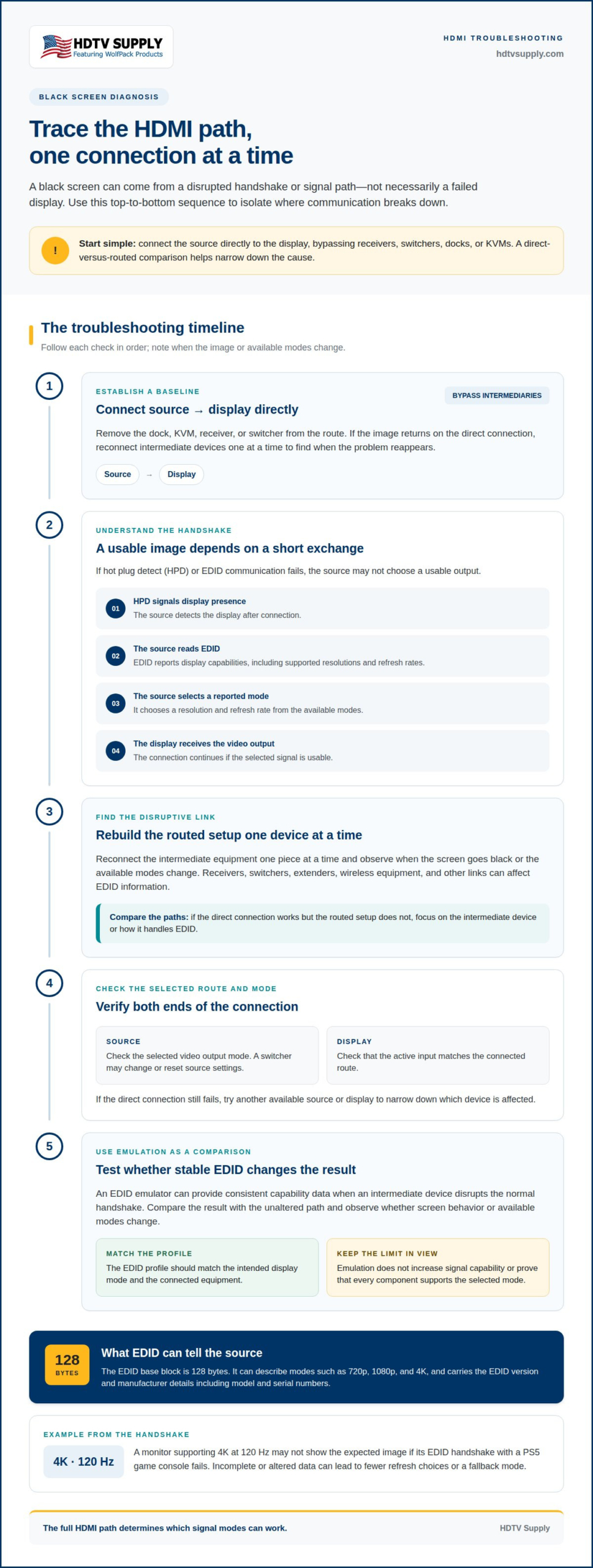
When an HDMI display and source connect and power on, hot plug detect (HPD) signals that the display is present. The source then reads the display’s EDID, or Extended Display Identification Data, before choosing a video output. This exchange helps the devices select a supported signal mode. If HPD or EDID communication fails, the source may not select a usable output.
EDID gives the source display capability information, including supported resolutions and refresh rates. Its base block is 128 bytes and can describe modes such as 720p, 1080p, and 4K. It also carries the EDID version and manufacturer details, including model and serial numbers. The source uses those fields to determine which options it can offer.
The handshake follows a practical sequence:
- The HDMI source detects the display through HPD after connection.
- The source reads EDID capability data from the display.
- The source selects a resolution and refresh rate from the reported modes.
- The display receives the video output, and the connection continues.
A failure early in this sequence can affect the final image. For example, a monitor supporting 4K at 120 Hz may not show the expected image if its EDID handshake with a PS5 game console fails. If the source receives incomplete or altered data, it may offer fewer refresh choices or select a fallback mode.
Receivers, switchers, and distributors can affect this exchange because they sit between the source and display. EDID emulation for HDMI troubleshooting can provide consistent capability data when an intermediate device disrupts the normal handshake. It can also help identify whether the source is receiving usable display information. Emulation does not increase the signal capability of connected equipment, so the selected mode still depends on the entire HDMI path.
Troubleshooting black screens and EDID communication failures
A black screen can result from an interrupted signal path or a capability mismatch, rather than a failed display. Compare a direct connection with the routed setup to narrow down the cause.
Diagnosing Black Screens
Diagnosing a black screen means finding which connected device or link is preventing a usable image from reaching the display. This matters because a receiver, switcher, dock, or KVM can change the signal path even when the source and display work separately.
Start by connecting the source directly to the display, bypassing the dock or KVM. If the image returns, reconnect intermediate devices one at a time and note when the screen goes black. This can reveal whether a switching device or a particular link triggers the problem. If the direct connection still fails, try another available source or display to narrow down which device is affected.
Check the source’s selected output mode and the display’s active input, too. If a switcher changes or resets output settings, you may need to reconfigure the source’s video output. Compare the screen before and after the change to see whether the selected mode or active route is involved.
EDID Communication Failures
An EDID communication failure occurs when a source cannot reliably obtain display capability data through the HDMI path. The source may then offer fallback modes, select an unsuitable output, or fail to produce an image.
Receivers, switchers, extenders, and wireless equipment can affect EDID information as signals pass through. Compare the direct connection with the routed setup. If only the direct path works, focus on the intermediate device or how it handles EDID.
EDID emulation for HDMI troubleshooting can provide consistent capability data and help determine whether disrupted communication is limiting the source. Compare the result with the unaltered path and observe whether the available modes or screen behavior changes. Use emulation as a diagnostic comparison, not as proof that every connected component supports the selected signal.
Switching can also affect connection status. An HDMI repeater or distributor can separate HPD signals, allowing inputs and outputs to communicate their status separately. If a switcher resets settings when the input changes, reconfigure the source’s output and test the active route again.
EDID emulators for HDMI troubleshooting
An emulator can provide a consistent EDID profile when an intermediate device disrupts capability reporting. For best results, the profile needs to match the monitor and the entire signal path.
Emulators, Pass-Through Adapters, and Managers
An EDID emulator presents stored or captured display information to a source. A pass-through adapter carries the connection without necessarily controlling that information, while an EDID manager actively controls which capability data the source receives. Device functions can overlap, so the practical distinction is whether EDID is simply passed through or deliberately maintained or selected.
Emulation can help when a KVM switch changes computers and the source needs a stable monitor profile. It can also help test compatibility or keep a source reading display data when the display’s EDID is faulty. With splitters and capture cards, it may address altered capability reporting, but it cannot make an unsupported signal path carry a mode.
Compatibility and Signal Problems
Compatibility problems can arise when an emulator presents settings that the monitor or another connected device cannot support. A profile advertising an unavailable resolution or refresh rate can leave the screen blank. Make sure the selected data matches the intended display mode and signal path.
For 4K, HDR, HDCP, or high refresh, choose an emulator whose supported EDID handling matches the required capabilities, then consider every link from source to display. No single EDID feature can compensate for a cable, switch, or display input that cannot carry the signal.
Can EDID emulation cause audio, HDCP, or resolution problems? Yes. An unsuitable profile can create a resolution mismatch, while audio dropouts or HDCP negotiation failures may persist because they involve other parts of the HDMI chain. One reported AVR case had audio dropouts with both a copied EDID and a built-in 4K 60 Hz profile, showing that emulation does not resolve every signal problem. Treat the emulator as a diagnostic and compatibility tool, not a cure-all.
How to read, capture, or copy EDID data from an HDMI display?
Reading EDID lets you inspect what a source can learn about a connected display. Capturing that data creates a reference for diagnosing missing modes or preparing an emulator profile.
Start with a direct HDMI connection between the source and display, then power on both devices. Use an EDID-reading utility or a capture-capable emulator to retrieve the display data. This gives you a baseline before receivers, switchers, or adapters affect what the source reads.
Inspect the reported capabilities, not just the display’s marketing specification. EDID can identify supported resolutions such as 720p, 1080p, and 4K. It also carries the EDID version and manufacturer information, including model and serial numbers. The base block is 128 bytes; additional reported data may provide further display capabilities.
Use a simple capture-and-compare process:
- Read and save the EDID from the display connected directly to the source.
- Record the modes the source makes available, including the intended resolution and refresh rate.
- Reconnect the usual signal path and read the EDID again, if the equipment allows it.
- Compare the reported information to identify changes introduced by an intermediate device.
- Load the captured profile into an emulator when a stable copy is needed for troubleshooting.
A saved profile can help distinguish a display-data problem from a signal-path limitation. If the direct connection reports the intended mode but the routed setup does not, that difference points to EDID handling in the chain. If EDID shows the mode but the image fails when you select it, investigate signal compatibility as well. EDID alone cannot prove that every cable, port, or device can carry the selected signal.
Keep the original capture alongside any edited or copied profile. That gives you a reference if changed settings produce a blank screen or remove a needed mode. For systems routing multiple HDMI sources and displays, explore HDMI signal-routing solutions suited to the setup.
HDTV Supply
HDTV Supply helps readers connect EDID troubleshooting to the wider requirements of an HDMI system. When a setup routes sources to multiple screens, the right switching and distribution equipment matters alongside the display’s reported capabilities.
For multi-display routing, WolfPackSecure 4K 60 4:4:4 HDMI Matrix Switchers and HDMI Video Wall Processors address different system configurations. WolfPad TV Control Systems provide a control option for TV setups. These offerings support broader AV system planning, but they don’t replace checking that each source, cable, connection, and display supports the intended signal.
If you’re planning or refining an HDMI system, contact HDTV Supply to discuss the equipment that fits your setup.
Plan the signal path around the display
Treat EDID as one part of the complete HDMI design. Consider how sources, displays, switching, and distribution work together, especially in setups serving multiple screens or requiring centralized control. This system-level view can turn troubleshooting into a clearer equipment decision.
HDTV Supply offers WolfPack Modular Matrix Switchers and WolfPad TV Control Systems for different AV configurations. These products address routing, venue distribution, and control needs. They are not EDID emulators, but can be relevant when planning the larger system around a display or source. Start by defining the signal requirements and how the connected devices will be used.
For guidance on aligning your equipment choices with your HDMI setup, contact HDTV Supply for HDMI help. A clear view of the signal path gives your next troubleshooting or system-planning decision a stronger foundation.
Frequently Asked Questions
How Does EDID Work?
EDID gives a video source a structured description of a display’s capabilities, which the source uses to select an output mode. The key distinction is between a mode being offered and working reliably: EDID helps the source choose, but does not establish that every component can carry the chosen signal. For diagnosis, compare the source’s available modes with what happens after you select one.
How to Handle EDID with Multiple Monitors and Sources?
In a multi-display setup, use a resolution supported by every connected monitor if the source sends one shared mode to all screens. If switching equipment routes sources to different displays, consider what display information each source receives on its active route. Otherwise, a source might receive capability data that does not match the screen it is driving, affecting its available output choices.
If the correct resolution appears in display settings, does that prove the setup should work?
No. A mode appearing in settings means the source can select it, not that the whole signal path can display it successfully. For example, a 2560 x 1440 mode at 59.95 Hz remained visible in a display utility, but selecting it through an EDID emulator blanked the screen. Treat the listed mode as a starting point, then distinguish selection from successful display.
Is EDID override a real fix or just a workaround?
An EDID override changes the capability information presented to a source. It does not repair a weak connection or make incompatible equipment support a mode. It can be a practical workaround when the reported profile is incorrect or inconsistent, and a useful diagnostic comparison. If the override restores the desired option but the image still fails, investigate the rest of the signal path.
What Are the Benefits of Using an EDID Emulator?
An emulator can provide a stable display profile when switching computers on a KVM, help test device compatibility, or preserve a display profile when the display’s EDID is faulty. It can also help a replacement display fit an existing setup. These uses make an emulator useful for isolating capability-reporting issues, while bandwidth and signal compatibility remain separate considerations.
What Information Does HDMI EDID Exchange?
HDMI EDID can convey supported display modes, color capability, and refresh-rate options, along with identification details such as manufacturer, model, serial number, and EDID version. The source uses this information to determine which video modes to offer. Comparing it across a direct connection and a routed setup can reveal whether an intermediate device changes what the source detects.
Leave a Reply
Want to join the discussion?Feel free to contribute!