
Conference room systems for clear video and room audio
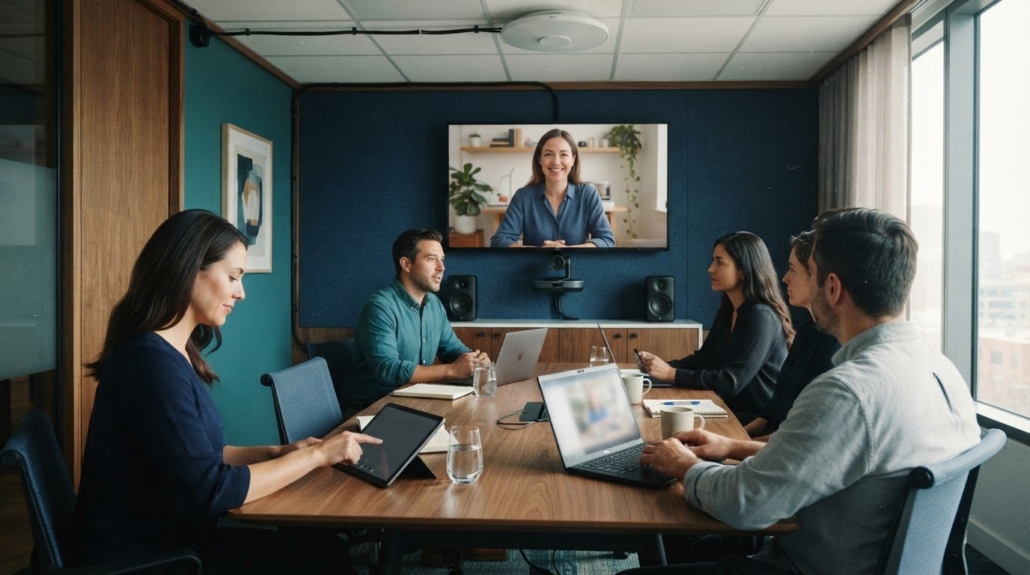
A camera alone won’t make a meeting room work. Well-planned conference room systems bring cameras, microphones, speakers, and displays together so remote participants can see and hear the room clearly. They also account for the room layout, seating, and the way people meet.
It’s easy to focus on screen size or camera resolution, but coverage matters just as much. People need to be visible and audible from their seats, without a complicated setup slowing meetings down. Matching conference room systems to the room helps create a clear, practical experience.
Learn what conference room technology includes, how to plan camera and audio coverage, and what AV design, installation, and training involve. Room size, meeting needs, system compatibility, and future growth all shape equipment choices, so understanding these factors helps you plan a complete solution.
Key Takeaways
- Match room equipment to its layout and meeting needs, rather than choosing devices in isolation.
- Plan camera, microphone, and speaker coverage around where participants sit and speak.
- Consider compatibility and future growth when selecting conferencing technology for different room sizes.
- See how AV assessment, system design, installation, and user training fit into a complete project.
Conference room cameras, microphones, speakers, displays, and videowalls
Video conferencing adds visual context to communication tools such as email, chat, and phone calls. A presenter can explain a chart on a display while remote colleagues watch and respond in the same meeting. Equipment typically includes a camera, microphones, speakers, a display, and a video conferencing platform. Each component handles a different part of the exchange, so the system works as a connected chain.
Camera placement determines which participants remote attendees can see. A camera facing the table captures seated speakers, while one aimed at the front includes presenters and whiteboard activity. Microphones pick up voices for the platform, and speakers play incoming audio into the room. Position microphones near the main speaking areas, then test sightlines and voice pickup from the seats people actually use.
The display shows remote participants, shared documents, or presentation content. A video wall can present multiple content sources across a larger visual area, while a standard display may suit a simpler setup. A whiteboard camera view also helps remote participants follow diagrams and annotations. Decide what people need to see at the same time, then map those sources to the room’s display layout.
Business video-conferencing platforms connect room equipment with remote participants. Compare platform capabilities with actual meeting tasks, such as screen sharing, presenting slides, or collaborating on a whiteboard. The camera, microphones, speakers, displays, and platform also need compatible connections. Map the equipment path during planning, then test a complete call rather than evaluating devices individually.
Security and privacy risks include unauthorized meeting access and exposure of shared content. Organizations should weigh encryption, access controls, and platform privacy features against their security standards; regulated industries may need support for requirements such as GDPR or HIPAA. Include system maintenance in the operating plan, since software and equipment need ongoing attention. Before use, test meeting access, audio, camera views, and shared content.
What Is Conference Room Technology?
A meeting room setup combines equipment and software to support in-room and remote participants. Choose components based on room capacity, connection needs, and expected changes in how the room is used.
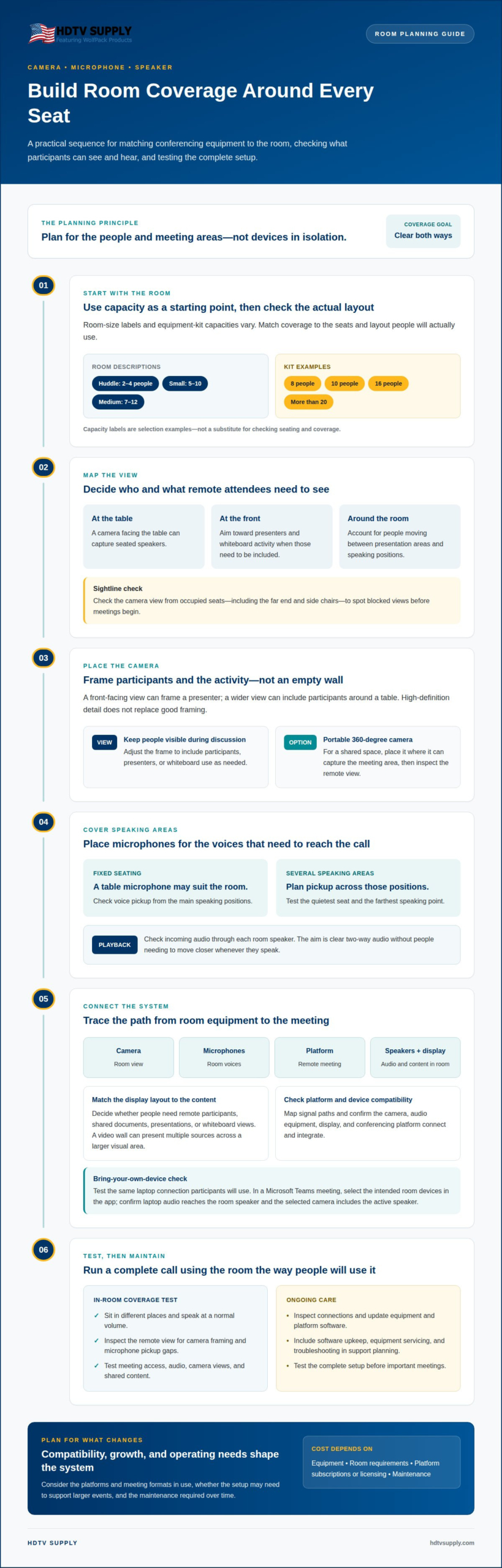
Room size helps narrow equipment choices, but capacity labels vary across systems. Huddle rooms are described for 2-4 people, while small meeting rooms may serve 5-10. Medium rooms may accommodate 7-12 participants. Equipment kits also use specific capacities: examples include kits for 8, 10, or 16 people, and systems for spaces with more than 20. Treat these as selection examples, then match coverage to the room’s actual seating and layout.
Compatibility and Scalability Criteria
Compatibility covers how the camera, audio equipment, display, and conferencing platform connect and integrate. Map the signal path from each source to the equipment that presents it, including any shared display or whiteboard feed. Conference room systems should support the platforms and meeting formats in use. Consider whether the setup can scale as the company grows or hosts larger events, rather than designing only for current attendance.
System Costs and Support Needs
Camera, microphone and speaker coverage
Map camera coverage to the seats and speaking positions in the room. A front-facing camera can frame a presenter, while a wider view can include participants around a table. Check the view from every occupied seat, including the far end and side chairs. This walkthrough reveals blocked sightlines before meetings begin. Camera placement should also account for people using a whiteboard or moving between presentation areas.
Microphone placement affects which voices reach remote participants. A table microphone may suit fixed seating, while a room with several speaking areas needs coverage across those positions. Test from the quietest seat and the farthest speaking point, then check playback through each room speaker. The goal is clear audio and video in both directions, without requiring participants to move closer whenever they speak.
High-definition cameras can show facial expressions and presentation details, but framing still matters. Adjust the camera so participants remain visible during discussion, rather than showing an empty wall or only the presenter. Portable 360-degree cameras offer another approach for shared spaces: position one where it can capture the meeting area. Test how its view appears to remote attendees before settling on that placement.
For a bring-your-own-device (BYOD) kit, confirm how a participant’s laptop connects to the room camera, microphone, speaker, and display. For example, in a Microsoft Teams meeting, the participant needs to select the intended room devices in the app. Test the same connection participants will use. Confirm that laptop audio reaches the room speaker and that the selected camera view includes the active speaker.
Use a repeatable test: sit in different places, speak at a normal volume, and inspect the remote view. This helps identify gaps in camera framing or microphone pickup. The final layout should let participants join, present, and hear responses without changing seats or switching devices mid-meeting.
AV assessment, design, installation, and training
A structured AV project starts by documenting room use, devices, and connection points. Design turns those requirements into a practical setup for hybrid meetings and presentations.
System Planning and Setup
Assess how participants use the room, including laptop presentations, digital content, and interactive sessions. Before installation, map equipment positions, cable routes, network access, and power locations. Installation then follows the plan, connecting each device and integrating room controls with the intended meeting workflow. Define who configures the conferencing platform and supports users after setup.
Network, Internet, and Power Requirements
Video conferencing depends on an internet connection that can support the organization’s meeting needs. Consider whether the existing service plan can accommodate video calls, presentations, and webinars. Network planning should identify available connections and how room devices reach the conferencing platform. Map the outlets needed for the selected equipment and place them near planned device locations. Keep cables organized and accessible for troubleshooting.
Training should cover the steps participants repeat most often: starting a meeting, selecting the room’s camera and microphone, sharing a laptop screen, and adjusting speaker output. Walk users through the digital controls, then let them practice joining a hybrid call and presenting interactive content. A short reference guide can reinforce the workflow afterward.
Before handover, test the complete room setup with the intended platform. Confirm that participants can join, share content, hear remote voices, and be heard from their seats. Test the process with a laptop and the room’s installed devices, not just a technician’s configuration screen. Record the connection layout and basic restart steps for routine support.
For room-control and distribution equipment that supports AV planning, explore AV control and distribution options.
HDTV Supply: WolfPad TV Control Systems
HDTV Supply offers WolfPad TV Control Systems for projects that include TV control. For conference rooms with multiple video sources or a videowall, HDMI Video Wall Processors and WolfPackSecure 4K 60 4:4:4 HDMI Matrix Switchers may also fit the equipment plan. The right choice depends on the room’s signal flow and display requirements.
Consider these products when your AV design calls for TV control, video wall processing, or HDMI matrix switching. They address specific parts of an AV setup rather than replacing the planning needed for cameras, microphones, speakers, and conferencing software. Match each equipment category to the role it needs to serve in the room.
Contact HDTV Supply to discuss your AV equipment needs.
Plan the Next Step for Your Room
Use the room’s signal flow as the starting point for your next equipment decision. Identify which sources need to reach which displays, how users will control them, and whether the room needs a video wall. This map helps define each component’s role without treating every AV device as a separate purchase.
HDTV Supply offers WolfPack Modular Matrix Switchers, enterprise video distribution solutions, and WolfPad TV Control Systems. These products address different AV needs, from source switching and signal distribution to control. The right category depends on the equipment and connections in your project. Discuss your equipment needs with HDTV Supply to move from a room plan to a focused shortlist for your conference room systems.
Contact HDTV Supply about your room to discuss the AV equipment that fits your setup. Take the next step with a clear plan and build toward meetings that work for everyone in the room.
Frequently Asked Questions
What does room conferencing technology do?
Conference room systems connect in-room participants with remote attendees through conferencing software and AV equipment. They support tasks such as joining a call, sharing a presentation, and communicating across locations. For example, a team can discuss a project while viewing the same digital presentation. Depending on the meeting, the setup may also route several content sources to room displays.
What equipment is included in a room conferencing setup?
Typical components include a camera, microphones, speakers, a display, and the connections needed to use conferencing software. A room may also include a whiteboard feed, a laptop connection, or equipment for routing multiple video sources. The right combination depends on how participants present and collaborate. For instance, a training room may need to show both the presenter and shared content.
What are the best setups for small, medium, and large rooms?
The best fit depends on seating, room layout, and meeting activities. Huddle rooms are described for 2-4 people, small meeting rooms for 5-10, and medium rooms for 7-12 participants. Equipment examples include kits for 8, 10, or 16 people, plus systems for spaces with more than 20. Use these groupings as planning references, then match coverage to the room.
How do you choose equipment for room size and meeting needs?
Start with expected attendance, seating positions, and the content people need to share. Conference room systems should fit the room’s layout and connect with the organization’s chosen conferencing platform. A client-presentation room, for example, may prioritize presenter visibility and laptop sharing. Consider future meeting formats and growth, too, so the equipment can support changing needs without redesigning the entire setup.
How do you install and set up the equipment?
Begin with a room plan showing device locations, display connections, network access, and power. Install and connect the selected equipment, then configure the meeting platform to use the intended camera, microphone, and speaker. Test a complete call with a laptop, shared content, and remote participants. Finish with a practical walkthrough of how to join meetings and operate the room controls.
Where can businesses buy equipment or get installation help in the United States?
Businesses can purchase professional AV equipment from HDTV Supply and access its technical support. Products include WolfPack Modular Matrix Switchers, WolfPad TV Control Systems, and HDMI Video Wall Processors. For physical room setup, coordinate equipment placement and connections through your AV or facilities team. This separates product selection and technical support from on-site installation work.
Leave a Reply
Want to join the discussion?Feel free to contribute!