
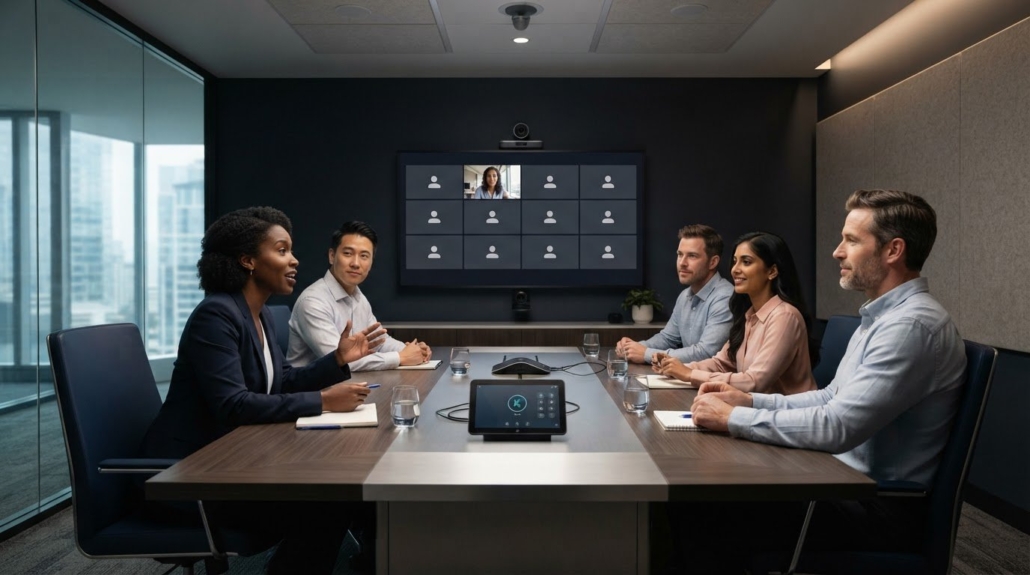
Conference Room AV Checklist for Smarter, Clearer Meetings
A polished video call depends on a room where the display, camera, microphone, speakers, conferencing software, and lighting work as one system. Use a conference room AV checklist to match equipment to the way the room is used, from video calls to in-person presentations and hybrid meetings. A display should offer at least 1080p resolution, with 4K an ideal choice for larger conference rooms.
Good equipment matters, but it won’t help if remote participants can’t see faces clearly or hear every speaker. Room layout, lighting, camera placement, and straightforward controls all affect how smoothly a meeting runs.
This guide explains what to consider when choosing, installing, and upgrading AV for clearer calls and more efficient collaboration. Use the checks to assess camera framing, sound, display visibility, connectivity, and room controls, then consider how modular AV components can support changing needs over time.
Key Takeaways
- Position the camera to frame in-room attendees, keep it at eye level, and use front-facing light to make faces easier to see.
- Choose and upgrade equipment around room size, meeting types, and the devices your team already uses.
- Improve collaboration by addressing echo, background noise, and connection problems before they disrupt a meeting.
- Build a repeatable video-call check for camera, microphone, speakers, display, and conferencing software so issues surface before the meeting starts.
How do you make a conference room smart and efficient?
Match the system to the meeting: hybrid calls need clear video and sound, while presentations depend on visible displays and reliable content sharing. A useful conference room AV checklist covers equipment placement, room lighting, connectivity, and a consistent pre-meeting test.
Set up the room so remote attendees can see and hear everyone. Check these placement details before adjusting software or presentation settings.
- Place the camera at eye level. This gives remote participants a natural view of in-room speakers.
- Frame all in-person attendees. Reposition the camera so people around the table remain visible; a 360-degree camera can show the full room.
- Keep cameras away from windows behind speakers. Backlighting can create shadows and make faces harder to see.
- Position microphones for clear speech. Select ceiling-mounted or tabletop placement for the room, and test that speech remains clear amid background noise or overlapping voices.
- Light faces from the front. Use blinds or curtains to control glare, and adjust dimmable LED lighting for the meeting.
Set displays where participants can see them clearly, and use a 16:9 aspect ratio. Choose at least 1080p resolution; 4K is ideal for larger conference rooms. In a large room, use multiple displays for different viewing angles, and review slides for small text. Auto-tracking camera operation can keep the active speaker in focus during hybrid meetings.
Keep HDMI, VGA, USB-C, DisplayPort, Ethernet, and USB charging connections accessible at the table or in a floor box. Store compatible adapters and spare batteries in the room so presenters can connect devices and replace depleted batteries without delaying the meeting.
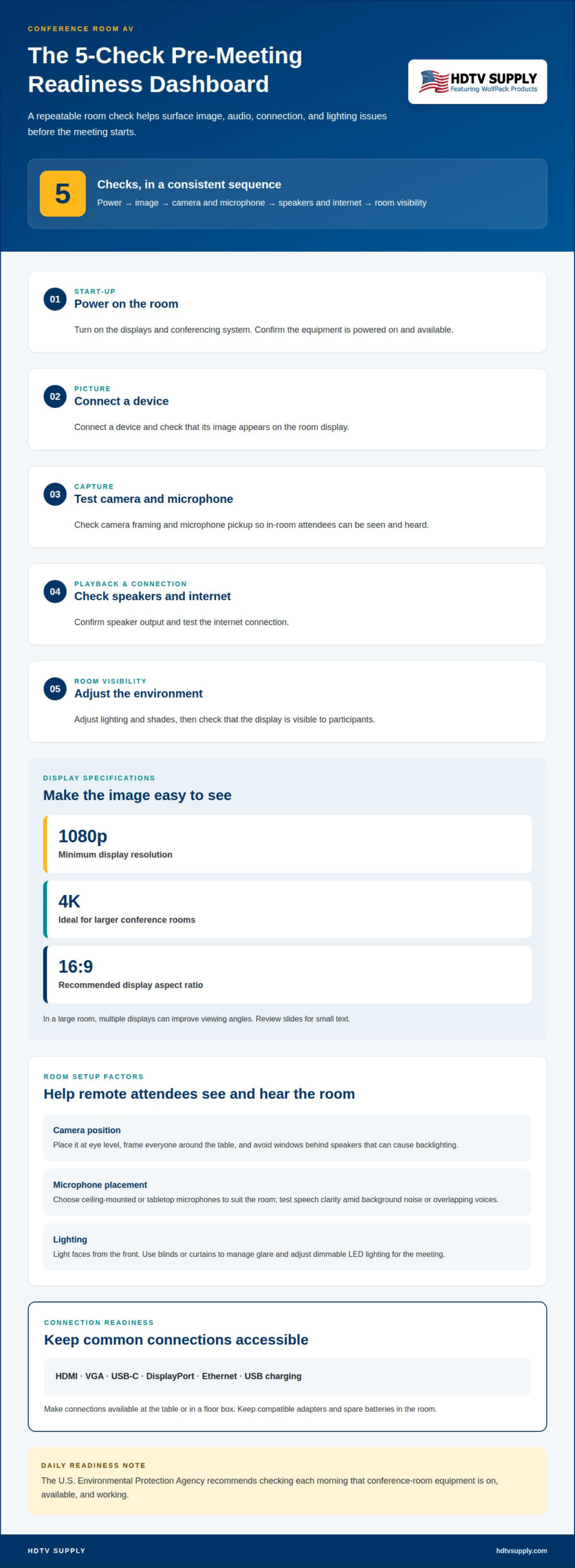
For a repeatable pre-meeting check, confirm the equipment is powered on and available, then test the connection, image, audio, and room lighting. The U.S. Environmental Protection Agency recommends checking each morning that conference-room equipment is on, available, and working.
- Power on the displays and conferencing system.
- Connect a device and confirm its image appears.
- Test the camera framing and microphone pickup.
- Check speaker output and the internet connection.
- Adjust lighting, shades, and display visibility.
Choosing, installing, and upgrading AV systems
Start with the room, not a device catalogue. Record room dimensions, typical participant numbers, construction details, cable paths, presentation needs, and codec preferences. Then map each requirement to the room’s meeting types, such as hybrid calls, remote presentations, or in-person discussions.
During design and installation, check these system decisions:
- Plan modular connections. A modular layout makes it easier to adapt components as meeting needs change.
- Match room audio to the space. A digital signal processor can support echo cancellation, noise reduction, and balanced audio levels.
- Address room acoustics. Acoustic panels or suitable wall materials can reduce echo and feedback.
- Coordinate equipment and network design. Early planning between the AV integrator and IT team helps prevent network-related performance issues.
- Choose controls for routine tasks. Room controls can let participants adjust speaker volume, lighting, and temperature.
- Consider future updates. Scalable equipment that supports firmware updates can accommodate changing technologies.
Whether you can install the system without professional help depends on its complexity. A simple setup differs from an integrated system with multiple devices, network connections, and room audio processing. After installation, test each signal path from the presentation device to the displays and speakers.
Inspect and maintain the system regularly, tailoring checks to room use and equipment condition. Each inspection should cover mounting hardware, cable connections, video conferencing software, camera lens cleanliness, and image and audio quality. Record defects and follow-up actions to track recurring faults.
After an upgrade, test the complete workflow: connect a device, share a presentation, confirm room audio, and verify remote conferencing. This can reveal compatibility problems before the next scheduled meeting.
Collaboration features and meeting quality
Collaboration depends on more than a visible screen. Participants need a reliable way to share content, follow the discussion, and resolve connection problems without interrupting the meeting. Test each integrated feature with the devices people actually bring, including a presentation laptop and a remote participant joining through conferencing software.
Test screen sharing and wireless presentation by connecting a device, opening a sample presentation, and checking that the content appears clearly on the room display. Switch presenters and repeat the connection process with another device, then test a hardwired input as a fallback.
Use this review to check the collaboration workflow:
- Share a presentation wirelessly. Confirm the room system recognizes a device and displays slides without unexpected delays.
- Check visual details. Review charts, captions, and small text from seats around the room.
- Test audio with shared content. Play a presentation clip and confirm its sound reaches the room speakers.
- Try a wired connection. Connect through the table input to identify whether a problem affects wireless sharing or both paths.
- Review interactive functions. Test any touch display or annotation tools used to mark up shared material.
If sharing fails, troubleshoot in sequence. Check the physical cable or wireless connection, confirm internet stability, restart the room system, and review software or firmware updates. This helps distinguish a connection fault from a display or application issue. Record the device and the step where sharing stopped, giving support teams a useful fault description.
Listen for static, echo, or speech that becomes difficult to follow when participants talk over one another. Acoustic panels can reduce room echo, while a digital signal processor can support noise reduction and balanced audio. Test with a remote caller as well as people in the room, since each listening position can reveal different problems.
For consistent results, repeat the same sharing and audio checks after system changes. A concise log of the test, device, and outcome helps identify recurring faults and shows whether firmware updates resolved them.
Video conferencing call functionality
A room can pass a display test and still fail during a live video conferencing call. Verify the complete signal path, from the meeting platform and network connection to the camera, microphones, speakers, and display. Test with a remote participant when possible: they can report what the room’s camera captures and how its audio sounds.
Before a meeting, check the camera, microphone, speakers, display, conferencing software, internet connection, and lighting. Confirm that the meeting platform has selected the correct camera and microphone, then check that the display shows the call and shared content.
Test audio by joining a call, speaking from different seats, and listening through the room speakers. Ask a remote participant to describe speech clarity, background noise, and echo. Adjust microphone placement or speaker levels if needed.
Use this call-function check to isolate faults:
- Confirm the connection. Check that the room device joins the meeting and maintains a stable internet connection.
- Verify camera capture. Confirm the image is visible to remote attendees and that the active view includes the speaker.
- Test mute controls. Mute and unmute the room microphone, then confirm the remote participant hears the change.
- Check speaker output. Play meeting audio and listen for missing sound, static, or echo.
- Review lighting and image. Look for glare, shadows, or dim faces in the video preview.
Common AV problems include poor internet, loose connections, missing sound or video, static, echo, and low image or audio quality. Check physical connections first, confirm internet stability, restart the system, then review software or firmware updates. Change one factor at a time to keep the cause clear.
Keep a short fault log with the affected device, symptom, and troubleshooting step. For rooms using multiple displays, an HDMI Video Wall Processor can support a video-wall configuration. Explore AV equipment options for room display needs.
For enterprise conference rooms with integrated audio-visual and video conferencing systems, choose technology suited to video calls, in-person presentations, or hybrid meetings. Position cameras at eye level. Front-facing lights illuminate faces, while backlighting can create silhouettes.
HDTV Supply: WolfPad TV Control Systems
HDTV Supply offers WolfPad TV Control Systems for rooms where managing television displays is part of the AV setup. If your requirements include routing video sources to displays, consider HDMI Video Wall Processors or WolfPackSecure 4K 60 4:4:4 HDMI Matrix Switchers as relevant system components.
Start with the room’s signal flow: identify the sources, displays, and control needs your team must support. Then compare those requirements with the equipment categories above. WolfPad TV Control Systems address TV control, while video wall processors and matrix switchers serve different display and signal-routing needs.
Explore AV equipment options at HDTV Supply, or contact the team with your system requirements.
Turn Your Room Plan Into the Next Step
Give your meeting room a clear direction by documenting the outcomes it needs to support. Note the sources, displays, and control tasks your team depends on, then use those requirements to guide future decisions. A conference room AV checklist can serve as a practical planning tool, not just a pre-meeting routine, when you revisit it as workflows change.
For display and control needs, HDTV Supply offers advanced video distribution and control options to suit your space. Match each product category to the specific AV need you’re addressing rather than adding equipment without a defined role.
When you’re ready to discuss AV equipment for your setup, contact HDTV Supply for AV advice. Take the next step with a clearer plan and build toward meetings that work better for your team.
Frequently Asked Questions
What equipment should a conference room AV checklist include?
A conference room AV checklist should cover the complete signal chain: room display, meeting camera, microphones, speakers, conferencing software, and content sources. Include the switching or control equipment that connects sources to displays, along with accessible power, charging, and adapters. For example, list a laptop input separately from the video-call system so a presenter can identify which path to test when content fails.
How should conference room displays, projectors, and video inputs be checked?
Check every display and projector with each regularly used source, not just the room’s default screen. Confirm the selected input produces an image, then inspect focus, alignment, color, and text visibility from seats around the room. Switch between table inputs and verify that the intended display receives each source. If presentations include audio, test the relevant sound route separately.
How do you check room lighting, acoustics, and camera framing for video calls?
Assess the room from the seats people actually use. Preview a call while someone speaks from the table edges, then check whether faces remain visible and speech stays clear at the far end. Adjust blinds or lights and repeat the preview to reveal glare or shadows. Listen for echo during normal speech and note which seat or surface makes it strongest.
Leave a Reply
Want to join the discussion?Feel free to contribute!