
Easy to Use Video Wall Controller for Your Display Setup
The larger wall isn’t automatically the better choice. A 2×2 layout suits four displays, while a 3×3 layout is designed for nine. An easy to use video wall controller should match the layout and the number of sources you need to route.
Choosing an easy to use video wall controller can seem simple until you consider input and output counts, routing, and display modes. Start with the wall you’re building, then choose equipment that supports the signals and viewing options your setup needs.
This guide explains how to choose between 2×2 and 3×3 layouts, what to consider when counting inputs and outputs, and how matrix routing and multiview differ from a dedicated video wall processor. You’ll also see when a purpose-built controller is the simpler fit, so you can narrow your options based on how the displays will actually be used.
Key Takeaways
- Choose a 2×2 or 3×3 layout based on how many displays the wall needs and how it will be used.
- Count source devices and display outputs before selecting a controller, then match the required signal formats.
- Use matrix routing when sources need flexible display assignment; consider multiview when multiple sources must appear together.
- A dedicated processor can simplify video-wall setup, while HDMI Video Wall Processors and matrix switchers serve different system needs.
Is a 2×2 or 3×3 Video Wall Controller Better?
A 2×2 layout uses four displays, while a 3×3 layout uses nine. Set up the controller by connecting the source and displays, selecting the matching wall layout, then assigning each output its position.
Matching Controllers to Display Layouts
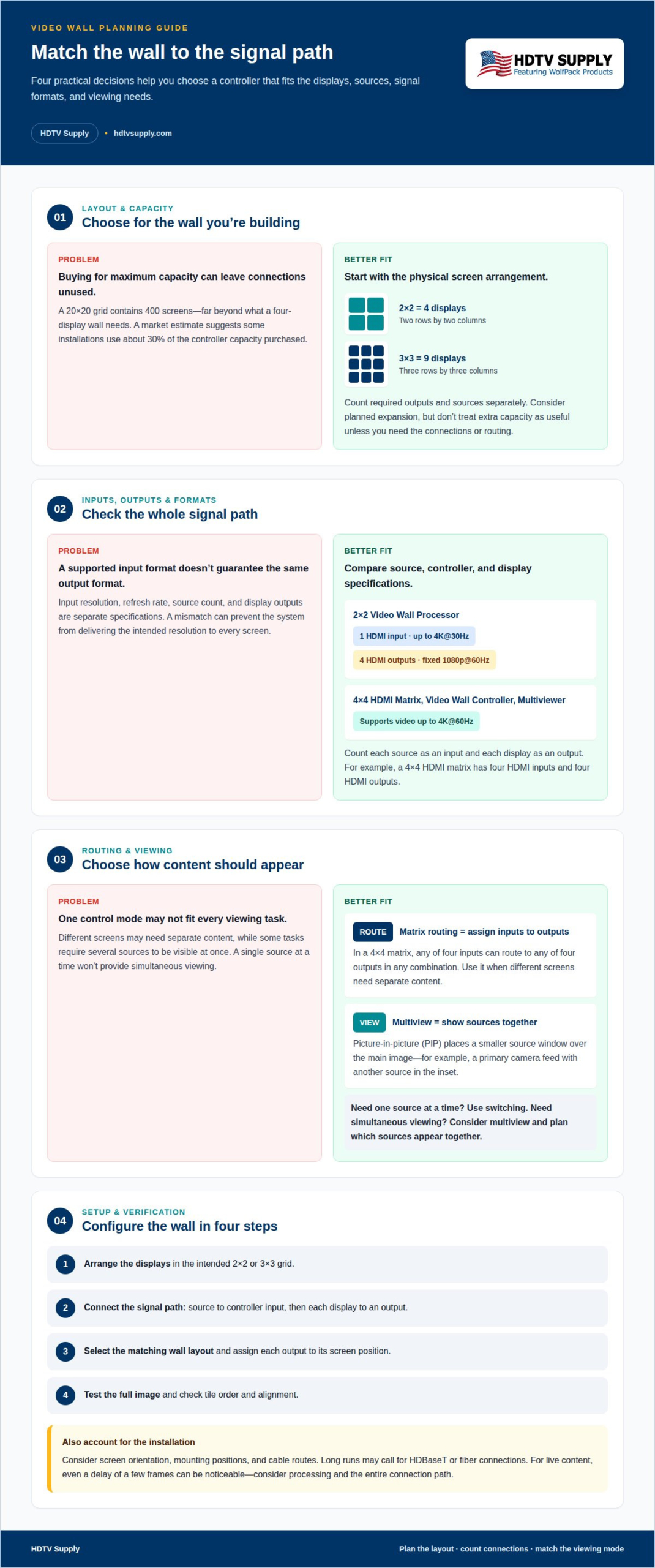
Start with the physical display arrangement, not the controller’s maximum capacity. A 2×2 wall suits four screens arranged in two rows and two columns; a 3×3 wall uses three rows and three columns. The processor must split the image into the correct tiles and send each display its corresponding section.
For signage, decide whether the wall will show one continuous image or separate content on individual screens. Account for screen orientation, mounting positions, and cable routes, too. Long runs between equipment and displays may call for HDBaseT or fiber connections. These details shape how the system connects and how easily you can configure the layout.
Assessing Controller Capacity
Match controller capacity to the displays and sources the installation actually needs. A 20×20 grid contains 400 screens, but that scale is unnecessary for a four-display wall. A market estimate suggests some installations use about 30% of the controller capacity purchased. Choosing around the real layout and planned expansion can help avoid unused capacity.
Count the outputs your display wall needs, then consider whether you plan to add screens later. Assess inputs separately: a system may support a fixed wall layout while accepting one or several source devices. Extra capacity is not automatically useful if you will not use the additional connections or routing functions.
Configure the system in a practical sequence:
- Arrange the displays in the intended 2×2 or 3×3 grid.
- Connect the source to the controller input and each display to an output.
- Select the matching wall layout and assign each output to its screen position.
- Send test content across the full display, then check tile order and alignment.
If the wall carries live content, consider latency. A delay of even a few frames can be noticeable, so account for signal processing and the entire connection path, not just the number of displays.
Input and output requirements
Match input formats, source count, and output capabilities to the devices in your signal chain. A mismatch can stop the system from delivering the intended resolution to every display.
Supported Input Resolutions
Compare the controller’s maximum input resolution with the source device’s output format. For example, a 2×2 Video Wall Processor accepts one HDMI input up to 4K@30Hz. Its four HDMI outputs are fixed at 1080p@60Hz, so the input limit and display-output limit are different specifications.
A 4×4 HDMI Matrix, Video Wall Controller, Multiviewer supports video up to 4K@60Hz. Match the source’s resolution and refresh rate to the controller’s supported signal path. A higher input resolution alone doesn’t mean every output supports that same format.
Input and Output Counts
Count each source connection as an input and each connected display as an output. A 4×4 HDMI matrix provides four HDMI inputs and four HDMI outputs. A 4K 2×3 HDMI/USB-C video wall controller supports six HDMI outputs, which suits a six-display arrangement.
More ports can accommodate additional sources or screens, but the count should fit the system design. Some video wall controllers offer sixteen inputs and thirty-two outputs. That capacity can suit larger signal-distribution setups, while a smaller installation may need fewer connections.
Connecting Input Sources
List the equipment that will feed the wall, such as a media player, laptop, or camera. Match each device’s connector to an available input. If several sources must appear on the wall, make sure the system has enough inputs and supports the required signal formats.
Audio routing also matters. Some 2×2 and 3×3 processors include SPDIF optical and 3.5 mm audio outputs. These connections can carry audio to a separate sound system while HDMI outputs feed the displays. Plan the video and audio paths together, especially when source devices change.
For a coordinated display setup, explore video wall system options alongside your input and output plan.
Matrix routing and multiview functionality
An easy-to-use controller makes source selection and screen assignment clear. Look for straightforward switching, visible layout options, and controls that show which source feeds each screen.
Matrix routing assigns inputs to outputs. In a 4×4 matrix, any of four inputs can route to any of four outputs in any combination. For example, a laptop can feed one display while a media player feeds another. This routing is useful when different screens need separate content, rather than one image spanning the entire wall.
Multiview shows several sources together on one screen or across a wall. Picture-in-picture (PIP) is one arrangement, with a smaller source window over the main image. A control-room operator might keep the primary camera feed large while monitoring another source in the inset. Choose PIP when simultaneous viewing matters; use switching when viewers need one source at a time.
Video wall functions determine how the controller distributes and arranges content. A 3×3 processor can support layouts including 3×3, 2×4, 2×3, and 4×2. These options can accommodate different display arrangements, but the selected mode must match the physical screen grid. A 4×4 matrix controller also supports 2×2 and other video-wall layouts.
Ease of use depends on how quickly an operator can choose a source, route it, and restore the intended layout. Clear input labels distinguish a laptop from a media player. A visible routing map shows which output receives each feed. For repeat tasks, a simple sequence for selecting a layout and source helps keep switching consistent.
Before choosing multiview, identify which sources must appear together and where each image should sit. A presentation and a monitoring feed, for example, may need different window sizes. Match these viewing needs to the system’s supported modes, then confirm that it can route the selected sources to the intended displays.
Dedicated video wall controllers
Hardware controllers process video in a dedicated unit, while software controllers use a computer application. Choose based on supported display modes, the signal path, and how operators will manage the wall.
Dedicated Controller Options
A dedicated processor divides one source into tiles and sends each display its image slice. A 3×3 Video Wall Processor with Audio Extraction distributes one HDMI source to as many as nine displays and supports 13 display modes. This suits a wall that needs a single source with alternate layouts.
A 2×2 Video Wall Processor supports 2×2, 1×2, 2×1, 1×3, 3×1, 1×4, and splitter modes. A 4K 30 Hz 2×2 controller offers 12 modes. Compare those options with the intended wall and content.
Hardware and Software Approaches
A hardware controller processes video in a dedicated device. Software-based control uses a computer to manage the wall. The distinction affects system design: hardware adds a separate processing component, while software control relies on a computer running its application.
For either approach, map the full signal path before choosing. Identify the source, controller, displays, and operator controls. Hardware-based controllers are described as suitable for mission-critical environments operating 24/7. For those installations, consider whether a dedicated processor fits the required operating setup.
Use this decision sequence to narrow the options:
- Choose dedicated hardware when the wall needs a purpose-built processor for splitting and distributing video.
- Choose software control when a computer-based application suits the installation’s control workflow.
- Compare supported modes with the intended screen arrangement and source content.
Then consider how operators will change layouts. A processor with multiple display modes can support different arrangements, but each mode must match the physical display grid. For example, a 3×3 wall needs a suitable 3×3 mode when showing one tiled image.
Explore dedicated controller options to match a processor to your wall’s layout and operating needs.
HDTV Supply: WolfPad TV Control Systems
HDTV Supply offers WolfPad TV Control Systems for setups where centralized TV control is part of the display plan. For a wall that needs video processing, HDMI Video Wall Processors are a relevant option. WolfPackSecure 4K 60 4:4:4 HDMI Matrix Switchers fit systems that also need matrix switching.
Choose equipment based on the system’s role: control, video-wall processing, or routing between sources and displays. The layout, source count, output requirements, and preferred operating method help determine what fits. Defining these needs makes it easier to select a control system alongside the processor or matrix switcher.
When you’re ready to discuss your display setup and equipment needs, contact HDTV Supply.
Build a Setup That’s Ready for What Comes Next
A video wall should suit today’s display plan and the way people will use it. Before choosing an easy to use video wall controller, define the workflow: who selects sources, how content changes, and whether screens need centralized control. These decisions help you build a system that operators can manage confidently.
HDTV Supply offers advanced hardware options, including reliable routing solutions and intuitive control systems designed for diverse AV environments. Each serves a different role in an AV setup, from routing multiple sources to managing televisions efficiently. Choose equipment for the task rather than adding functions the installation will not use.
Ready to plan your display setup? Contact HDTV Supply about your setup to discuss the equipment categories that fit your system. A clear plan is the first step toward a display wall that works for its intended audience.
Frequently Asked Questions
Which video wall controllers have the simplest setup and software?
A dedicated processor with controls for selecting a wall layout and source can be a straightforward approach. The right fit depends on whether you need a fixed wall arrangement or frequent changes between sources and layouts. For a simple setup, prioritize clear mode selection and controls operators can use without managing a separate computer application.
How do I choose a video wall controller for my display size and resolution?
Start with the display arrangement, then match the processor’s supported layouts and signal formats to the screens and source devices. A wall made from displays with different native resolutions, for example, may require careful scaling to keep content consistent. Consider whether the source should fill the wall or appear in separate zones, as this affects processing needs.
Can easy-to-use video wall controllers work with HDMI, DisplayPort, and streaming sources?
These sources can work with the system if it accepts their connection format or a suitable conversion device connects them. A laptop with DisplayPort, for example, may need a compatible adapter to connect to an HDMI input. A streaming service typically reaches the system through a streaming player’s video output, not as a direct network feed. Check the complete signal path.
What are common video wall controller compatibility issues and limitations?
Common issues include connector mismatches, unsupported resolution or refresh-rate combinations, and output formats that do not suit the displays. Content with a different aspect ratio may appear stretched, cropped, or bordered. Review the source, processor, and display specifications as one signal chain. Check audio routing separately if sound must reach speakers rather than the wall.
Which video wall controllers are best for a small business or home installation?
Choose a processor that matches the wall’s layout and how viewers will use it. A small business showing one shared image may need different functions from a home setup that switches between a presentation source and a media player. Do not choose by maximum port count alone. Prioritize the required layout, input connections, output formats, and control workflow.
Leave a Reply
Want to join the discussion?Feel free to contribute!