
Ways to Manage Multiple Video Sources for Event Coverage
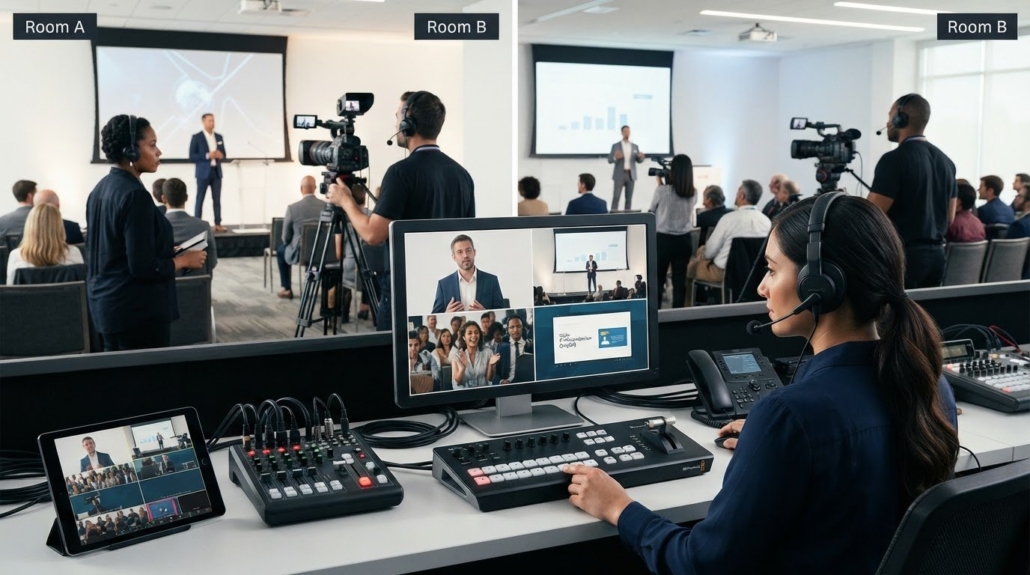
More cameras won’t solve overlapping coverage on their own. One event video crew cannot provide continuous coverage in two rooms at once, so the practical answer to how to manage multiple video sources for an event is to prioritize sessions and plan distinct camera coverage for each space. Give every source a clear role, from speaker close-ups to room-wide shots, and decide where its footage will go.
It’s easy to focus on camera count, but coordination depends just as much on timing, communication, and a clear production workflow. Align coverage with event goals, organize cameras across simultaneous sessions, and plan how to manage feeds and recordings on site. Prepare a useful shot plan, assign crew responsibilities, and choose a camera setup that fits the event instead of adding equipment without a purpose. A controlled workflow means fewer missed moments and footage that’s easier to use after the event.
Key Takeaways
- Map overlapping sessions by room and priority so camera coverage is assigned before the event begins.
- Choose shots and formats to match the event’s goals and the footage you plan to deliver afterward.
- Give each crew member a defined role, and establish a clear workflow for monitoring, switching, and recording sources.
- Plan the signal path between cameras, switching equipment, and displays to keep the production setup organized.
- Choose the number of cameras based on the sessions, viewpoints, and deliverables you need, not a default camera count.
1. Coordinating camera coverage for overlapping sessions
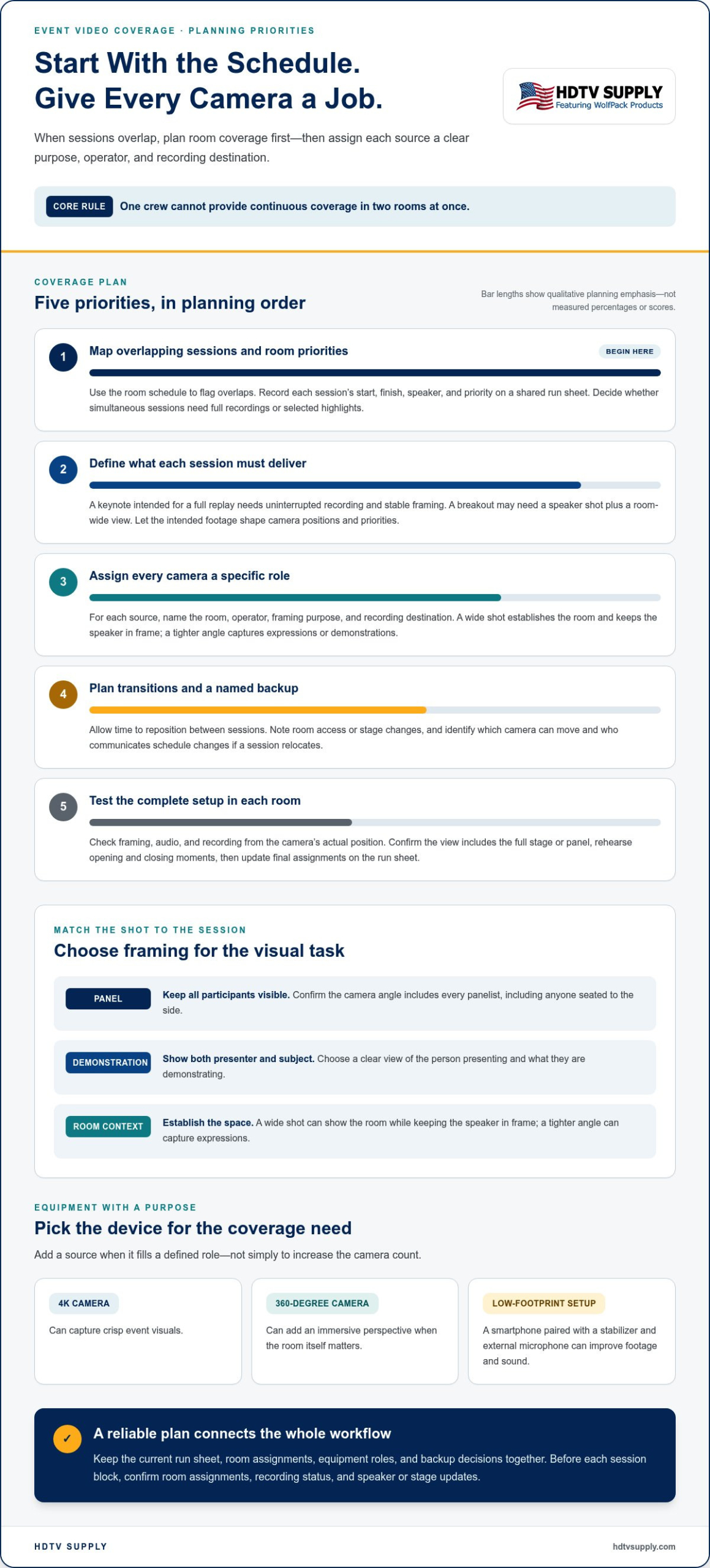
Start with the room schedule, not the camera list. One event video crew cannot provide continuous coverage in two rooms at once, so overlapping sessions need separate coverage plans. Mark each session’s start, finish, speaker, and priority on a shared run sheet. For example, if a keynote and a workshop run simultaneously, decide whether both need complete recordings or one can be covered with selected highlights.
Next, assign a camera position and purpose to each priority room. A wide shot establishes the room and keeps the speaker in frame, while a tighter angle captures expressions or demonstrations. Match the shot to the session: a panel needs all participants visible, while a product demonstration may need a clear view of the presenter and subject. Record these choices before doors open.
- Map rooms and sessions: Use the event schedule to identify every overlap and flag sessions that need dedicated coverage.
- Assign each camera: Give every camera a room, operator, framing role, and recording destination.
- Set a priority: Decide which session takes precedence if a crew member or camera must move.
- Plan transitions: Allow time for repositioning between sessions, and note room access or stage changes on the run sheet.
Build a coverage matrix that links each session to its deliverable. A keynote intended for a full replay needs uninterrupted recording and stable framing. A smaller breakout session might need a speaker shot and a room-wide view for context. If a session matters but cannot have a dedicated operator, plan a fixed camera angle and verify the frame before the audience arrives.
Prepare a named backup plan for changes. If a session moves from a ballroom to a smaller room, identify which camera can be relocated and who will communicate the change. Keep the latest schedule accessible to camera operators and production leads. A brief check-in before each session block helps confirm room assignments, recording status, and any speaker or stage updates.
Choose equipment for the visual task, not novelty. A 4K camera can capture crisp event visuals, while a 360-degree camera can add an immersive perspective where the room itself matters. For a low-footprint setup, pair a smartphone with a stabilizer and an external microphone to improve footage and sound. Assign each device a defined role so it supplements, rather than duplicates, planned coverage.
Finally, test the complete setup in each room. Confirm framing, audio, recording, and the camera’s view of the stage from its actual position. A camera aimed at a lectern may miss a panelist seated to the side. Rehearse the opening and closing moments with the operator, then update the run sheet with final positions and responsibilities.
Keep the current run sheet, room assignments, equipment roles, and backup decisions in a centralized location for project information. A centralized location for project information can help event teams coordinate resources across events. Use that location as the reference point when coverage plans change, and keep its information aligned with the assignments agreed for each session. This gives coordinators a shared basis for reviewing resource needs alongside the camera plan.
2. Planning coverage around event purpose and deliverables
Begin with the event’s purpose, then define what each recording must accomplish. A leadership summit may need complete keynote recordings for internal training. A product launch may need concise clips highlighting demonstrations and audience reactions. Those outcomes shape camera positions, audio priorities, shot selection, and editing decisions. Without a defined use, footage can capture the room but miss the message. A practical answer to how to manage multiple video sources for an event starts with choosing the story each source must support.
Write a deliverables list before assigning cameras. For each video, identify its audience, platform, format, and essential moments. A recap for LinkedIn could use a 90-second edit, while a vertical clip suited to TikTok or Instagram Reels could run 15 seconds. A broader social recap can stay around 1-3 minutes. Treat these as format examples, then build the shot plan around the specific story.
- Set the audience: Decide whether the footage serves attendees, remote viewers, employees, customers, or future event registrants.
- Define the outcome: Choose between a full session replay, a highlights reel, a speaker clip, or a collection of short social edits.
- List essential moments: Mark the opening, key presentation points, demonstrations, audience questions, and closing remarks.
- Match capture to format: Plan framing and audio for the intended edit, rather than expecting every source to serve every output.
Use a shot list to connect each deliverable with the footage it requires. A complete panel replay needs clear coverage of the moderator and speakers, plus intelligible discussion audio. A promotional recap needs visual variety, such as venue details, signage, presenter close-ups, and audience activity. Assign every shot a purpose so operators know which moments need continuous recording and which can be captured as supporting footage.
Plan for reuse while capturing footage. Repurposing event video across platforms can extend its reach without requiring multiple shoots. Record the full presentation for viewers who need detail, then identify a strong quote or demonstration for shorter edits. Capture clean transitions, speaker introductions, and contextual room shots to help editors turn separate clips into a coherent recap.
Translate the deliverables into an on-site brief. Include file labels, the intended aspect ratio, priority moments, and who approves each edit. If a speaker’s demonstration is central to the launch, tell the camera operator which screen details must remain visible. For a training session, note where slides change and when audience questions begin. These instructions help editors find the intended material efficiently. Teams planning how to manage multiple video sources for an event can use the brief to connect each feed with a specific output.
Finally, review the plan against the schedule and available crew. If sessions overlap, prioritize footage according to the deliverables rather than recording every room equally. Give the production lead a clear list of must-have recordings and flexible supporting shots. This hierarchy helps the team preserve the content most closely tied to the event’s purpose.
3. Video-production workflows during an event
Build the production workflow around a clear signal path: source, switcher, destination, and recording. Label each camera, laptop, and playback device before setup. Consistent names help the operator select the right feed quickly and trace a signal if its image disappears. Knowing where each source enters and where its output goes is central to how to manage multiple video sources for an event.
Connect cameras, laptops, and playback devices to the switcher’s inputs, then route its outputs to the event display and recording system. Label each input by room or source, and confirm that connected devices and the switcher use compatible video formats.
For a live program, establish who calls the shots and who operates the switcher. Give the operator a run of show with speaker cues, slides, playback moments, and planned transitions. Assign supporting tasks according to each team member’s strengths, such as monitoring camera framing or checking playback files.
Keep audio and video synchronized by using a consistent audio path and checking it against the image. Use a shared timecode workflow when available; otherwise, record a clear sync cue, such as a clap, and align it with the camera footage during editing.
Prepare a backup source for essential content. Keep a presentation file or playback clip on a second device, and record camera feeds independently when the workflow allows. If a primary source fails, the operator can switch to the backup while the team checks the original connection.
Before doors open, test and troubleshoot each source through the complete signal chain. Connect one device at a time, confirm its image and audio at the destination, then switch between inputs and make a short test recording. If a feed fails, check the selected input, cable connection, device output, and switcher routing in sequence.
Plan for venue power, cabling, and connectivity. Identify outlets for cameras, switching equipment, displays, and computers; map cable routes away from walkways; and secure cables to reduce trip hazards. For streamed events, test the venue’s network connection from the production position and verify that the stream reaches its destination.
Use a shared cue sheet to coordinate the live sequence. Note which source appears for each speaker, video, or presentation, and give the operator a clear standby cue before every change. During rehearsals, use the presenter’s actual laptop and playback file, since a substitute device may behave differently.
Editing software with separate video tracks and a multicam feature can help editors choose which camera appears at each point. Keep editing distinct from live switching when deciding how to manage multiple video sources for an event. A matrix switcher routes sources to selected destinations; WolfPack Modular Matrix Switchers can serve systems that need this source-routing function. Keep the final signal map beside the cue sheet so the crew can trace connections without disrupting the show.
4. What equipment is needed to switch between multiple video sources at an event
Start with a video switcher sized for the sources and destinations in your signal plan. Cameras, presenter laptops, and playback devices connect to inputs; the switcher selects which source appears on the program output. For example, an operator can cut from a camera view to presentation slides, then return to the speaker.
Check connection types and video formats across the entire chain. A source, switcher input, output cable, and destination must support a compatible signal. Create a source list with device names and input assignments, then label both ends of each cable. This makes it easier to trace a feed from a laptop to the switcher and onward to a projector or display.
- Video sources: Cameras capture speakers and audience views; laptops supply slides, and playback devices supply prepared clips.
- Switcher: Selects the live source sent to the program output, such as the room display or recording system.
- Signal cables: Connect sources, switcher inputs, and destinations; label each run and route it safely.
- Monitoring display: Shows the selected output so the operator can confirm the image before taking it live.
- Audio path: Carries microphone and playback sound alongside video, with levels monitored during rehearsal.
Separate switching from distribution when the event needs different sources at different destinations. A switcher selects the feed for a live program; a matrix routes inputs to chosen outputs. For example, presentation slides could appear on the main screen while a camera feed goes to a confidence monitor. Draw the input-to-output map before connecting devices.
A video wall adds a display-processing requirement. A processor can arrange an image across a wall or manage how content appears on its display surfaces. List the wall’s content sources and intended layouts, then test each layout with actual event material. Keep the processor’s role distinct from the switcher’s live source selection.
Include a recording or capture device if the event needs a saved program feed. Connect it to the intended output and make a test recording, then play it back to confirm picture and sound. If operators need to see several sources at once, add multiview monitoring so they can inspect camera feeds before selecting one.
Finally, prepare spare cables, power connections, and a clearly marked backup source. Group equipment by function, secure cable runs, and keep the signal diagram at the control position. During rehearsal, test every source on its intended destination, then verify switching, audio, and recording in the sequence planned for the event.
5. How many cameras and video sources should an event use
Set the camera count by matching each required viewpoint to a clear deliverable. A single-speaker recording may need a locked-off camera, while a panel or product demonstration benefits from additional angles. The Moët & Chandon event video example used two cameras to capture multiple angles. Treat that as a practical example, not a universal formula.
Count sources separately from cameras. Your source plan may include camera feeds, presentation laptops, playback devices, and remote contributions. Each source needs a purpose, an input, and a destination. A laptop showing slides adds a source, but it doesn’t automatically require another camera. List every required view and media feed before selecting switching capacity.
- One continuous view: A fixed camera can cover a single speaker when a straightforward recording is the priority.
- Multiple perspectives: Add camera angles when the edit needs close-ups, a wide room view, or audience reactions.
- Presentation content: Count each laptop or playback device as a source that may need routing into the program.
- Separate rooms: Plan coverage by room and session, since one crew cannot continuously cover two rooms at once.
Use the run of show to identify simultaneous needs. If a keynote, panel, and demonstration all require distinct coverage, assign cameras and inputs to those tasks. Then check whether the same operator can manage each active source during transitions. Adding equipment without an operator plan can create more feeds than the crew can monitor effectively.
Consider what the audience must see at each destination. A room display might show slides while a recording captures the presenter. A video wall may need a processed layout rather than another camera angle. Keep display requirements distinct from camera count: the number of screens does not determine how many cameras an event needs.
Build a source inventory with the device name, purpose, operator, and destination. Include backup playback for essential presentations, but don’t count a backup as an active camera angle. Rehearse the planned transitions with the actual devices. If a source adds no needed view or content, remove it from the live workflow.
For events that use a video wall, plan its display layout alongside camera and media sources. Plan your event display setup around the content and destinations your production requires.
A manual editing workflow is to split each camera’s clip, keep the sections where its speaker is talking, and intersperse the clips in sequence. Event planners should schedule regular check-ins with team members to discuss progress, challenges, and guidance. They should establish accessible, regularly monitored communication channels for team members. Together, these practices provide ways for team members to discuss how work is progressing and communicate about the tasks assigned to them.
Assign tasks based on each team member’s strengths and capabilities, and adapt communication to their preferences and needs. Keep those considerations alongside the camera and source plan so assignments suit the people responsible for carrying them out. Regular check-ins provide opportunities to discuss progress, challenges, and next steps as the work develops.
HDTV Supply: WolfPad TV Control Systems
HDTV Supply offers WolfPad TV Control Systems for event setups that need TV control as part of their AV workflow. If your production also routes camera, laptop, or playback feeds to displays, consider how the control system fits alongside the video signal path. HDMI Video Wall Processors address video wall display setups, while WolfPackSecure 4K 60 4:4:4 HDMI Matrix Switchers provide a matrix-switching option for managing source-to-display routing.
Start with your event’s source list, display destinations, and operator workflow. These requirements help clarify which equipment belongs in the system and how each component supports the setup. Explore HDTV Supply’s event display and source-routing products, including WolfPack HDMI matrix systems with free video-wall processing, or contact HDTV Supply for assistance.
Make Your Next Production Plan Actionable
Turn your event brief into a practical AV decision document. Record the source types, display destinations, control needs, and operator workflow. This gives you a clearer basis for deciding how to manage multiple video sources for an event and identifying which equipment belongs in the signal path. Keep the plan available to the production team so equipment choices connect directly to the intended setup.
For source routing, WolfPack Modular Matrix Switchers can serve systems that need to distribute video sources to displays. WolfPad TV Control Systems and WolfPack Sports Bar TV Systems with tablet control address related control and distribution needs. Compare these products with your planned sources and destinations, then explore HDTV Supply’s offerings or call for assistance.
Contact HDTV Supply to discuss AV equipment for your event setup. With a defined signal plan and a clear next step, you can move into production with greater focus.
Leave a Reply
Want to join the discussion?Feel free to contribute!