
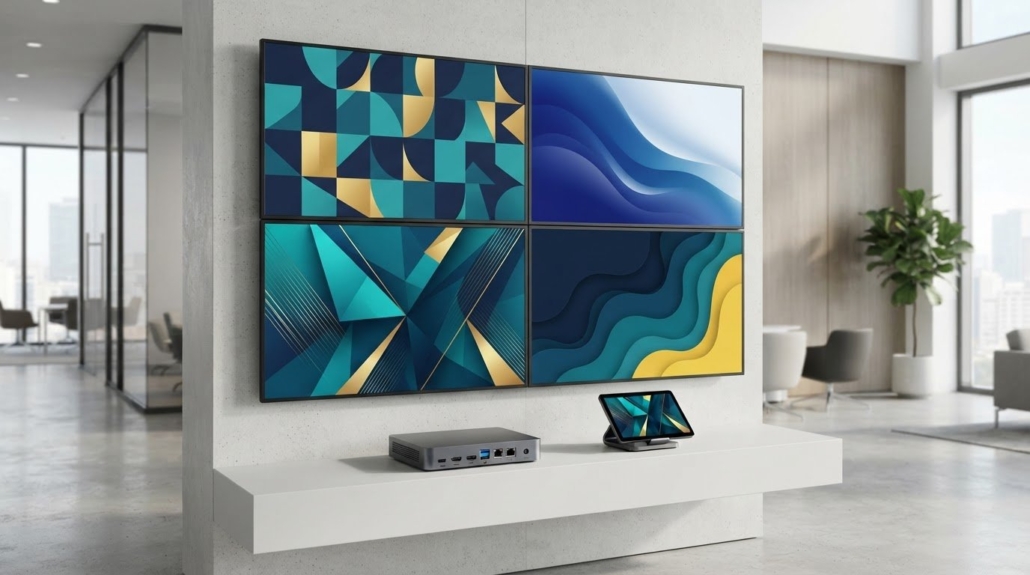
Commercial Digital Signage Player Platforms and Features
The most powerful player isn’t automatically the best choice; software compatibility and the display setup matter just as much. Android and Windows are options for a commercial digital signage player, with the right choice depending on the system’s requirements. Chrome OS is another platform to consider when a Chromebox fits the system.
Start with the hardware: the processor, ports, and operating system all affect what a commercial digital signage player can run. But signage software and the way content reaches each screen matter just as much. Choose a combination that supports your content, network, and display setup.
This guide explains how Android, Windows, and Chrome OS players work, which commercial hardware features support reliable operation, and how to match a player with signage software. It also covers how connections and screen layouts shape the setup, giving you practical criteria for comparing platforms.
Key Takeaways
- Match the player’s operating system to the signage software and content workflow you plan to run.
- Decide whether screens will share one feed or need independent content before choosing the player and signal path.
- Assess commercial hardware by how it fits your display environment and operating schedule, not just its processing specs.
- Understand how players retrieve and display updated content, then explore control and distribution equipment suited to your screen setup.
Android, Windows, and Chrome OS player options
Android, Windows, and Chrome OS each offer a different path from content management software to displays. Compare operating system support, hardware requirements, and how the player handles your planned content.
Android Player Options
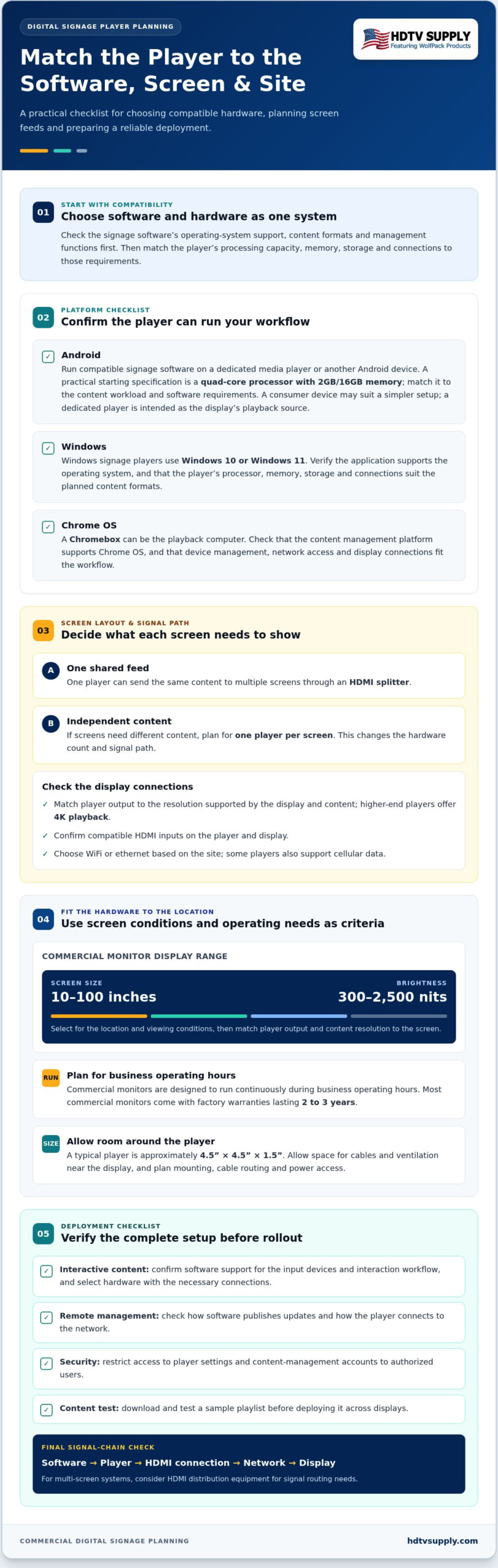
An Android player runs compatible signage software on a dedicated media player or another Android device. A practical starting specification is a quad-core processor with 2GB/16GB memory. Match that configuration to the content you’ll show, including images and video, and to the software’s operating system requirements. A consumer Android device may suit a simpler setup, while a dedicated player is intended to serve as the display’s playback source.
Windows Player Options
Windows signage players use Windows 10 or Windows 11. This can make Windows a suitable platform when the signage application or existing workflow requires one of those operating systems. Before selecting hardware, compare the software’s Windows compatibility with the player’s processor, memory, storage, and available connections. Then confirm the planned content formats can run through the selected application.
Chrome OS Player Options
A Chromebox can serve as the playback computer for a signage display. Its suitability depends on whether the content management platform supports Chrome OS and whether the device connects to the display and network. Review these requirements before choosing software or hardware. Chrome OS is a sensible option when the software, device management approach, and content workflow align.
Use this short selection process to narrow the platform:
- List the operating systems supported by your signage software.
- Match the player’s processor and memory to the content workload.
- Confirm the device can connect to the display and network.
- Check how the platform handles the images, video, and updates you plan to publish.
The right platform supports your software and content without unnecessary complexity. Compare Android, Windows, and Chrome OS against your display workflow, then choose a player that meets those requirements.
Choosing hardware alongside signage software
Choose signage software and hardware as one system. The software determines which operating systems, content formats, and management functions the player must support. The hardware needs enough processing capacity and storage, plus suitable connections for the workload. Start with the software requirements, then compare player specifications.
Define each display’s role before selecting equipment. One player can send the same content to multiple screens through an HDMI splitter. If screens need different content, plan for one player per screen. This affects the hardware count and signal path, so decide whether displays share a feed or operate independently.
Use this checklist to match the setup:
- Resolution: Higher-end players offer 4K playback. Match the player’s output to the resolution supported by the display and content.
- Video connection: Most media players for TV screens and advanced signage networks are HDMI compatible. Confirm the player and display have compatible inputs.
- Network access: Players commonly connect through WiFi or ethernet. Some also support cellular data, which can suit locations without a practical wired connection.
- Physical placement: A typical player is approximately 4.5” x 4.5” x 1.5” inches. Allow space for its cables and ventilation near the display.
Interactive content requires an additional compatibility check. Confirm that the signage software supports the required input devices and interaction workflow, then choose hardware with the necessary connections. For remote content management, assess how the software publishes updates and how the player connects to the network. Download and test a sample playlist before deploying it across displays.
Finish by checking the complete signal chain: software, player, HDMI connection, network, and display. For multi-screen systems, HDMI distribution equipment can help address signal routing needs. This approach keeps hardware selection tied to real content and screen requirements.
Commercial hardware features and reliability
Commercial signage players run managed content on business screens, while consumer streaming devices focus on personal entertainment apps. Players need network access through Wi-Fi or Ethernet, or cellular data on supported models, as well as compatible display connections and software. Secure deployment also requires controlling network access and protecting account credentials.
Commercial hardware is designed around operational demands, not simply video playback. Commercial monitors are designed to run continuously during business operating hours, while most commercial monitors come with factory warranties lasting 2 to 3 years. These factors matter when screens are part of daily customer communication or venue operations.
Match the display to its location and viewing conditions. Commercial monitor displays range from 10 inches to 100 inches, with brightness ratings from 300 nits to 2,500 nits. A compact screen may suit a menu or information point, while a larger, brighter display can better serve a more visible space. Select player output and content resolution to suit the screen.
Before installation, review these hardware and deployment points:
- Connections: Confirm the player and commercial display share compatible HDMI connections.
- Network: Choose WiFi, ethernet, or supported cellular data based on the site’s available connection.
- Security: Restrict access to player settings and content-management accounts to authorized users.
- Operating conditions: Plan ventilation, mounting, cable routing, and power access for the intended running schedule.
- Serviceability: Position players so staff can reach connections and identify equipment during maintenance.
Commercial features should suit the deployment, not add complexity without a purpose. A screen showing scheduled menus, for example, may need straightforward playback and remote content management. A video wall or interactive display may require more processing, signal routing, or input support. Define each screen’s role, then match the player’s specifications, network access, and commercial display features to the task.
Digital signage player definition and operation
A digital signage player receives media and runs it on a connected display. To set one up, connect it to the screen and network, install compatible digital signage software, then publish a playlist through the software’s content management interface.
The player connects published content to the display. Software organizes images, video, and schedules; the player retrieves those assets and renders them for viewing. This makes digital signage flexible: staff can update a playlist remotely without editing files on the playback device.
Content updates follow a simple cycle: a user changes or replaces an item in the management system, publishes the playlist, and the player retrieves the new version. A player can be configured to check for updates every minute. This helps keep displayed material aligned with the latest published content.
For a useful deployment, organize the system around the screen’s role:
- Define the content: Group menu panels, announcements, or promotional images into playlists.
- Set schedules: Assign content to relevant times or display locations in the software.
- Integrate the player: Connect its video output to the display and provide network access for content delivery.
- Test the result: Publish a sample playlist and confirm that the display renders each item as intended.
Remote management separates routine publishing from physical access to the player. An operator can update a scheduled message through the software while the device remains connected to the screen. For example, a venue can replace an outdated announcement in its playlist instead of loading new files onto each player by hand.
The key takeaway: treat the player as the playback endpoint, and the software as the publishing and scheduling control layer. That clear division helps teams diagnose whether a problem sits with content, network delivery, or display output. For installations that also need coordinated video routing, explore HDMI signal-routing options.
HDTV Supply: WolfPad TV Control Systems
HDTV Supply offers WolfPad TV Control Systems for projects that need TV control alongside digital signage. These systems suit venues managing multiple screens that need a dedicated control solution in their audiovisual setup.
For installations focused on video distribution, HDMI Video Wall Processors support video wall signal processing, while WolfPackSecure 4K 60 4:4:4 HDMI Matrix Switchers provide a matrix-switching option for routing HDMI sources and displays. These products address control and signal management needs; they serve a different role from the signage player that runs content.
Define whether your project needs TV control, video wall processing, or HDMI matrix switching, then match the equipment to that requirement. Contact HDTV Supply or visit HDTV Supply online to discuss your audiovisual equipment needs.
Plan Your Next Display System Step
Before expanding a signage setup, define how playback fits into the wider audiovisual system. Identify which screens need shared content, independent feeds, or centralized control. This system-level view helps you plan a commercial digital signage player as part of the setup, not as a standalone purchase.
For projects involving multiple displays, HDTV Supply offers WolfPack Modular Matrix Switchers and reliable video distribution solutions. WolfPack TV Control Systems address advanced TV management needs. Consider how these products fit your displays and signal-routing requirements as you plan the setup.
Ready to discuss how a player setup fits your AV requirements? Contact HDTV Supply about players. A clear outline of your screens, sources, and control needs will help you move forward with confidence.
Frequently Asked Questions
Which are the Best Digital Signage Media Players?
The right media player fits the display plan and software requirements without adding unused capabilities. Compare supported operating systems, content formats, management tools, and the number of independent screens needed. A lobby screen with scheduled announcements, for example, has different requirements from a multi-screen setup showing separate feeds. Test a representative playlist before expanding the configuration.
What is a commercial digital signage player?
A commercial digital signage player is a dedicated device for presenting managed content on business displays. In a typical setup, the display presents the content, while a separate player handles media playback. For example, a reception display can show a scheduled welcome message prepared and published through separate software.
What features should I look for in a commercial digital signage player?
Prioritize features that match your content workflow: supported media formats, sufficient storage, compatible display outputs, and management controls. Assess how the system handles user permissions and what appears if network access is interrupted. For teams with multiple content editors, permission controls can separate playlist editing from system administration. Match every feature to a defined operating need.
What are the best commercial digital signage players in 2026?
There isn’t one best model for every 2026 deployment; the right choice depends on the software, displays, and operational workflow. Compare candidate devices against a written requirements list, then test the intended content and management process before wider rollout. For a multi-screen project, include the signal path and whether screens need shared or separate content in that evaluation.
Which digital signage players work with popular content management software?
Compatibility depends on the software version and the player’s operating system, so use the software vendor’s supported-device information to guide your choice. Check whether the platform requires an installed application, browser playback, or another delivery method. Before deploying across screens, test a sample playlist, including its media formats and schedule, on the intended hardware.
What are the warranty, support, and expected lifespan of commercial signage players?
Warranty coverage and expected lifespan vary by device, so don’t assume a monitor’s warranty also covers its player. Commercial monitors commonly have factory warranties lasting 2 to 3 years, but that period doesn’t establish the player’s warranty or lifespan. For planning, consider the player’s operating environment, workload, ventilation, and support access, then review the terms for the exact device.
Leave a Reply
Want to join the discussion?Feel free to contribute!