

How to Connect Multiple TVs to One Source Wirelessly
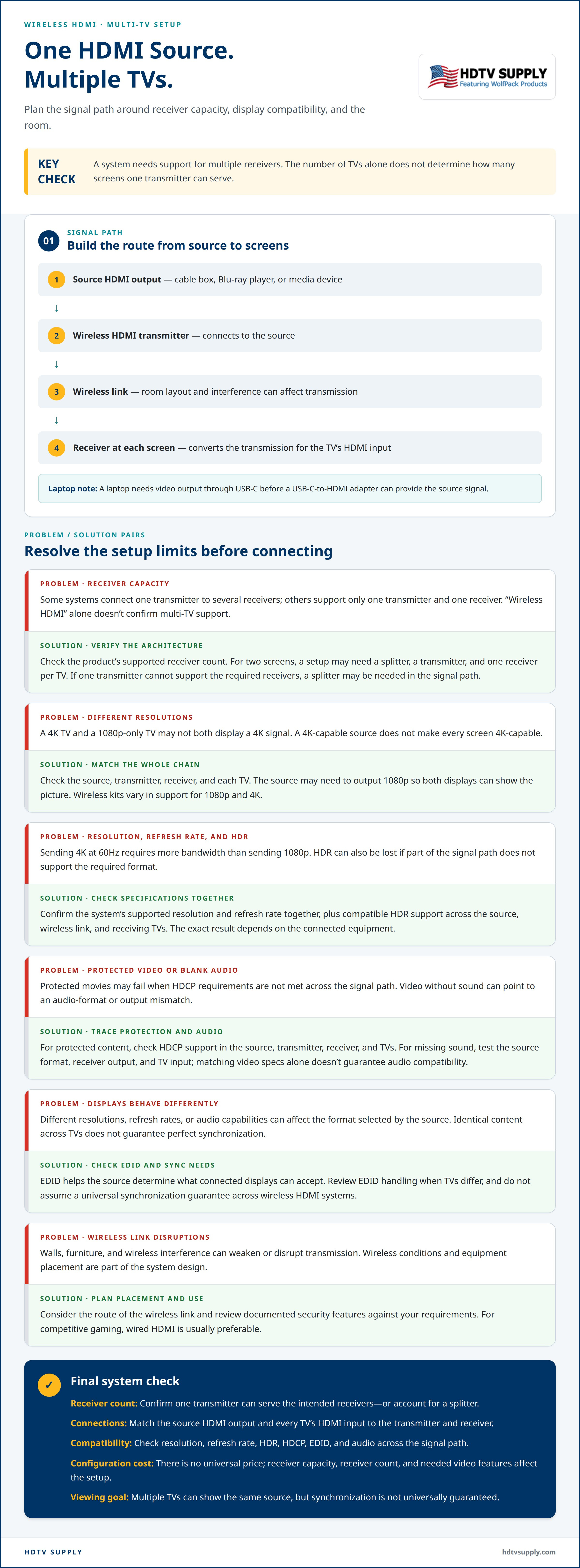
One HDMI source can reach multiple TVs wirelessly only if the system supports multiple receivers. Some systems let one transmitter connect to several receivers; others support just one transmitter and one receiver. To understand how to connect multiple TVs to one source wirelessly, first check the system’s receiver capacity and whether each TV has an HDMI input.
It’s reasonable to expect one source to show the same program on every screen, but the setup depends on more than the number of receivers. This guide explains how wireless HDMI carries a source signal to TVs, what determines the number of displays, and which resolution, HDR, HDCP, display, and audio limits to consider. You’ll see how transmitters and receivers fit into the signal path, and why compatibility matters when screens have different capabilities.
Key Takeaways
- Match the system’s video and audio capabilities to the TVs and source so a mismatch doesn’t limit the picture or sound.
- Choose wireless HDMI for sending an HDMI source signal, and account for the room layout and potential wireless interference.
- Plan the signal path around the number of displays and whether they need to show the same content or different sources.
- For more involved AV routing or display-control needs, explore HDTV Supply’s matrix switchers and TV control systems.
Resolution, HDR, HDCP, EDID, and audio compatibility
Start with the displays’ supported resolutions. If one TV supports 4K and another supports only 1080p, the source may need to output 1080p so both can show the picture. Wireless HDMI kits vary: some support 1080p, while others support 4K. The transmitter, receiver, source, and each TV all affect the usable signal. A 4K-capable source alone doesn’t make every screen display 4K.
Refresh rate and HDR add more compatibility points. Sending 4K at 60Hz requires more bandwidth than sending 1080p. A wireless system’s supported resolution and refresh rate therefore matter together, not separately. For HDR, the source, wireless link, and receiving TVs need compatible HDR support. If one part of the signal path doesn’t support the required format, the image may not retain HDR. The exact result depends on the connected equipment.
Protected video brings HDCP into the signal path. Streaming devices, Blu-ray players, and cable boxes may require HDCP support to display protected content. The source, wireless transmitter and receiver, and connected TVs must all meet the protection requirements. If a system displays an unprotected menu but not a movie, the issue may be HDCP compatibility rather than resolution.
EDID helps the source determine what the connected displays can accept. In a multi-TV setup, differing display capabilities can affect the selected output. For example, if the signal path presents a 4K TV and a 1080p-only TV, the source may select a format both can display. EDID handling matters when the TVs have different resolutions, refresh rates, or audio capabilities.
Audio must also pass through the signal chain. Check that the wireless equipment and receiving TVs or audio system support the source’s audio output format. If video appears without sound, troubleshoot the audio path by testing the source format, receiver output, and TV input. Matching video specifications alone doesn’t guarantee audio compatibility.
Wireless transmission from a home entertainment source
Wireless HDMI carries an HDMI source signal over a wireless link to a display, rather than casting app-based content. The transmitter and receiver create that link, while room layout and receiver capacity determine how the system can be set up.
Multi-TV Transmitter Support
A multi-TV wireless HDMI transmitter sends one source signal to multiple compatible receivers. Some systems support several receivers, while others pair only one transmitter with one receiver. So a multi-TV setup depends on the transmitter’s receiver capacity, not simply the number of TVs in the room. Each receiver connects to a TV’s HDMI input, and the transmitter connects to the source’s HDMI output.
System Costs
The cost of a wireless HDMI system for multiple TVs depends on its components and configuration, so there’s no universal price. The transmitter’s receiver capacity, the number of receivers required, and the video features needed all affect the setup. A system for two displays may differ from one serving several rooms. If one transmitter can’t support the required receivers, an HDMI splitter may also be needed in the signal path.
Receiver Operation and TV Capacity
A receiver converts the wireless transmission back into a signal the connected TV can display. According to the U.S. Environmental Protection Agency, a transmitter sends information over radio waves, and a receiver converts it back into the information sent. The system’s supported receiver count determines how many TVs it can serve. For two screens, a wireless HDMI setup may need a splitter, a transmitter, and one receiver per TV. Confirm that the signal path supports your intended layout.
Content Synchronization Across TVs
Multiple TVs can show the same source when their receivers get the same transmitted signal, but identical content doesn’t guarantee perfect synchronization. Wireless HDMI systems handle signals differently, and there’s no universal synchronization guarantee. For a commercial venue or shared viewing area, HDTV Supply offers advanced TV distribution and control solutions to manage multiple screens effectively.
Walls, furniture, and wireless interference can weaken or disrupt transmission. Consider the route of the wireless link, and treat equipment placement as part of the system design. Because the signal travels through the air, review the system’s documented security features to ensure they meet your requirements. For competitive gaming, wired HDMI is usually preferable.
What wireless HDMI transmitters support multiple TVs from one source?
Wireless HDMI transmitters vary in the number of receivers they can serve. Some systems send one source signal to multiple receivers, while others pair a transmitter with just one receiver. The product’s supported receiver capacity determines whether one transmitter can reach every intended TV. A single HDMI output from a cable box, Blu-ray player, or media device doesn’t determine that capacity. This distinction is central to how to connect multiple TVs to one source wirelessly.
For a multi-TV layout, match the transmitter architecture to your display plan. If all TVs need the same source, a multi-receiver transmitter can send the signal to compatible receivers at each screen. If the transmitter supports only one receiver, the setup may need an HDMI splitter alongside the transmitter and receivers. The splitter duplicates the source connection, while the wireless equipment carries the signal to TVs farther away.
Check system specifications for receiver support, not just the words “wireless HDMI.” Confirm whether the configuration supports one transmitter with multiple receivers or describes a one-to-one transmitter-and-receiver pair. Match the source’s HDMI output and each TV’s HDMI input to the transmitter and receiver connections. A laptop needs video output through USB-C before a USB-C-to-HDMI adapter can provide the source signal.
Resolution affects transmitter selection too. Wireless HDMI kits vary in support for 1080p or 4K, and higher-resolution video requires more bandwidth. For example, a 4K source feeding a 1080p display may need an output format the lower-resolution TV accepts. The transmitter’s capabilities, receiver compatibility, and connected displays all shape the result. These factors guide how to connect multiple TVs to one source wirelessly without choosing a system based on receiver count alone.
Wireless HDMI carries an HDMI source signal, unlike casting, which generally serves app-based content. The transmitter and receivers also need power, typically through USB or a power adapter. For a room with several TVs, plan each receiver’s placement and power connection as well as the transmitter’s location. Walls, furniture, and wireless interference can reduce performance, so the wireless path matters as much as receiver capacity.
How do multi-receiver wireless HDMI systems work, and how many TVs can they support?
A multi-receiver wireless HDMI system sends one source signal to several receiving points, with each receiver connected to a TV. According to the U.S. Environmental Protection Agency, a transmitter sends information over radio waves, and a receiver converts it back into the information sent. This lets displays in separate locations access the same source without a direct HDMI cable between every TV and the source.
There’s no universal maximum number of TVs for every wireless system. Some transmitters support multiple receivers; others support just one transmitter and one receiver. The supported receiver capacity determines how many TVs can connect directly. For example, a two-TV layout needs a system that supports two receivers or a compatible signal path that provides the required outputs. Check the transmitter’s receiver limit, not just the number of HDMI ports on the source.
A source with one HDMI output may need an HDMI splitter to feed more than one connection. A 1×2 splitter has one input and two outputs, while a 1×4 provides four outputs from one source. However, adding a splitter doesn’t increase a wireless transmitter’s receiver capacity by itself. The complete signal path must accommodate the splitter, transmitter, and receiving units.
Capacity is only one part of the design. Each receiver needs to connect to a TV’s HDMI input and receive power, while the wireless route must account for walls, furniture, and interference. Resolution also matters: a system carrying 4K at 60Hz needs more bandwidth than one carrying 1080p. If a 4K TV and a 1080p-only TV share a source, the output may need to match the format both displays accept.
For a sports bar or other multi-screen venue, define the number of displays and whether every screen needs the same source. A wireless setup suits shared viewing, while different sources on different TVs call for a routing design that can assign signals individually. Explore TV distribution and control options for multi-screen planning.
HDTV Supply
HDTV Supply offers professional AV equipment for projects that need more than a simple one-source, one-screen connection. If your setup needs source routing, coordinated displays, or centralized TV control, its matrix switchers, HDMI Video Wall Processors, and WolfPad TV Control Systems provide relevant options to consider. The WolfPackSecure 4K 60 4:4:4 HDMI Matrix Switchers are another option for routing compatible HDMI sources across displays.
For a multi-TV design, start with the signal path: the number of sources, the displays’ resolution requirements, and whether screens need the same content or different feeds. These details help determine whether wireless HDMI or a more structured AV distribution system better suits the layout. Contact HDTV Supply to discuss your multi-TV setup and equipment for its routing and control needs.
Plan the Right Signal Path for Your Displays
Plan how to connect multiple TVs to one source wirelessly by starting with the viewing experience you want, then working backward through the equipment. Decide whether every screen will show the same feed or whether you need different sources and centralized control. That distinction helps shape a system around the space, rather than forcing the space to fit the system.
For broader AV distribution, HDTV Supply offers WolfPack Modular Matrix Switchers, a Sports Bar TV Distribution System, and WolfPad TV Control Systems. These options can support designs where source routing or screen control goes beyond a basic wireless link. Match the equipment to the display plan and signal requirements, then move forward with a clear technical direction.
Bring your multi-screen requirements together and contact HDTV Supply for wireless HDMI help. A well-planned signal path is a solid starting point for your setup.
Frequently Asked Questions
How Many Screens Can One HDMI Source Support?
There’s no fixed screen count for every setup; the wireless system’s receiver limit determines how many TVs it can serve. Separate that limit from the splitter’s outputs: a 1×4 HDMI splitter provides four outputs from one source, but it doesn’t make a wireless transmitter support four receivers. For a larger layout, confirm that each part of the signal path supports the intended display count.
What is the best way to stream one source to multiple TVs over Wi-Fi?
For an HDMI device such as a cable box, use wireless HDMI equipment designed to distribute one source to multiple receivers. Connect the transmitter to the source’s HDMI output and a receiver to each TV’s HDMI input. Casting is generally better suited to app-based content, while wireless HDMI carries the connected device’s signal. The receiver capacity determines whether the system suits your display plan.
Can wireless HDMI send video to TVs in different rooms or through walls?
Wireless HDMI can carry video to a TV in another room, but walls, furniture, and wireless interference can reduce performance. A clear signal path can help, while dense obstructions or competing wireless activity may disrupt reception. Room layout matters: transmitting across an open space creates different conditions from sending a signal through walls to a distant room.
What video resolution, refresh rate, and audio formats do multi-TV wireless systems support?
Support varies by wireless HDMI system and connected equipment. Kits may support 1080p or 4K, and 4K at 60Hz requires more bandwidth than 1080p. HDR and HDCP also depend on compatible equipment across the signal path. Audio format support varies too, so the source, wireless components, TVs, and any separate audio equipment must handle the selected signal.
What are the setup steps for connecting one cable box or streaming device to multiple TVs wirelessly?
Use this signal path for one source and multiple displays:
- Connect the cable box or streaming device to the transmitter’s HDMI input.
- Connect a compatible receiver to each TV’s HDMI input.
- Power the transmitter and receivers using their required USB or adapter connections.
- Set the source output to a format the displays can accept.
A compatible setup can share content from an existing cable box with other TVs without adding another box.
Leave a Reply
Want to join the discussion?Feel free to contribute!