
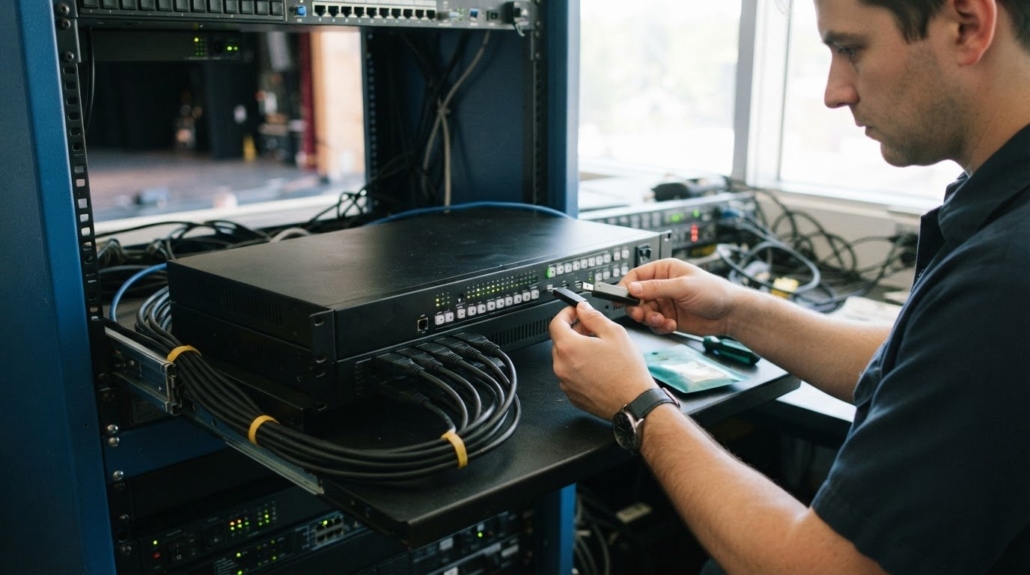
Firmware update for HDMI matrix switcher: Compatibility reference
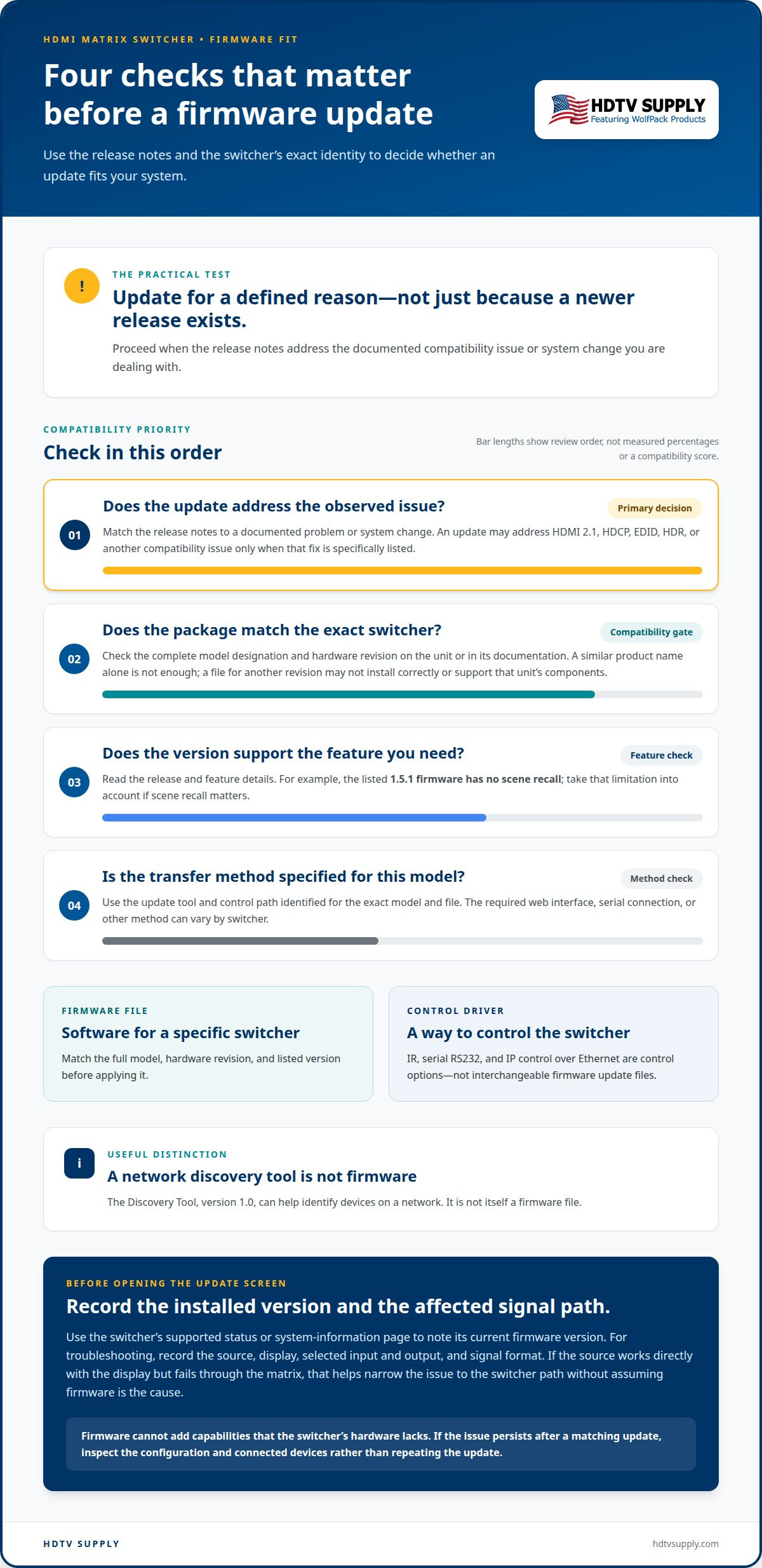
A firmware update should solve a defined problem, not be installed simply because newer firmware is available. For an HDMI matrix switcher, an update makes sense when its release notes address a documented compatibility issue or a change in the connected system. Use that as the practical test for whether to proceed.
Compatibility can depend on the switcher’s hardware revision as well as its firmware, so a file intended for one version may not suit another. A mismatch can create more trouble than it fixes. This guide explains what updates can address, why hardware revisions matter, and how to find the update screen for an 8×9 matrix switch.
You’ll also find the key steps in the 8×9 update process, including its power-cycle sequence and default IP address, alongside guidance for handling update files. Use these details to identify the right path for your system and avoid treating every firmware release as a routine upgrade.
Key Takeaways
- Install firmware to address a specific compatibility problem or documented change, not simply because an update is available.
- Match firmware to the switcher’s hardware revision; version differences can affect which features and update files apply.
- Use the switcher’s control interface to access its firmware update screen, following the path that matches the model.
- For an 8×9 matrix switch, follow the model-specific update sequence and network access steps before uploading a firmware file.
Compatibility fixes for connected devices
A firmware update changes the switcher’s internal software to address a documented issue or change. Yes, it may fix HDMI 2.1, HDCP, EDID, HDR, or other compatibility problems when the update specifically addresses them. It cannot add capabilities the switcher’s hardware lacks.
Compatibility means that the source devices, matrix switcher, and displays can exchange and interpret signals correctly. A fault may occur at just one point in that signal chain. For example, a source might display a picture when connected directly to a display but fail through the matrix. That difference helps narrow the issue to the switcher path without assuming firmware is the cause.
EDID is display information that a source uses to choose its output settings. If an update specifically addresses an EDID issue, it may help when a source selects an unsuitable mode. HDCP is copy protection used in some video connections. An update may resolve a specific HDCP interoperability issue, but every device in the chain still needs to be compatible.
- HDMI 2.1: The label identifies a set of HDMI features. An update can address a documented handshake issue, but doesn’t turn older hardware into HDMI 2.1 hardware.
- HDR: High dynamic range describes image information handled across the signal path. A firmware fix may correct a documented HDR negotiation problem.
- Resolution or refresh mismatch: These settings describe the video mode. Check whether the same source and display work directly, then compare the matrix configuration.
- Intermittent signal: This is a connection that drops or fails inconsistently. Note which source, output, and display are involved before considering an update.
Use a firmware update for an HDMI matrix switcher when the release notes match the observed symptom or a documented system change. Record the source, display, selected input and output, and signal format. Compare how the system behaves before and after the update. If the problem persists, inspect the configuration and connected devices instead of repeating the update. This keeps troubleshooting focused on the affected route, whether the issue involves EDID, HDCP, HDR, or another compatibility condition.
Device hardware revisions and firmware compatibility
A firmware update for an HDMI matrix switcher must match the device’s model and hardware revision. The compatible file and update method depend on those identifiers, so a similar product name alone isn’t enough to choose an update.
Hardware Revision Matching
A hardware revision identifies a version of the switcher’s physical design. Firmware must support the specific model and revision. A file for a different revision may not install correctly or support that unit’s components.
Start with the complete model designation and revision shown on the unit or in its documentation. Compare both with the firmware listing instead of matching only the product family name. For example, similarly named matrix switchers may require different firmware packages. Treat the revision as part of the device’s identity, not as an optional detail.
Firmware versions can also differ in supported functions. The listed 1.5.1 firmware has no scene recall. If scene recall matters, consider that limitation alongside the model match. Check the release details against the function or issue you’re addressing before choosing an update.
Firmware Files and Update Tools
A firmware file contains software intended for a particular switcher model, while an update tool provides the method for transferring it. Choose the combination identified for the exact model and revision.
Don’t choose a file just because its name resembles the switcher’s model. Match the full designation, hardware revision, and listed version, then use the update method specified for that file. The required web interface, serial connection, or other control path may vary by model, so a familiar tool from another unit may not apply.
Binary matrix switcher control drivers are available for IR, serial RS232, and IP control over Ethernet. These are control options, not interchangeable firmware update files. Identify the task before selecting a driver or package.
- Model: Match the full designation.
- Revision: Match the hardware version.
- Version: Read the release and feature details.
- Method: Use the update tool specified for that model.
Before applying a firmware update to an HDMI matrix switcher, confirm that the file, hardware revision, and transfer method all match. This helps distinguish firmware from a control driver and avoids treating a feature description as proof of compatibility.
Entering the firmware update screen
The firmware version is the software release currently installed on the switcher. Open its status or system-information page through the supported control interface. Menu names vary by model. Record the displayed version before opening the update screen so you can compare it with the intended release.
A firmware update screen is the model-specific interface for selecting and applying an update file. Access it through the switcher’s documented web GUI or other specified interface. The Discovery Tool is version 1.0, released on 2014-01-31; it can help identify devices on a network, but it is not itself firmware.
USB, network, and serial connections are different transfer paths, not universal options for every switcher. Follow the model’s stated method: open its update page, select the compatible file, and start the upload only when the interface is ready. Binary matrix switcher control drivers include IR, serial RS232, and IP control over Ethernet. These are control methods, so don’t assume each one provides firmware transfer.
- Before updating: Save or export the current configuration if the switcher provides that function. Record routing, EDID, and other settings that would take time to restore.
- Check power: Use the switcher’s specified power supply and keep power connected throughout the update. Avoid starting during a planned shutdown or while power is unstable.
- Prepare the file: Match the model and revision, then retain the file’s correct extension. For WolfPack Modular MM, keep mx6-upgrade.zip zipped when uploading through the web GUI.
- Apply and confirm: Use the model’s update controls, wait for its completion indication, then reopen system information and read the installed version.
Backups preserve a reference for restoring configuration, but they don’t replace a compatible update file. If the interface shows a version different from the release you selected, stop before applying it. Check the model, revision, file, and transfer method against the switcher’s instructions. This prevents a file intended for another unit from being treated as a routine update.
Firmware update access for an 8×9 matrix switch
An 8×9 matrix switch firmware procedure is the model-specific route to its update interface. A user can perform the update by following that procedure; the documented steps don’t require a dealer or technician.
For the listed 8×9 procedure, power the switch off and on until it beeps three times. Then use its default IP address, 192.168.1.80, to reach the update interface on the network. These details make the process specific to this switch, not a universal sequence for every matrix model.
- Identify the firmware: The HDTV900 update is dated Feb 14, 2024. The HDTVIPM900TR software firmware is dated March 22, 2022. Match the file to the exact model before starting.
- Prepare the download: Save the update file with its correct file extension. Retaining the extension helps the update interface recognize the file type.
- Enter update mode: Power-cycle the switch until it gives three beeps. Connect to the switch using 192.168.1.80, then open the firmware update screen.
- Upload the file: Select the model-matched update in the interface and follow its prompts. Don’t substitute another model’s file or interrupt the process.
- Confirm completion: Wait for the interface or switch to indicate the update has finished. Then return to the control interface and check that the switch responds.
The three-beep sequence and default IP are useful identifiers for this 8×9 procedure. If the switch doesn’t present the expected update screen, stop rather than trying unrelated addresses or repeating a different model’s process. Confirm the model designation and firmware file first.
WolfPack Modular MM uses a separate upload instruction: keep mx6-upgrade.zip zipped when uploading through its web GUI. That distinction matters; don’t apply the MM file-handling step to the HDTV900 procedure.
For the 8×9 switch, the practical takeaway is clear: use its documented power cycle, network address, and matching update file. Follow the update prompts without changing file extensions or substituting another model’s instructions.
For this 8×9 switch, power-cycle it until it beeps three times, then connect over the network at 192.168.1.80 and open the firmware update screen. Upload the correctly matched firmware file with its extension intact, follow the prompts, wait for completion, and check that the switch responds; no USB or serial procedure is provided.
HDTV Supply
HDTV Supply helps readers connect firmware questions with professional audiovisual equipment needs. If an update points to a broader system compatibility issue, review the switcher model, hardware revision, and connected devices before selecting equipment. The right setup depends on how sources, displays, and control systems work together.
HDTV Supply offers WolfPackSecure 4K 60 4:4:4 HDMI Matrix Switchers, WolfPad TV Control Systems, and HDMI Video Wall Processors. These offerings serve different signal-routing and display-control needs, so identify the role each component must perform in your system. For a firmware issue, keep the model and revision details available when discussing your setup.
Contact HDTV Supply to discuss your audiovisual system requirements.
Plan the Next System Decision
Make firmware decisions part of your system’s lifecycle planning. An update for an HDMI matrix switcher should address a defined compatibility need, while the wider signal path continues to meet operational requirements. Considering both helps prevent isolated fixes from leading to unnecessary system changes.
Before changing equipment, document how sources, displays, routing, and control work together. This makes it easier to identify whether the priority is signal distribution, centralized control, or display processing. It also provides a clearer basis for planning upgrades around the installation’s actual workflow.
HDTV Supply offers WolfPack Modular Matrix Switchers and WolfPad TV Control Systems for different audiovisual system needs. Consider how each product fits the system design rather than treating a firmware question as a standalone purchasing decision.
Bring your system requirements and the next decision into focus. Contact HDTV Supply for help exploring the right direction for your setup. A clear plan is a strong next step.
Frequently Asked Questions
What is a firmware update for?
A firmware update changes the software that controls a matrix switcher’s internal operation. It can address a documented fault or support a documented change in connected equipment. For example, if release notes describe an EDID negotiation fix, the update may apply to a system with that specific symptom. An update can’t add features that the switcher’s hardware doesn’t support.
What should I do if something does not work as expected?
Stop before applying another file or repeating the same update. Note the switcher’s displayed status, the exact message, and which inputs and outputs are affected. If the issue began during an update, keep the unit powered only as its instructions direct. Avoid factory resets or recovery combinations unless the model’s documentation describes them, as they can erase configuration or complicate diagnosis.
Where can I find updates?
Find firmware resources for the switcher’s exact model and hardware revision. Search the model designation in the product documentation or firmware listings, then compare the release details with the issue. An update entry for a related model, for example, doesn’t establish compatibility. Keep the instructions with the file so you can follow the correct transfer method.
How do I identify the brand, model, and hardware revision of an HDMI matrix switcher?
Read the identification label on the chassis and compare it with the device’s system-information screen or original documentation. Record the brand, full model code, and revision marking exactly as shown. A family name alone may not be enough because closely related units can have different hardware versions. If the labels differ, start with the unit’s own identification details.
Where can I find official firmware updates for an HDMI matrix switcher?
Use the firmware resource for the switcher’s specific brand and model, along with its release notes or update instructions. Treat a file as official only when its source and model designation match the manufacturer’s documentation. Avoid repackaged files and downloads labeled for similar devices. Keep the original filename and extension, then follow the instructions for that exact release.
What are the risks of a failed firmware update, and how can a bricked HDMI matrix switcher be recovered?
A failed update can prevent the switcher from starting normally or accepting control commands. Recovery depends on the model’s documented process, such as a supported boot or service mode. Don’t try firmware for another revision or use improvised reset sequences. Keep the model details, failed filename, and screen messages available when following the manufacturer’s recovery instructions.
Leave a Reply
Want to join the discussion?Feel free to contribute!