

iOS App Setup Guide for WolfPack HDMI Matrix Switchers
Reliable iOS control starts before you open the app: match the app, switcher model, and network. If you’re researching how to set up an iOS app for WolfPack HDMI Matrix switchers, confirming those details first can prevent avoidable troubleshooting and help protect an installed AV system from unnecessary changes.
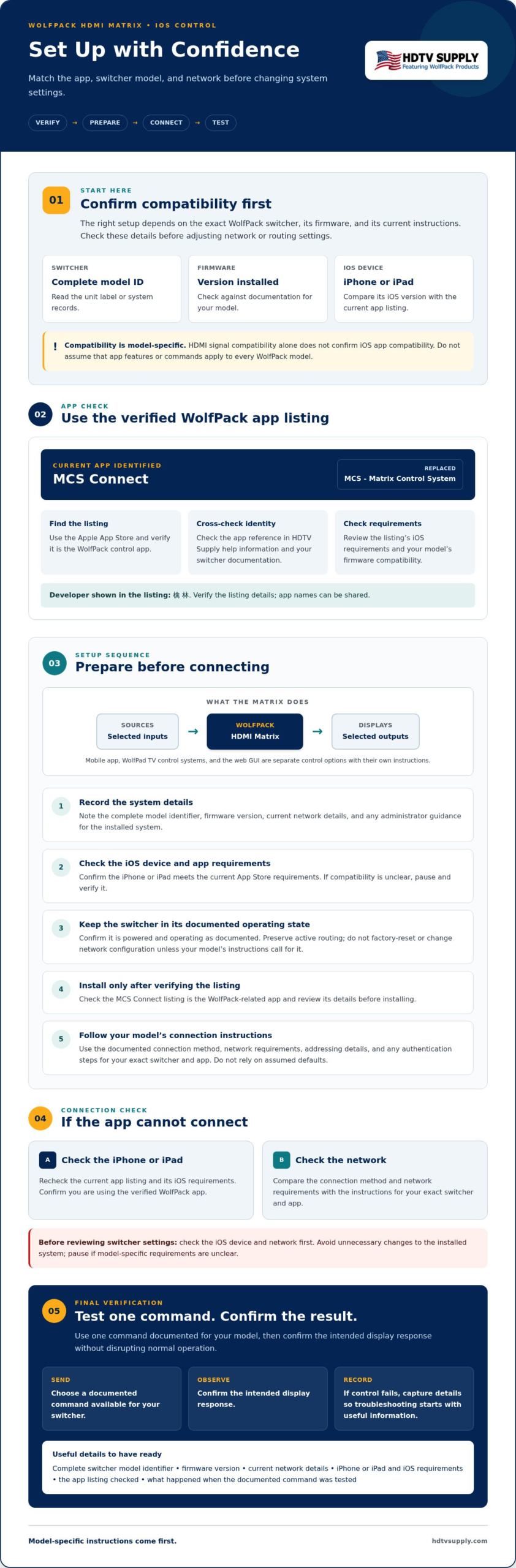
The current app identified for WolfPack matrix switcher control is MCS Connect, which replaced the older MCS – Matrix Control System app. Compatibility and setup can vary by switcher, so check the app and instructions against your model’s product page or manual before changing network settings.
This guide covers a careful setup sequence for your iPhone or iPad: verify compatibility, prepare the device and switcher for a supported network connection, follow the model’s connection instructions, and test control without disrupting normal operation. If the app can’t find the switcher or commands don’t work, you’ll also know what details to record so troubleshooting starts with useful information instead of guesswork.
Key Takeaways
- Record your switcher’s complete model identifier and firmware version, then check its documentation for app compatibility.
- Use a model-aware sequence to set up an iOS app for WolfPack HDMI Matrix switchers, following current product instructions.
- Confirm the supported connection method and network requirements for your specific switcher instead of relying on assumed defaults.
- Check the iPhone, iPad, and network before reviewing switcher settings if the app can’t connect or control the system.
- Test one documented command, confirm the intended display response, and record key details if you need model-specific support.
Before setup, confirm your WolfPack switcher and iOS app are compatible
The setup depends on the exact WolfPack switcher, its firmware, and the current app instructions. Before adjusting network or routing settings, record the complete model identifier from the unit’s label or system records and note its firmware version. These details help you check compatibility and make any support request more specific.
A matrix switcher routes selected source devices to selected display outputs. For background on chassis formats and system design, see this modular HDMI matrix switcher guide. The system uses High-Definition Multimedia Interface (HDMI) to carry audio and video between compatible equipment. HDMI signal compatibility does not, by itself, confirm app compatibility.
Identify the switcher model and intended control method
Check the model label and documentation for the installed system. Then confirm that mobile app control is the method you intend to use. The iOS app, WolfPad TV control systems, and the switcher’s web GUI are separate control options, each with its own compatibility and setup instructions.
The iOS app provides mobile control for compatible WolfPack HDMI matrix switchers. Check the manual for the functions available on your model. Don’t assume that every app command or feature applies across the WolfPack range.
Check the app listing and compatibility requirements
The current iOS app identified for WolfPack matrix switcher control is MCS Connect, which replaced the older MCS – Matrix Control System app. Find the app through the Apple App Store and verify that the listing is for WolfPack control before installing it. Since app names can be shared, don’t rely on the name alone. Cross-check the listing with the app reference in HDTV Supply’s help information and your switcher documentation.
Before proceeding, check the current documentation for:
- iOS requirements: Confirm that your iPhone or iPad meets the iOS version requirements shown in the current App Store listing.
- Model and firmware compatibility: Check the full switcher identifier and firmware version against its product documentation. Support for one WolfPack model does not confirm support for another.
- Network and access requirements: Follow the instructions for your exact switcher and app. Verify the supported connection method, addressing details, and any authentication steps rather than assuming defaults.
If a requirement isn’t clearly documented, pause before changing the installed system. HDTV Supply sells WolfPack HDMI matrix switchers and provides product and technical support. When asking for model-specific guidance, share the model identifier and firmware version. Confirming compatibility is the safest starting point for how to set up an iOS app for WolfPack HDMI Matrix switchers.
How to set up the WolfPack HDMI Matrix iOS app step by step
Use the switcher’s current manual and the app’s current listing for model-specific instructions. The steps below provide a cautious order of operations, not a substitute for your unit’s directions. Keep existing routing in place while preparing, and don’t reset or reconfigure the switcher just to try the app.
Model-aware setup summary: Record the switcher and firmware details, check the iOS and app requirements, install the verified MCS Connect listing, then follow your model’s instructions to connect and test control.
- 1. Record the system details. Note the complete switcher model identifier, firmware version, current network details, and any administrator guidance for the installed system. Keep the information available before making changes.
- 2. Check the iOS device. Review the requirements in the current App Store listing for the correct app and confirm your iPhone or iPad meets them. If the listing or model documentation doesn’t clearly confirm compatibility, pause and verify before proceeding.
- 3. Confirm the switcher is ready. Check that it’s powered and operating as documented. If it’s routing sources to displays, avoid changing active routing during setup. Don’t factory-reset the unit or alter its network configuration unless the instructions for your specific model call for it.
- 4. Install the app from the official source. Search the Apple App Store for MCS Connect. Verify that the listing is the WolfPack-related app and that the developer is shown as 檎 林, since other apps may use the same name. Check the listing details before installing.
- 5. Open the app and follow the model documentation. Use the connection procedure in the app’s current instructions and the switcher manual. Don’t assume your model supports automatic discovery or manual entry. Before entering an address, port, or credentials, compare the requested information with the documentation.
- 6. Keep network access deliberate. Use only the connection method and settings documented for your switcher. When preparing network-connected equipment, consult the NJCCIC guidance on securing your smart devices and follow your organization’s network security practices.
If the manual doesn’t confirm the app version, firmware, or connection fields for your unit, don’t fill in the gaps with settings from another model. HDTV Supply’s WolfPack product and technical support resources may help you identify the right documentation. This sequence is a practical starting point for how to set up an iOS app for WolfPack HDMI Matrix switchers without guessing at model-dependent steps.
Connect the iOS device and switcher on the right network
For app control to work, the iOS device needs a network path to the switcher that is supported by that exact model and app. In general, the device and switcher need to be on a network that allows them to communicate, but the correct connection method and configuration depend on the product documentation. A working HDMI picture does not confirm that the app can reach the switcher.
Check local network reachability before pairing
Before entering connection details, confirm how the switcher connects to the network and how your iPhone or iPad joins it. Use the switcher manual and app instructions to verify the required network relationship. If you’re unsure about wireless access, VLANs, or network isolation, ask the network administrator before making changes.
Use this table as a verification checklist, not as confirmation that every configuration is supported:
| Connection or condition | What to confirm |
|---|---|
| iOS device on Wi-Fi | Confirm the Wi-Fi network provides the access to the switcher required by its documentation. |
| Switcher on wired Ethernet | Check that its documented network connection is active and reachable from the iOS device’s network. |
| Separate VLANs or subnets | Ask the network administrator whether communication between the device and switcher is permitted and supported. |
| Guest Wi-Fi or client isolation | Check whether the network prevents connected devices from communicating with one another. |
Don’t guess an IP range, port, or firewall rule. Confirm the required values and access conditions in the documentation for your specific switcher and app. If the instructions don’t specify them, get model-specific guidance before adjusting network settings.
Separate control connectivity from HDMI signal routing
HDMI carries audiovisual signals between sources, the matrix switcher, and displays. App control, when supported, uses a network connection. These are separate paths: a display can show the expected source even if the iOS device can’t communicate with the switcher.
Test the app connection without changing source-to-display assignments. First check the documented network relationship and connection details. Then, when you’re ready to confirm app access, use a control command documented for your model. This keeps the test focused on control connectivity rather than interrupting live routing.
For related context on app-based AV control, see the WolfPad TV control system checklist. WolfPad TV control systems are separate from the WolfPack iOS app. If the network connection works but a display shows an unexpected format or resolution, investigate that video-format issue separately; HDMI matrix EDID management covers that topic. Distinguishing signal routing, video format, and app connectivity makes how to set up an iOS app for WolfPack HDMI Matrix switchers easier to troubleshoot.
Troubleshoot common WolfPack iOS app connection and control problems
An app connection problem doesn’t automatically mean the WolfPack switcher is faulty. Possible causes include app compatibility, network reachability, or a model-specific setting. Start with checks that won’t affect live routing, then review documented configuration details. Don’t reset the switcher or change network settings just to test a theory.
If the switcher does not appear or connect
Work through these checks in order. Stop if a step could interrupt the installed system:
- Confirm compatibility. Check the current app listing and your switcher’s model documentation for supported app, iOS, and firmware requirements. Don’t infer compatibility from another WolfPack model.
- Check the device and network. Confirm the iPhone or iPad is connected to the intended network. Verify that the switcher’s documented network connection is active and that the required communication path is available. Ask the network administrator about Wi-Fi isolation, VLANs, or other access restrictions.
- Review connection details. Compare any address, port, or authentication fields in the app with the instructions for the exact switcher and app version. Don’t substitute common defaults or values from a different unit.
- Consider a restart only if safe. Restart the app or network equipment only when doing so won’t disrupt other users. Restart the switcher only if manufacturer guidance allows it and the system can tolerate the interruption.
If you’re comparing platform-specific instructions, the WolfPack Android app setup guide is for Android. It isn’t a substitute for the current iOS app instructions.
If the app connects but commands do not work
Test one control action documented for your model. Observe whether the intended display responds before trying another command, and avoid changing active source-to-display assignments during live operation. If the app connects but the action fails, review documented permissions and control settings. Check your switcher’s firmware guidance before considering an update, and don’t install firmware based on instructions for another model.
Keep a diagnostic record with the exact error message, app version, iOS version, complete switcher model identifier, firmware version, and what you tried and observed. Note whether the switcher continues to operate normally through its usual control method. These details can help narrow down the issue.
If the issue persists or could affect a live installation, pause further changes and contact HDTV Supply for model-specific technical support. Share your diagnostic details and the relevant product documentation. An evidence-led approach to how to set up an iOS app for WolfPack HDMI Matrix switchers helps distinguish a network or compatibility issue from a switcher fault.
Verify iOS app control and get model-specific WolfPack support
A successful app connection is a useful first check, but verify that a documented command reaches the switcher and produces the intended display response before relying on mobile control. Test carefully, especially if the matrix is in active use. Controls and status feedback can vary by model and app version, so follow the instructions for your system.
Run a safe control test before relying on the app
Choose one low-risk routing command described in the switcher documentation. Before sending it, confirm which source and output it will affect and make sure the change won’t interrupt an active viewing area. Then check the result using the switcher’s approved status indicators and, where appropriate, the display itself.
- App connection: Confirm the app reports a connection or otherwise responds as described in its documentation.
- Documented command: Send one supported control action without assuming every model offers the same commands.
- Expected response: Check that the intended source reaches the intended output using the system’s documented indicators.
- Normal operation: Confirm the switcher continues to operate as expected after the test.
If you made a temporary routing or configuration change, restore the previous setting and verify that the system is back to its normal state. Don’t treat a particular app screen, confirmation message, or status display as universal; use only feedback documented for your app version and switcher.
Prepare an effective support request
If the test fails, capture the details before retrying or changing settings. A clear record gives product support useful information to assess the issue:
- Full WolfPack switcher model identifier and firmware version
- MCS Connect app version and iOS version
- Connection method and the step where setup or testing stopped
- Exact error message, if shown, plus the command sent and the observed response
Include whether the switcher still operates through its normal control method, and note any temporary changes you restored. Avoid sharing passwords or other sensitive network credentials in an initial support message.
For model-specific guidance, contact HDTV Supply for product assistance with your collected details. This final verification completes a careful approach to how to set up an iOS app for WolfPack HDMI Matrix switchers: confirm the connection, test documented control, and leave the AV system in its intended operating state.
Put your WolfPack iOS control setup to the test
Reliable mobile control depends on matching the app and switcher, following the model’s documented network requirements, and verifying a command without disrupting normal operation. Keep the model, firmware, app, and iOS details together so you can retrace the setup or describe a problem clearly.
That model-aware approach is the foundation of how to set up an iOS app for WolfPack HDMI Matrix switchers. Confirm that the app connects, test one documented action, check the intended display response, and restore any temporary changes. If the setup instructions don’t match your switcher, pause before changing its configuration.
HDTV Supply sells WolfPack HDMI Matrix switchers and offers product and technical support to customers worldwide. For model-specific guidance, contact HDTV Supply for WolfPack product assistance with your system details ready.
With compatibility confirmed and control tested carefully, you can move forward with greater confidence in your AV system.
Frequently Asked Questions
Which iOS app should I use with a WolfPack HDMI Matrix switcher?
Use MCS Connect, the current iOS app identified for WolfPack HDMI Matrix switcher control. It replaced the older MCS – Matrix Control System app. Since multiple App Store apps can share a name, verify that the listing is for WolfPack control by checking HDTV Supply’s help information and your switcher documentation. Confirm that your device meets the listing’s current iOS requirements before installing.
How do I connect my iPhone or iPad to a WolfPack HDMI Matrix switcher?
First confirm that your switcher model and firmware are supported by the current app instructions. Install the verified MCS Connect listing, then follow the connection method documented for your model. The app and switcher need a supported network connection, but discovery steps, address fields, ports, and authentication can vary. Don’t guess these values. Once connected, test one documented command without unnecessarily changing live routing.
Does my iPhone need to be on the same network as the WolfPack switcher?
Generally, app control requires the iPhone or iPad and switcher to have the network relationship specified in their documentation, typically access through the same network. Wi-Fi isolation, VLAN separation, or network policy may prevent communication even when both devices appear connected. Ask the network administrator to check reachability. Don’t change IP ranges, ports, or firewall settings unless the instructions for your exact switcher confirm what’s required.
Why is my WolfPack switcher not appearing in the iOS app?
A missing switcher doesn’t automatically indicate a hardware fault. Confirm that your model and firmware are compatible with the current app, then check that the iOS device and switcher have the documented network connection. Follow your unit’s discovery instructions and connection details rather than assuming the app will automatically find every model. Record the exact error and avoid resets or network changes unless the manufacturer’s guidance calls for them.
Can I control every WolfPack HDMI Matrix switcher with the iOS app?
Don’t assume every WolfPack switcher supports the iOS app. There isn’t one centralized compatibility list covering all models, and support can depend on the exact unit, firmware, and current app documentation. Find the full model identifier and firmware version, then check the product page or manual for confirmed compatibility and setup instructions. If those details aren’t clear, seek model-specific guidance before changing the system configuration.
What should I check if the app connects but does not switch outputs?
Test one control action documented for your switcher and verify the expected source and output using the system’s approved indicators. Check that the command is supported and that any required control settings are in place, following your model’s instructions. Don’t test by changing multiple routes on a live system. If the command still fails, record the app and iOS versions, model, firmware, exact error, and observed response.
Can I use the WolfPack iOS app and WolfPad to control the same system?
Possibly, but don’t assume the two control options are interchangeable or compatible with every installation. The WolfPack iOS app and WolfPad TV control systems are distinct products with their own compatibility and configuration requirements. Check the switcher documentation and WolfPad system instructions to confirm whether both can control your setup and how their commands interact. Verify any changes carefully so existing routing and control behavior remain as intended.
Leave a Reply
Want to join the discussion?Feel free to contribute!