

How to Set Up the WolfPack Switcher Android App
Before installing an app or changing network settings, check your WolfPack matrix model. App compatibility, firmware requirements, and connection steps can differ by switcher. Knowing how to set up an Android app for WolfPack HDMI Matrix switchers starts with confirming the instructions for your exact unit.
This guide takes you through a model-aware setup: verify the app and instructions, connect your Android device and matrix using the documented network path, then test source-to-display routing. It also explains how to separate app, network, matrix recognition, and signal-path issues if control doesn’t work as expected.
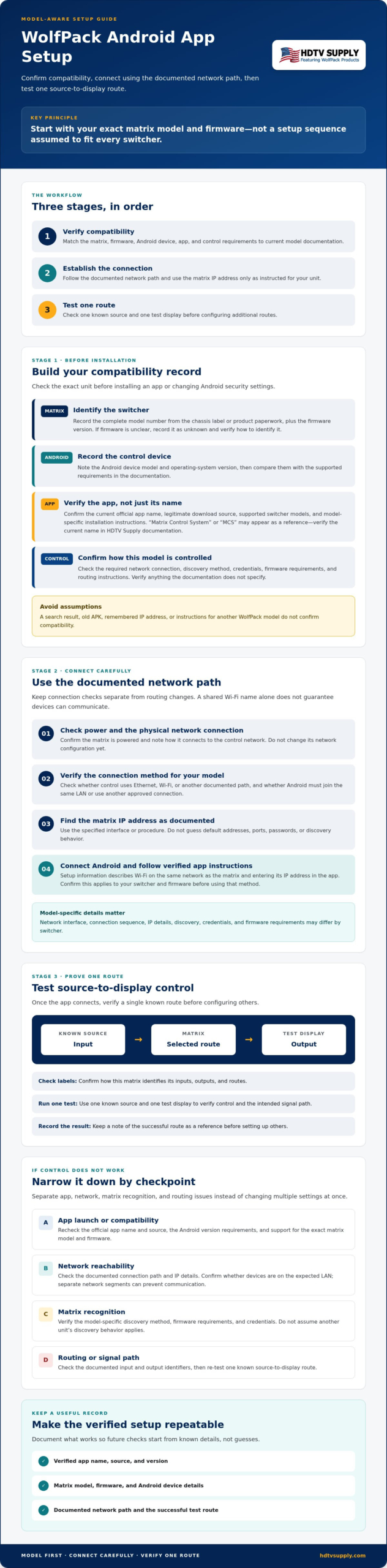
Follow the steps in order: check the model and current documentation, establish the connection, then test one route before configuring others. Recording what works gives you a useful reference for future troubleshooting.
How to set up an Android app for WolfPack HDMI Matrix switchers
Use your matrix model and firmware as the starting point. Confirm the app, connection method, and routing instructions for that unit before making changes. The steps below distinguish general preparation from actions that must be checked against model-specific documentation.
Key Takeaways
- Before installation, note your switcher model, firmware version, and Android device details so you can check the right compatibility instructions.
- Use model-verified app and connection guidance rather than assuming there’s one setup process for every WolfPack matrix.
- Check how inputs, outputs, and routes are identified, then verify control with one known source and one test display.
- Separate app launch, network reachability, matrix recognition, and routing failures to narrow down control problems without unnecessary changes.
- Document the verified app version, network path, and successful routes to make the setup easier to maintain and check later.
Before setup: confirm Android app and WolfPack matrix compatibility
Don’t assume one Android app or control sequence works across every WolfPack matrix. References may call the app “Matrix Control System” or “MCS,” but confirm its current official name, download source, supported switcher models, and firmware requirements in current HDTV Supply documentation. Check these details before installing an app or changing Android security settings.
Record the switcher’s full model number and firmware version, along with your Android device model and operating-system version. Compare these details with instructions for the exact unit. The matrix routes audio and video over High-Definition Multimedia Interface (HDMI) connections, but app compatibility depends on the switcher’s control requirements, not just its HDMI capability.
Find the switcher model and current firmware
Check the chassis label and product paperwork for the full model identifier. Don’t rely on a general product-family name if the unit has a more specific designation. To find firmware information, use only the interface or documentation specified for that model. If the version isn’t clearly displayed, record it as unknown and confirm how to identify it before updating or changing settings. Instructions for another WolfPack model may not apply.
Confirm the Android app and device requirements
Before downloading, match the app name and source against current HDTV Supply documentation for your switcher. A search result or old APK isn’t proof that an app is the official, compatible release. Check the official app listing or model documentation for supported Android versions and any firmware, network, or credential requirements. If a requirement isn’t documented, verify it rather than assuming compatibility.
Use this pre-setup checklist:
- Matrix: Record the complete model number and firmware version, then verify app support for both.
- Android device: Record its model and Android version, then confirm the supported OS range.
- App: Verify the current official name, legitimate download source, and model-specific installation instructions.
- Control: Confirm the required network connection, discovery method, and credentials in the model documentation.
If your control setup involves a separate WolfPad system, review the WolfPad TV control system checklist for related planning considerations. It doesn’t replace the instructions for your matrix model. This compatibility check helps you set up an Android app for WolfPack HDMI Matrix switchers without relying on unverified version or connection assumptions.
Connect the Android device to the WolfPack matrix step by step
Keep the first connection check separate from routing changes. Setup information describes connecting over Wi-Fi on the same network as the matrix, then entering the matrix IP address in the app. Confirm this method applies to your switcher and firmware before proceeding. Don’t assume every WolfPack model uses the same network interface or connection sequence.
Prepare the network and control device
Start by checking the physical connection and network path. The Android device, matrix, and any network equipment between them must follow the arrangement specified in the switcher documentation. Sharing a network name doesn’t necessarily mean devices can communicate, particularly if they’re on separate network segments. Verify the expected path and IP details in the model-specific instructions.
- Universal preparation: Confirm the matrix is powered and note how it connects to the control network. Don’t change its network configuration yet.
- Model-specific check: Verify whether control uses Ethernet, Wi-Fi, or another documented path, and whether the Android device must join the same LAN or use a different approved connection.
- Model-specific check: Find the matrix IP address using the documented interface or procedure. Don’t rely on remembered defaults or guess ports, passwords, or discovery behavior.
- Universal preparation: Connect the Android device using the confirmed network path. Keep the recorded IP address available if the app setup requires it.
Install and connect using verified instructions
Install only the app identified by current HDTV Supply documentation or an official listing confirmed for your model. If the source, app name, or device requirements aren’t clear, pause and verify them before installing an APK or changing Android security settings.
- Model-specific: Follow the documented installation and first-launch instructions. App labels and screens may vary by version.
- Model-specific: Use the documented discovery option if the model supports it. If instructions call for manual entry, enter the matrix IP exactly as shown in the verified documentation.
- Universal check: Confirm success using a connection indicator, recognized matrix identity, or another confirmation specified in the app instructions. Don’t alter unrelated matrix settings to test connectivity.
If the app can’t find or connect to the matrix, stop before changing network values. Recheck the documented connection method, Android network, and IP address. For model-specific clarification, consult HDTV Supply’s WolfPack control information or its technical support resources. This model-aware process avoids treating unverified network assumptions as universal setup instructions.
Configure source-to-display routing in the Android app
A matrix route tells the switcher which source signal to send to which display destination. An input is a source, such as a connected media player; an output is a destination, such as a display. Routing pairs them. For broader system context, see this modular HDMI matrix switcher guide.
App labels and screen layouts may differ across WolfPack models and app versions. Use current instructions or screenshots for your specific matrix. Don’t assume a button called “Route,” “Switch,” or “Output” appears on every screen. The example below describes the task, not universal menu names.
Understand inputs, outputs, and routing
Suppose a known-good source is connected to the matrix’s first input, and a test display is connected to one output. The goal is to select that source and assign it to that display. Your model may identify ports by numbers, names, or another method. Check the physical connections and the app’s displayed port information before selecting anything. Modular matrix configurations can differ, so available ports and controls depend on the installed system.
Test one route before configuring the full system
Start with one source and one display. Follow the routing sequence documented for your model, then check the result at the display before making additional assignments.
- Confirm the test source is powered and connected to the input you intend to use.
- In the app, identify that input and the output connected to the test display, using the labels confirmed in your documentation.
- Apply the documented command to connect the selected input to the selected output. Avoid changing other routes during this first test.
- Check for a picture. If the installed system carries audio through that route, check for audio too.
Record the source, input, output, display, and test result. If the app indicates the route was applied but the display has no picture, the control command may have succeeded while the signal path still needs checking. If the route doesn’t appear to change in the app, confirm the selected ports and model-specific control steps first. Testing one route helps distinguish an app control issue from a source, connection, or display issue before you configure the rest of the system.
Use this routing workflow only after matching the instructions to your app version and matrix model. Add other source-to-display assignments once the initial route is confirmed.
Troubleshoot Android app connection and control problems
Work from observation to change. First check the app and documented connections, then isolate whether the issue is network reachability, matrix recognition, or signal routing. Don’t factory-reset the switcher, update firmware, change network ports, or alter IP settings unless instructions for your exact model approve that step.
When the app cannot find or connect to the switcher
If the app won’t launch, first check that you installed the verified app version and that your Android version meets its documented requirements. If it opens but can’t reach the matrix, check that the switcher has power and its documented control-network connection is in place. Confirm that the Android device is using the required network path.
- No device appears: Check the documented discovery procedure for your model. Don’t assume discovery is supported or that the app scans every network.
- Manual connection fails: Recheck the matrix IP address and entry method against its current documentation. Don’t try guessed addresses, ports, or credentials.
- The app reports an error: Record the exact message, then note the switcher model, firmware version, app version, Android device and version, and network path.
Make one check at a time and retest. Avoid clearing app data or changing network configuration early, since those actions can remove useful settings or complicate diagnosis. If the documented checks don’t resolve the connection, share your recorded details with technical support so the issue can be assessed against the correct model instructions.
When the app connects but a display does not switch
If the matrix is recognized but the display doesn’t change, verify the selected input and output, then test one known-good source-to-display route using the controls documented for your model. A successful app connection doesn’t confirm that the source signal reaches the display.
Check the source and display status, selected ports, and signal path without changing unrelated routes. If the app shows the route as applied but there’s no picture, investigate the source, cabling, matrix path, and display separately from app connectivity. If the symptom suggests an EDID-handling issue, consult the HDMI matrix EDID management guide and follow model-specific guidance before making adjustments.
For help matching a persistent app or control problem to your switcher, contact HDTV Supply technical support with the model, firmware, app version, and error details. This stepwise approach keeps troubleshooting focused on the failing layer while preserving the current system configuration.
Secure, document, and maintain WolfPack Android control
A reliable control setup is easier to maintain when its verified details are recorded. Keep a clear handoff record for anyone who may need to operate or troubleshoot the system. Include only settings confirmed for the installed matrix and app, and protect access information according to the manufacturer’s instructions.
Keep a useful system record
Document the switcher model and firmware, Android device and version, app name and version, and network path used for control. Add the source-to-output routes you tested and whether each worked. Note the setup date and the source of the instructions, such as a model manual or current app documentation. This gives future checks a known reference point.
- Record: Device identifiers, verified connection method, confirmed settings, and tested routes.
- Protect: Keep credentials private. Use only the account or access-management options documented for your specific model.
- Track: Note when app or firmware versions change, along with the release notes or manufacturer guidance you checked.
Don’t update the app or matrix firmware just because a newer version appears available. Review official release notes and confirm compatibility and update instructions for your exact model first. If the documentation doesn’t explain whether a change applies to your configuration, verify before proceeding. Preserve the working settings and system record so you can compare behavior before and after any approved change.
Know when to request product-specific help
Ask for guidance when the official app source, Android compatibility, network method, or control sequence remains unclear, or when documented troubleshooting hasn’t resolved the issue. Gather the switcher model, firmware version, Android version, app version, exact error message, and steps already tested. These details help distinguish an app question from a network, matrix-control, or signal-path issue.
For the next step, ask HDTV Supply to check uncertain compatibility or setup requirements against your WolfPack model. You can also browse WolfPack matrix switchers for product information. A documented, model-specific approach gives your team a practical reference for maintaining control and checking future changes.
Put your WolfPack Android control setup into service
Reliable Android control starts with confirming compatibility for your exact WolfPack matrix, firmware, and Android device. Follow the documented network connection method, then verify control with one source-to-display route before configuring the rest of the system. Keep a record of the app version, network path, and tested routes for future checks.
This model-aware process is the practical foundation for how to set up an Android app for WolfPack HDMI Matrix switchers. If an app requirement or connection step remains unclear, don’t guess. HDTV Supply sells WolfPack Modular Matrix Switchers and provides technical support to customers worldwide. You can request assistance through the website or by phone with your model, firmware, and setup details ready.
Ready to explore your options? Browse WolfPack HDMI matrix switchers and review the product information for your system. With the right model details and verified instructions, you can move ahead with a setup that’s easier to test and maintain.
Frequently Asked Questions
Which Android app controls WolfPack HDMI matrix switchers?
References may call the Android app “Matrix Control System” or “MCS,” but the correct app and download source can depend on your WolfPack model. Confirm the current app name, supported model, and legitimate download source in HDTV Supply documentation before installing. Don’t rely on an old APK or an app-store result alone. Check the app listing or manufacturer instructions for supported Android versions and any firmware requirements.
How do I connect my Android phone to a WolfPack matrix switcher?
Follow your switcher’s model-specific network instructions, then use the documented connection method in the app. Setup information describes connecting the Android device and matrix on the same network and entering the matrix IP address, but verify that this applies to your model and firmware first. Use the app’s documented discovery or manual-entry process. Avoid guessing IP addresses, ports, or credentials, and confirm the connection before changing routing settings.
Does the Android device need to be on the same network as the matrix switcher?
Setup information indicates that the Android device and matrix generally need to share a network for app control. However, the exact network path and configuration depend on the switcher model and system. Check the model documentation to confirm whether the same LAN is required and how the matrix connects to it. If the app can’t reach the switcher, verify network access and the documented IP or discovery method before changing settings.
Why is the WolfPack switcher not appearing in the Android app?
Check that the matrix is powered and connected to its documented control network, and that the Android device is using the required network path. Then confirm whether your model supports discovery or requires manual IP entry. Verify that the app is the correct version for the switcher. If it still doesn’t appear, record the model, firmware, app version, and any error message before seeking model-specific help.
Can I route different HDMI sources to different displays from the app?
Matrix routing assigns source inputs to display outputs, but the available controls depend on the switcher model and app version. Check the model-specific instructions for the routing sequence and labels. To test, select one known-good source and the output connected to one test display, then verify the result before setting additional routes. Record the input and output you tested so you can refer to the confirmed configuration later.
What should I check if the app connects but the display shows no picture?
Verify that the app selected the intended input and output and that the documented routing command was applied. Then check the source, connections along the signal path, and display status. An app connection doesn’t prove that video is reaching the display, so separate control checks from signal checks. If the picture issue may involve EDID behavior, consult the matrix’s model-specific documentation before changing settings.
Do WolfPack matrix switchers require a specific firmware version for Android app control?
Firmware compatibility can vary by switcher model, and a universal minimum version isn’t confirmed here. Check current HDTV Supply documentation for your exact model and app version before installing, updating, or changing firmware. Don’t apply an update simply to troubleshoot a connection problem. Record the current firmware version and review the official release notes or ask HDTV Supply to confirm whether a specific version is required for Android control.
Leave a Reply
Want to join the discussion?Feel free to contribute!