
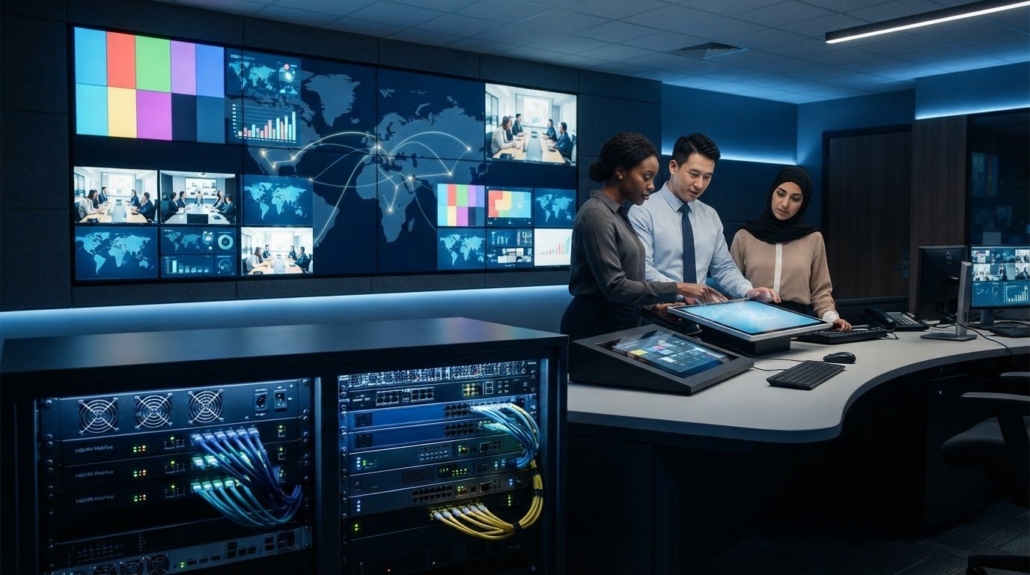
Centralized control system for multiple TVs across office locations
The easiest way to manage TVs across office locations is to use a centralized interface alongside signal distribution that sends the right content to each screen. A centralized control system for multiple TVs gives staff a consistent way to operate displays instead of relying on separate room-by-room controls. Remote monitoring can also help teams view device issues and manage approved changes from one place.
Managing screens across different sites can quickly become inconsistent when each location uses its own equipment and control method. A shared approach makes everyday tasks clearer for staff, while the signal architecture determines whether screens mirror one source or show different content.
This article explains how distribution equipment, staff permissions, and remote monitoring work together, and how venue size, layout, and future expansion shape the setup. It also covers when a splitter, HDMI extender, or AV-over-IP system may fit, and how HDTV Supply’s TV control and distribution products support these needs.
Key Takeaways
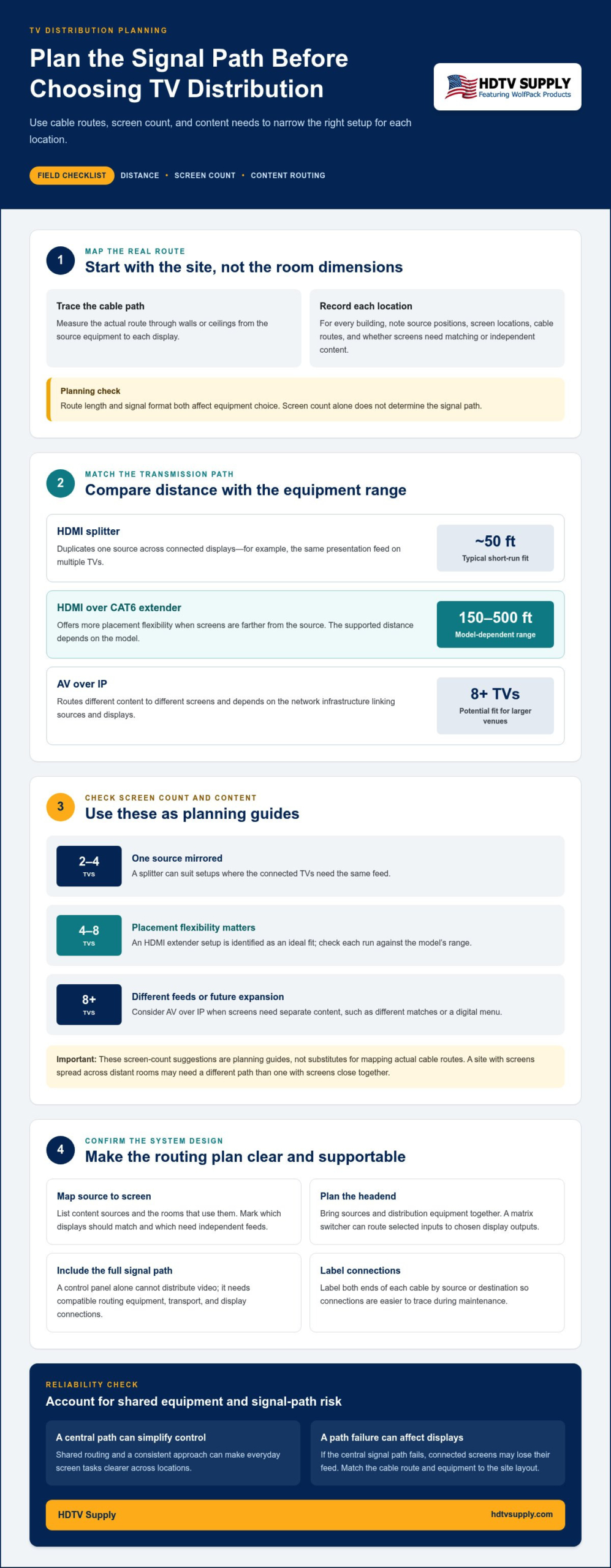
- Match the signal path to cable runs and site layout: HDMI splitters typically suit runs around 50 ft, while HDMI over CAT6 extenders can cover 150-500 ft depending on the model.
- Use a splitter when 2-4 TVs need to mirror one source; consider an extender setup for 4-8 screens where placement flexibility matters.
- For venues with 8 or more TVs, AV over IP can support different content on different screens and accommodate future expansion.
- Give staff role-appropriate control access so everyday screen tasks stay simple while administrative permissions remain limited to the people who need them.
- Centralized monitoring and reporting can help teams manage approved changes and spot issues across screens, rooms, and locations.
Cable distance and infrastructure considerations
A centralized setup can simplify screen control, but distance, cabling, and shared equipment have limits. If the central signal path fails, connected displays may lose their feed. A poorly matched cable path can also disrupt reliable delivery.
A splitter can duplicate one source across connected displays, though the right signal path depends on the setup. It duplicates one source, such as a presentation feed, across connected displays. A screen placed farther from the source may need a different transmission path. Measure the actual cable route, including the path through walls or ceilings, rather than estimating from room dimensions. The route and signal format both affect the equipment choice.
HDMI over CAT6 extenders cover distances ranging from 150 to 500 ft, depending on the model. That range can suit a medium-sized restaurant where screens sit across dining areas or separate rooms. Extenders can offer more flexibility in screen placement than a short HDMI connection. Plan the route between the source equipment and each display, then match the extender to the required distance. The same assessment helps across office sites, where a display may be far from the local source rack.
For a larger venue, AV over IP can route different content to different screens, such as a game, another match, or a digital menu. It can also scale as a business grows, making it a potential fit for venues with 8 or more TVs. This architecture depends on the network infrastructure linking sources and displays. Network path, available connections, and the need for separate screen feeds all shape the design. It offers different routing options from a splitter, which mirrors one source.
Use these planning factors to compare signal paths:
- Run length: HDMI splitters typically suit short runs around 50 ft.
- Screen placement: HDMI over CAT6 extenders cover 150-500 ft, depending on the model.
- Content needs: AV over IP can deliver different content to different displays.
- Growth plans: Consider future expansion alongside the current venue layout and budget.
Screen count helps narrow the options. An HDMI extender setup is identified as an ideal fit for 4-8 TVs, while AV over IP suits venues with 8 or more TVs. These are planning guides, not substitutes for mapping the actual cable routes. For example, a site with 4 screens spread across distant rooms may have different infrastructure needs from one with 4 screens close together. Distance and routing can matter as much as display count.
Across office locations, treat each building as its own signal path. Record source positions, display locations, cable routes, and whether screens need matching or independent content. Compare these details with the venue layout, budget, and expected expansion before selecting distribution equipment. This keeps the design aligned with how each location will use its TVs.
Centralized aggregation headend
A headend brings video sources and distribution equipment together at a central point. Its layout determines how each office routes content to its displays.
Matrix Switchers and Distribution Systems
An HDMI matrix switcher routes selected source inputs to chosen display outputs. A video distribution system describes the wider path that carries signals to screens. The distinction matters when staff need different content in separate rooms. For example, a matrix can send a presentation to a conference room while routing signage elsewhere. The distribution system may include the matrix, signal transport, and display connections.
Choose the architecture based on viewing needs. Mirroring one source across screens requires a different routing plan from selecting independent feeds for separate rooms. Mapping sources to display destinations shows whether fixed distribution or flexible switching should shape the design.
Required Control Equipment
A centralized TV setup needs source devices, signal-routing equipment, connections to displays, and a control interface. Each has a distinct role: sources provide content, routing equipment assigns feeds, and the interface lets authorized staff make selections. A control panel alone cannot distribute video; it needs a compatible signal path.
For example, a headend might group a media player and presentation source with a matrix and the required transport hardware. Displays connect through the planned signal path, while the control interface sends selections to the routing equipment. Align the equipment plan with screen locations and the content each room needs.
Video Source Distribution
A routing device sends different video sources to multiple TVs by assigning each input to its intended output. This matters when a reception display needs signage while a meeting room shows a live presentation. Staff can select a source for each destination rather than sending the same feed everywhere.
Start with a source-to-screen map. List content sources, identify which rooms use them, and note where feeds must match or differ. The matrix then routes those inputs through the distribution path to the corresponding displays. A clear map also helps teams understand the effect of a source change before making it.
The headend’s physical arrangement affects maintenance and fault isolation. Grouping source devices and routing hardware in a labeled rack makes connections easier to trace. Label both ends of each cable with its source or destination, such as “conference room display” or “signage player.” If a screen loses its feed, staff can follow the labels through the signal path instead of guessing which connection serves it.
Centralization also creates a shared dependency. If a key headend component or its power supply stops working, every display relying on that path may lose content. Separate locations add another dependency: the connection carrying signals or control between sites. Decide which screens need to remain independent and which can share a source path. This helps limit the impact of a fault.
Document the headend configuration alongside its physical labels. Record each input, its assigned outputs, and the rooms affected by a routing change. That reference helps staff restore the intended feed after equipment is moved or a source is replaced. For an overview of matrix switching and video distribution, compare the routing approach with the displays and content your locations use.
Centralized control interfaces for staff
The right multi-TV control system depends on who uses it and how screens share content. A home setup may prioritize a simple shared remote, while an office needs controls suited to its rooms, sources, and staff roles.
No single system suits every home and business. For a venue with several displays, pair a suitable distribution design with an interface staff can use consistently.
How much does a centralized multi-TV control system cost? The total depends on the equipment required, the number and location of displays, the signal path, and the control functions. A setup serving screens in separate rooms may need a different design from one that mirrors a single source nearby.
To set up and configure a multi-TV system, map each source to the screens that need it, then match the control interface to those routing choices. Test common tasks, such as sending a presentation to a meeting room, before staff rely on the controls.
Staff experience matters. A control panel should make routine actions easy to identify, such as choosing a source, selecting a room, or returning a display to its usual feed. Clear room names help prevent a receptionist from changing the conference-room screen by mistake. Consistent labels across locations also make it easier for staff to cover another office.
Set permissions according to responsibilities. Role-appropriate access helps hotel teams limit administrative permissions to people who need them. Offices can use the same principle: staff who only select content need different access from administrators who change system settings. This separation helps prevent accidental changes without forcing every user through the same controls.
Organize the interface around tasks, not equipment terminology. Someone looking for the lobby display should see a familiar location name, not an unexplained output label. Group controls by site and room, then use consistent source names, such as “presentation” or “signage.” Where room layouts differ, keep the naming pattern consistent and identify each location clearly.
Before rollout, test the interface with typical tasks. Ask a receptionist to change a lobby feed, then ask a meeting host to select a presentation source. Note where either person hesitates. Simplify confusing labels or access paths, and test administrative controls separately. A brief task-based review can show whether the design fits real staff workflows.
- Everyday users: Provide direct access to routine source and room selections.
- Administrators: Reserve configuration permissions for assigned system roles.
- Multiple locations: Use consistent room and source names across each site.
- Testing: Check common staff tasks before adopting the interface widely.
A well-planned interface turns complex routing into familiar choices. Staff can manage their assigned screens without understanding every connection behind the system.
Remote device monitoring and control
Smart TVs, streaming devices, and universal remotes work with centralized control when the system supports their command and connection interfaces. It must also be configured to address the intended device or display.
Remote management gives approved staff a shared view of screens across office locations. Centralized TV management can support approved changes from one place, surface issues through monitoring, and report on deployment condition. For example, a facilities team can review a display’s status and apply an authorized configuration change without treating each room as a separate setup.
That visibility matters when separate sites have developed different operating habits. In hotels, fragmented room-by-room TV configurations can lead to inconsistent patching, uneven access control, and limited visibility into device activity. Centralized configuration, monitoring, and reporting can give teams a view across screens, rooms, and properties. Office teams can apply the same approach to displays in meeting rooms, reception areas, and shared spaces.
Monitoring is most useful when it leads to a clear response. A report identifying a screen with a signal issue gives staff a starting point for diagnosis. They can compare the affected display with other screens in its room or site, then determine whether the issue concerns that endpoint or a shared source. A centralized view helps distinguish a local fault from a wider configuration problem.
Define who can act remotely. Staff responsible for everyday display use may need permission to select approved content, while administrators manage configuration changes. Role-appropriate access helps limit administrative permissions to those who need them. Clear roles reduce accidental changes and show which team owns each task.
- Configuration: Keep approved display settings consistent across assigned rooms.
- Monitoring: Use device status to surface issues that need attention.
- Reporting: Review deployment condition across screens and properties.
- Access: Separate routine controls from administrative permissions.
Remote access depends on a working connection between the control system and the devices it manages. A screen that has lost power or network connectivity cannot receive a remote change through that path. Staff should consider status information alongside the room’s physical conditions, including whether the display is powered and the expected source is active.
For multi-site operations, consistent naming makes monitoring reports easier to use. Identify displays by location and room, such as “East Office, Conference Room,” rather than by an internal device label alone. When a report flags that screen, staff can connect the notice to a specific space and coordinate a focused response.
Remote monitoring complements, rather than replaces, local troubleshooting. A centralized view helps teams spot patterns and manage approved changes; a technician at the display can investigate a disconnected cable or another physical issue. Configuration records, status reports, and clear access roles together give staff a practical view of operations across locations.
What equipment is needed to control multiple TVs from one system?
A multi-TV setup needs video sources, signal distribution equipment, display connections, and a control interface. The right combination depends on whether screens mirror one feed or show separate content. Treat signal delivery and staff control as related but distinct functions: distribution equipment carries video, while the interface lets authorized users choose or manage settings.
For a simple mirrored setup, an HDMI splitter duplicates one source across connected TVs. A 1×2 or 1×4 splitter describes common input-to-output configurations, and a splitter setup is an ideal fit for 2-4 TVs. Every connected display receives the same content, so staff can’t independently select a different source for each screen through the splitter alone. A small café showing one program throughout its space is a practical example.
For more flexible routing, use equipment that assigns different sources to different displays. An HDMI matrix switcher routes inputs to selected outputs, while the control interface gives staff a way to make those selections. A conference room could show a presentation while a reception display continues showing signage. Keep source names and screen destinations clear so staff know what each selection changes.
Screen distance affects the transport equipment. HDMI over CAT6 extenders cover 150-500 ft depending on the model, and an extender setup is an ideal fit for 4-8 TVs. For venues with 8 or more TVs, AV over IP can route different content to different screens and scale as the business grows. Match the design to display placement, content requirements, and planned expansion.
A centralized system also needs a control interface, such as a dedicated panel or another compatible method. Staff use it to select an available source or display destination; administrators may manage configuration separately. Give screens and sources recognizable names, such as “Lobby” and “Presentation,” so routine choices don’t rely on technical port labels.
- Sources: Provide the content, such as a media player or presentation device.
- Distribution: Choose a splitter for mirrored content or routing equipment for separate feeds.
- Transport: Match cable and extender paths to screen locations.
- Control: Provide a staff interface with clear source and display labels.
Plan the equipment as one signal chain, from source through distribution and transport to each TV. Then test the intended screen selections and confirm that mirrored displays show the same feed. Explore TV distribution equipment to compare options for your system design.
HDTV Supply: WolfPad TV Control Systems
HDTV Supply offers WolfPad TV Control Systems for organizations planning centralized staff control across their displays. They can serve as a dedicated control system alongside a coordinated signal-distribution design.
For projects involving screen routing, WolfPackSecure 4K 60 4:4:4 HDMI Matrix Switchers can address source-to-display distribution, while HDMI Video Wall Processors are suited to video wall configurations. The right equipment depends on whether your priority is staff operation, routing content, or arranging displays as a video wall. Define those requirements first, then compare the products against your system layout.
For help choosing equipment for your TV control setup, contact HDTV Supply.
Plan the next phase of your TV system
Choose a centralized control system for multiple TVs as part of a broader operating plan, not as an isolated equipment decision. Start by deciding how teams should use screens across locations, who can change settings, and how the system should adapt as rooms or content needs change. These choices provide a practical basis for evaluating equipment and keeping operations consistent as your organization evolves.
HDTV Supply offers WolfPad TV Control Systems, WolfPack Modular Matrix Switchers, and a Sports Bar TV Distribution System. These products support different control and signal-distribution needs. Consider which functions matter most across your locations, then explore the equipment that aligns with your intended setup.
Contact HDTV Supply to discuss your TV control and distribution needs. A clear plan can help your team move forward with confidence.
Frequently Asked Questions
What is the single easiest way to control multiple TV screens across different office locations?
Use a standardized control interface connected to each location’s display-routing system. Staff can select a named site, room, and approved source instead of operating separate controls for every screen. For example, a facilities team can use the same interface layout at reception and in meeting rooms, while administrators retain access to configuration settings. Consistent controls across sites, with labels that reflect how employees describe each space, are key.
Can I display different content in my New York office lobby than in my London breakroom?
Yes, if each location’s signal-distribution setup can route the required content independently. The New York lobby could show a signage feed while the London breakroom displays another source. Plan sources and screen destinations separately for each site, then give staff controls that clearly identify the location they’re managing. A shared interface can organize both offices, but each display’s content depends on its local routing configuration.
What is a centralized control system for multiple TVs?
A centralized control system for multiple TVs combines a staff-facing interface with equipment that manages source selection and display routing. It gives authorized users a consistent place to select screens or approved content, while signal-distribution equipment carries video to the intended displays. For example, an office administrator could choose a presentation feed for a meeting room without changing the signage feed in the lobby.
How can one remote or app control multiple TVs?
One remote or app can control multiple TVs when the control system is configured to address the displays and connected routing equipment. The interface provides usable commands, such as selecting a room or source, while compatible devices carry them out. A practical setup might group controls by office and room, so employees can operate the intended screen without memorizing device codes.
Can multiple TVs display different content at the same time?
Yes. A system with independent source routing can send separate feeds to different displays at the same time. For instance, a meeting room could show a presentation while a lobby screen plays signage. A splitter works differently: it duplicates one source across connected TVs. Choose routing equipment based on whether screens need matching content or separate feeds, and map those needs to specific rooms before configuring the system.
What installation and wiring requirements apply to multi-TV control systems?
Plan the source equipment, routing hardware, display connections, and control path together. Measure actual cable routes, label both ends, and match signal transport to the distance and screen placement. HDMI splitters typically suit short runs around 50 ft, while HDMI over CAT6 extenders cover 150-500 ft depending on the model. A floor plan showing sources, displays, and routes helps organize wiring across rooms and sites.
Leave a Reply
Want to join the discussion?Feel free to contribute!