

4K 60Hz 4:4:4 HDMI Switchers: A Pro AV Buying Guide
A 4K 60hz 4:4:4 HDMI switcher is only as capable as the signal path around it. Even a switcher rated for the format can’t deliver it if a source, cable, or display falls short, or if the system’s color-depth and bandwidth requirements don’t align.
That’s why checking the headline resolution alone isn’t enough. Account for refresh rate, chroma format, color depth, HDMI bandwidth, and content-protection compatibility at every connection. HDMI 2.0 provides 18Gbps of bandwidth and is sufficient for 4K at 60Hz with 4:4:4, but the complete system determines whether the signal passes as intended.
This guide explains what 4:4:4 means and when it matters, how to choose between a simple switcher and a matrix, and which source, cable, display, and compatibility details to verify before deployment. It also covers where WolfPackSecure 4K 60 4:4:4 HDMI Matrix Switchers fit in a professional AV system, so you can compare options against your routing and format requirements.
Key Takeaways
- Separate resolution, refresh rate, and chroma sampling to identify the signal format your system needs.
- For a 4K 60hz 4:4:4 HDMI switcher, evaluate the complete signal path, not just the switcher’s headline rating.
- Match a basic switcher or matrix to the number of sources, displays, and independent routes your setup requires.
- Use a pre-deployment checklist to review documented format support, HDCP, EDID behavior, and connection-path requirements.
- Compare WolfPackSecure 4K 60 4:4:4 HDMI Matrix Switchers with your routing needs and required signal formats.
What 4K 60Hz 4:4:4 Means for an HDMI Switcher
These three numbers describe different parts of a video signal. 4K describes resolution, or the amount of image detail; 60Hz describes refresh rate, or how often the display updates each second; and 4:4:4 describes chroma sampling, the way color information is represented alongside brightness.
4K 60Hz 4:4:4 is a video signal with 4K resolution, a 60Hz refresh rate, and full chroma sampling without chroma subsampling.
With 4:4:4, each pixel retains its own chroma information rather than sharing reduced color detail with neighboring pixels. This can preserve crisp edges and legibility in fine text, computer interfaces, spreadsheets, and detailed graphics. It doesn’t specify color depth, such as 8-bit or 10-bit. Color depth is a separate specification that affects how many shades a pixel can represent.
A general “4K” label on a switcher describes only part of its capability. It doesn’t confirm 60Hz refresh, 4:4:4 chroma, or the color depth supported at that combination. Check the product’s documented formats for the complete signal, not just its maximum resolution. The HDMI (High-Definition Multimedia Interface) overview provides background on the interface and its versions, while a device’s documentation details its specific format support.
When Does 4:4:4 Matter Most?
Consider a computer sending a desktop to a large display. Small blue lettering on a black background, thin colored spreadsheet lines, or sharp interface borders can look softer when color detail is reduced. Full chroma sampling is often valuable for these text-heavy uses.
Video viewing may be less sensitive to the same fine color detail, depending on the content and viewing conditions. Match the chroma requirement to the sources, displayed content, and users’ visual needs rather than assuming one setting suits every system.
Why the 4K Label Alone Is Not Enough
Read each format element separately before choosing a 4K 60hz 4:4:4 HDMI switcher. These definitions help you interpret specification sheets:
- Resolution: The image’s pixel dimensions, which determine how much spatial detail it can show.
- Refresh rate: How often the display updates the image, measured in hertz. A 60Hz signal updates 60 times per second.
- Chroma format: How color information is sampled. 4:4:4 retains full chroma sampling; 4:2:0 uses chroma subsampling.
- Color depth: The number of bits used to represent each color channel, affecting the range of available shades.
These values work together, but they aren’t interchangeable. A switcher may handle 4K at one refresh rate or chroma format and not another. A separate guide to 4:4:4 versus 4:2:0 can help you weigh the trade-offs based on the content and use case.
How the HDMI Signal Chain Handles 4K 60Hz 4:4:4
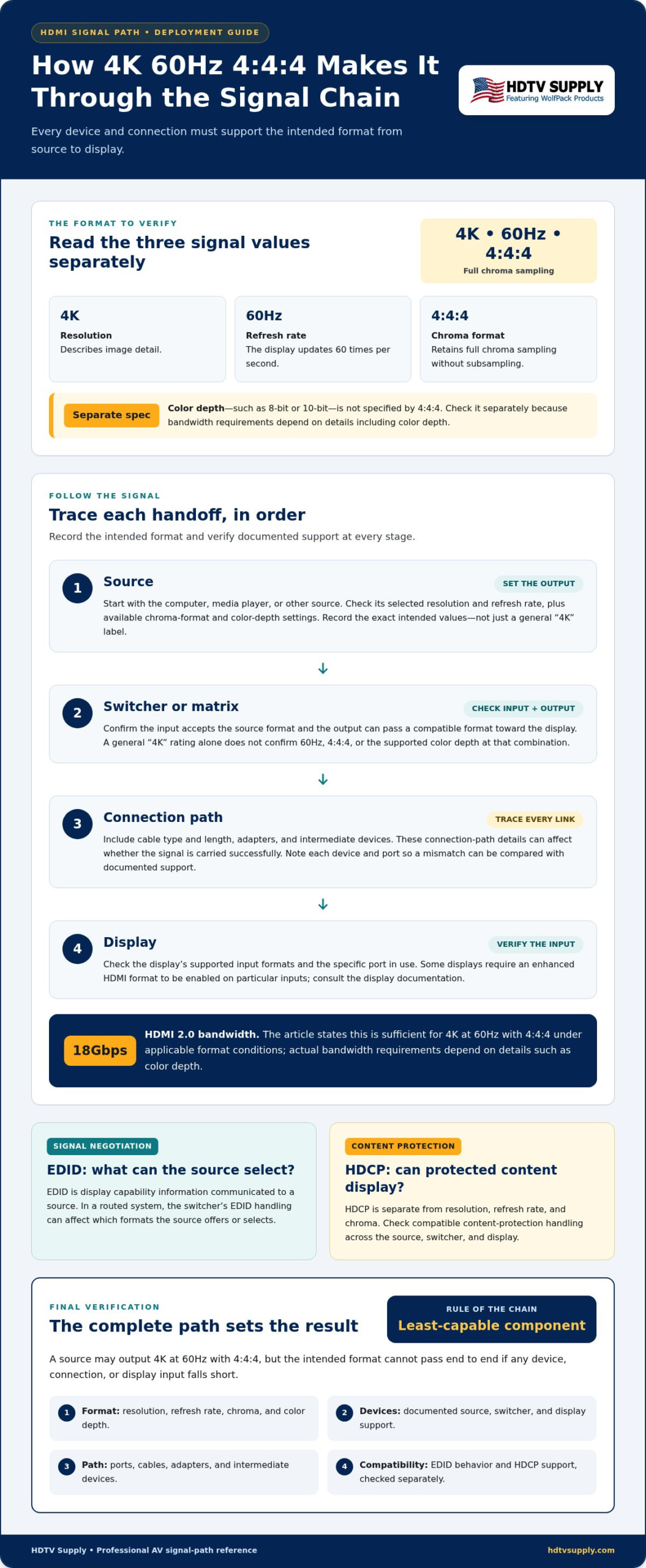
A video signal travels from a source, such as a computer or media player, into the switcher, through the connection path, and to the display. The source outputs a format, the switcher routes it, the connections carry it, and the display receives and presents it.
The displayed format is constrained by the least capable component in the signal path. A source might output 4K at 60Hz with 4:4:4, but the signal can’t pass end to end if the switcher, cable path, or display input doesn’t support it. HDMI 2.0 supports up to 18Gbps, which is sufficient for 4K at 60Hz with 4:4:4 under the applicable format conditions. Actual bandwidth requirements depend on details such as color depth. Black Box explains the capabilities and context of the standard in What is HDMI 2.0?
Check Source, Switcher, and Display Capabilities
Start at the source. Its display or video settings typically show the selected output resolution and refresh rate, and some devices also offer chroma-format and color-depth options. Record the intended values instead of relying on a general “4K” setting or label.
Compare those values with the switcher’s documented input and output support. The input must accept the source format, and the output must pass a compatible format toward the display. Then check the display’s supported input formats and any port-specific settings. Some displays provide options to enable enhanced HDMI formats on particular inputs, so consult the display documentation and verify the port in use.
Include the full connection path in your check. Cable type, length, adapters, and intermediate devices can affect whether a signal is carried successfully. Make the plan specific by noting each device, port, selected format, and connection. That record helps pinpoint a mismatch between the setup and documented support.
Account for HDCP and EDID Behavior
Format support isn’t the only factor. EDID is display capability information communicated to a source, helping it choose an output format. In a routed system, the switcher’s EDID handling can affect which formats the source offers or selects. For configuration details, see this guide to HDMI matrix switcher EDID management.
HDCP is content-protection compatibility, not a measure of resolution, refresh rate, or chroma. A signal may meet the display’s video-format requirements yet fail to show protected content if devices in the path don’t support compatible HDCP handling. Review the source, switcher, and display documentation for the required content-protection version as a separate check.
Before deployment, trace the intended format from source to display and confirm each handoff. HDTV Supply sells professional AV hardware, including WolfPackSecure 4K 60 4:4:4 HDMI Matrix Switchers.
HDMI Switcher or Matrix: Match the Device to Your Routing Needs
Choose a device based on the routes your system needs. A basic HDMI switcher selects one source from several inputs and sends it along a display path. A matrix switcher handles multiple inputs and outputs, allowing sources to be routed independently to different destinations when the system requires it.
Selection rule: choose a basic switcher for multiple sources sharing one display path; choose a matrix when sources must be routed independently to multiple destinations. A matrix isn’t automatically the better fit. Choose the architecture that matches the actual source-to-display topology.
| Routing factor | Basic HDMI switcher | HDMI matrix switcher |
|---|---|---|
| Source count | Multiple inputs can share a selected output path. | Multiple inputs can be available for routing. |
| Destination count | Typically one display path. | Multiple display outputs. |
| Independent routing | Selects a source for the shared path. | Routes sources to destinations independently, as supported by the system. |
| Typical deployment | A meeting room or workstation with several sources and one display. | A facility where different displays need different sources. |
When a Basic HDMI Switcher Fits
A straightforward setup might connect a computer, media player, and presentation device to one display. Users select the source they need, while the display path remains shared. This works when destinations don’t need separate content at the same time.
Before selecting a 4K 60hz 4:4:4 HDMI switcher, count the sources that need connections and decide how users will select them, such as through a front-panel control or another documented method. Then verify support for the exact signal format. A simple routing layout still needs format compatibility across the system.
When a 4K Matrix Switcher Fits
Use a matrix when multiple displays need independent source selection. For example, one display may show a computer while another shows a media player. Map the inputs and outputs to the installation plan, including which sources need to reach which destinations. Size the system for defined routing needs rather than hypothetical future expansion alone.
For larger systems, modular design may be relevant to planning capacity and system layout. The modular HDMI matrix switcher guide covers considerations for that approach. HDTV Supply sells WolfPack Modular Matrix Switchers and WolfPackSecure 4K 60 4:4:4 HDMI Matrix Switchers for systems that need matrix routing.
A Practical Checklist for Selecting a 4K 60Hz 4:4:4 HDMI Switcher
Build requirements from the system outward, then compare them with current manufacturer documentation. This keeps a product label or optional feature from distracting from the central question: can the planned sources, switcher, connections, and displays support the formats and routes you need?
- Define the required format. Record the resolution, refresh rate, chroma format, and color depth needed for each source-to-display path. Treat each as a requirement when the application depends on it.
- Count sources and displays. Note how many devices need to connect and how many destinations must receive video.
- Map the routing. Specify whether displays can share one selected source or need independent content. This clarifies whether a basic switcher or matrix fits.
- Check documented input and output support. Compare the exact format combination on the switcher’s inputs and outputs, not just its maximum resolution.
- Review compatibility requirements. Identify applicable HDCP needs, EDID behavior, and relevant audio or control requirements.
- Verify the connection path. Include cable type and length, adapters, and other devices between the source, switcher, and display.
Document the System Before Comparing Models
Make a source-and-display map. For each route, write down the source, destination, intended resolution and refresh rate, and required chroma and color depth. Mark whether destinations need identical content or independently selected sources. Add content protection, audio, control, and connection constraints when the system uses them. Separate required functions from preferences such as extra capacity or a particular control method.
Verify Compatibility Without Guesswork
Compare the complete format combination against current documentation for the source, switcher, display, and connection-path components. Check the actual ports in use. Review manufacturer guidance for device settings and firmware, since configuration can affect operation. Record the evidence for each check and identify any requirement the documentation does not establish.
Use a pass/fail table to make gaps visible before deployment:
| Signal-path item | Pass when | Status |
|---|---|---|
| Source | Output supports the required format. | Pass / unresolved |
| Switcher | Input and output documentation covers the required combination. | Pass / unresolved |
| Display | The selected input supports the planned signal. | Pass / unresolved |
| Connections | Every cable and intermediate component suits the path. | Pass / unresolved |
| System behavior | HDCP, EDID, and relevant settings align with the design. | Pass / unresolved |
Resolve each open item before finalizing a 4K 60hz 4:4:4 HDMI switcher selection. Use your documented requirements to compare professional HDMI switching options.
Explore HDTV Supply’s WolfPackSecure 4K 60 4:4:4 Matrix Switchers
Once you’ve mapped the source-to-display routes and documented the signal formats, compare product specifications with the system design. HDTV Supply sells WolfPackSecure 4K 60 4:4:4 HDMI Matrix Switchers, a matrix switcher category for professional AV projects specifying this format.
The product name identifies the category, not every detail of an individual configuration. Use your recorded requirements to assess whether a model’s published specifications match the project. Focus on the actual routes and signal combinations rather than assuming the product name alone answers every compatibility question.
Where WolfPackSecure Fits in the Selection Process
Consider this category when your system calls for matrix routing and 4K at 60Hz with 4:4:4. Compare the current product documentation with your planned input and output needs, required signal format, and source-display configuration. Check each requirement separately: a match on one doesn’t establish support for every other part of the design.
A practical review can include:
- Topology: Does the documented input and output arrangement suit the routes you need?
- Signal format: Do the specifications address the required resolution, refresh rate, chroma format, and color depth together?
- System compatibility: Have you accounted for the source, display, content-protection requirements, EDID behavior, and connection path?
Compare the WolfPackSecure category against your documented requirements, not assumptions about product features. For any specification that affects deployment, use the current product documentation.
Take the Next Step with HDTV Supply
HDTV Supply serves professional AV buyers through a global catalog of more than 12,000 products across AV categories, with worldwide product sales and technical support. Customers can purchase through the online storefront or call for technical assistance. Bring your signal-path requirements and routing plan to the product comparison, and use technical assistance when you need help navigating professional AV hardware options.
To compare options, explore HDTV Supply’s professional AV products and review the WolfPackSecure 4K 60 4:4:4 HDMI Matrix Switchers category against your system requirements.
Turn Your Signal Plan into a Deployment-Ready System
Before committing to a 4K 60hz 4:4:4 HDMI switcher, turn your design notes into a concise handoff document. Record the source-to-display routes, required signal formats, device models, and unresolved compatibility questions. This gives your AV team a shared reference for procurement, configuration, and acceptance testing, and helps prevent assumptions from carrying into the final system.
Plan a test for each critical route before wider deployment. Confirm that the intended content appears correctly on the target display, then document the final settings and any format limitations. A clear record makes future troubleshooting and system changes easier to manage when equipment or routing needs evolve.
Ready to compare professional AV hardware against your requirements? Explore HDTV Supply’s professional AV products, including WolfPackSecure 4K 60 4:4:4 HDMI Matrix Switchers.
Frequently Asked Questions
What does 4K 60Hz 4:4:4 mean?
It describes a video signal with 4K image resolution, a 60Hz refresh rate, and full chroma sampling. Treat these as separate requirements: a display might accept a 4K picture but not the desired refresh rate or chroma format on a particular input. For a computer desktop with small labels and thin colored lines, confirming all three helps match the source output to the viewing task.
Do all 4K HDMI switchers support 60Hz 4:4:4?
No. “4K” alone doesn’t tell you whether a switcher supports 60Hz, 4:4:4 chroma, or the color depth your system needs at that format. Check the manufacturer’s specifications for the combined signal, including input and output support. A switcher could support 4K with a different refresh rate or chroma format, so don’t infer full compatibility from a resolution label.
Does 4:4:4 make a difference for text and computer use?
It can. Full chroma sampling helps retain colored detail around small text, interface elements, and fine graphics. For example, red lettering on a dark background may look less sharply defined if color detail is reduced. The visible difference depends on the content and viewing conditions; movie playback may not call for the same chroma setting as a desktop used for reading or detailed editing.
Can an HDMI switcher reduce the signal to 4:2:0?
It depends on the equipment and signal path. A basic switcher may simply route a signal, while a device with video processing may have format-conversion behavior described in its documentation. A source can also select a lower chroma format based on display capabilities or system settings. If 4:2:0 appears, check the source’s active output mode and the switcher’s documented processing behavior before assuming the switcher changed it.
How do I check whether my HDMI switcher supports 4K 60Hz 4:4:4?
Look for the exact combination in the current specification sheet or manual, not just a “4K” badge. Confirm the supported refresh rate, chroma format, and color depth together, and check whether the details apply to the input, output, or both. For a 4K 60hz 4:4:4 HDMI switcher, compare those specifications with the source’s output options and the display’s supported input modes.
Do I need an HDMI matrix switcher or a basic HDMI switcher?
Choose based on how sources must reach displays. A basic switcher fits a setup where users choose among sources for one shared display path. A matrix is useful when displays need independent source selection, such as a training room where one screen shows a presentation while another shows a separate feed. Draw the required source-to-display routes first, then select the device type that supports them.
What should I check if 4K 60Hz 4:4:4 is not displaying?
Start by checking the source’s active output settings and the display input’s supported modes. Then test the source directly with the display, bypassing the switcher if practical. If the direct connection works, inspect the switcher’s format specifications, selected ports, and EDID settings. Also review the cable path and HDCP compatibility, then change one setting at a time to identify what resolves the issue.
Leave a Reply
Want to join the discussion?Feel free to contribute!