
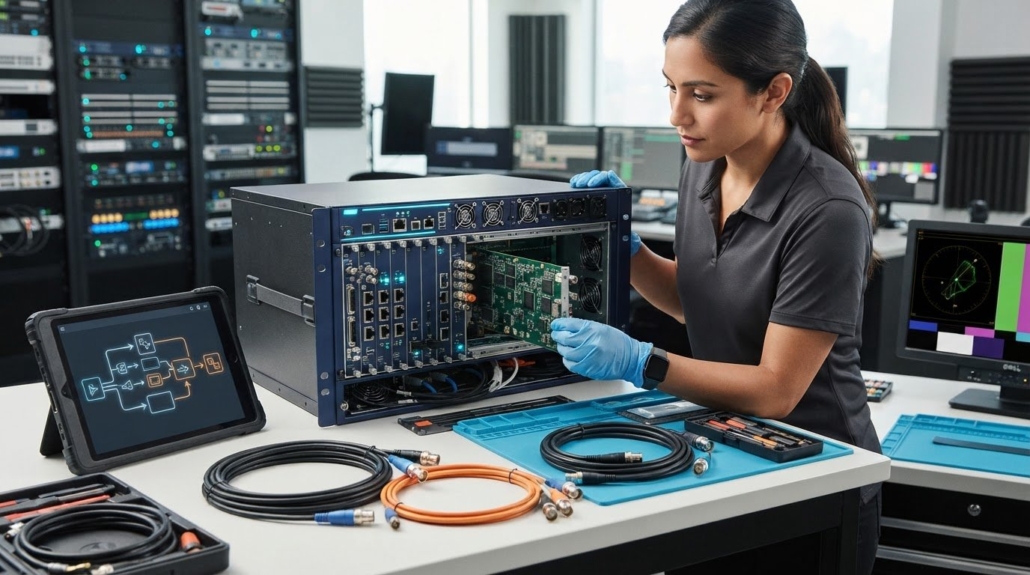
How to Add SDI Inputs to WolfPack Modular Matrix Switchers
What if an SDI input card fits your matrix but can’t accept your source format? If you’re asking, “how do I add an SDI input on Wolfpack Modular HDMI Matrix switchers,” the answer starts with checking more than the connector. The exact WolfPack chassis, available input slot, card compatibility, and SDI format all matter. A simple HDMI-to-SDI cable adapter won’t add a native SDI input to the matrix.
Before ordering a card or taking a working system offline, confirm the chassis and slot requirements, identify a compatible input card, and compare its supported formats with your source. Then follow the instructions for your specific chassis and card to install and configure it. Finally, test the new input on a known-good route. WolfPack modular systems support 3G-SDI input cards, but don’t assume every card or source format suits every configuration. Check the product documentation for your exact system before proceeding.
Key Takeaways
- Map the SDI source, destination displays, and routing zones before choosing a card.
- For “how do I add an SDI input on Wolfpack Modular HDMI Matrix switchers,” check physical fit, chassis and electrical compatibility, supported signal format, and routing configuration separately.
- Use the exact chassis and card documentation to confirm slot requirements, supported formats, firmware steps, and shutdown procedure before installation.
- Test with one known-good source and destination, then expand to the intended routes and record any symptoms.
- Have the chassis model, card details, and source format ready when contacting HDTV Supply technical support for compatibility help.
Before Adding an SDI Input to a WolfPack Matrix, Identify the Signal Path
Start with the routing goal, not the card. Identify the SDI source, the displays that need to receive it, and the routing zones involved. For example, a production source may need to reach selected screens while other displays continue showing their existing inputs. Mapping the signal path helps you determine which inputs and outputs are involved and whether existing routes need to remain operational during the work.
Document the system as it is now. Record the exact WolfPack chassis model, installed input and output cards, available input slots, and current routing or control configuration. Adding an SDI input card changes how a source enters the matrix. It does not, by itself, replace the chassis or change how the system is controlled.
What changes when a modular matrix gains an SDI input?
An input card, sometimes called an input blade, provides the hardware interface between an SDI source and the matrix’s internal routing. It adds an entry point for the source, but it doesn’t determine every format the system can accept. The card, chassis, and source format must all be suitable for one another. The Serial Digital Interface (SDI) overview explains the range of SDI standards. For compatibility, check the specific card documentation.
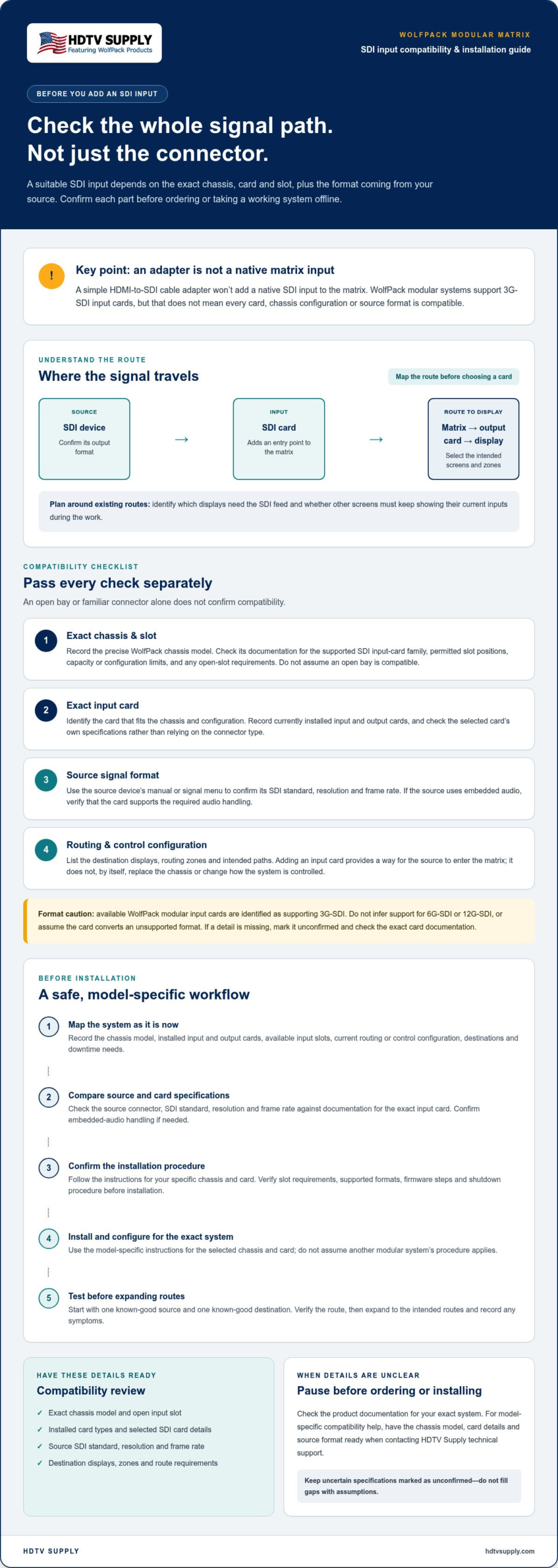
Signal path: SDI source → SDI input card → matrix routing → installed output card → selected display
What information should you collect before selecting a card?
Gather the source and system details before comparing card options. The source device’s manual or signal menu can identify its output format, while the WolfPack documentation can help establish the chassis and installed-card configuration. Keep these details together so you can compare them with the exact card specifications or share them when requesting technical assistance.
- Chassis: Record the precise model and identify open input slots. Don’t assume an open bay is compatible.
- Installed cards: Note the current input and output card types and any configuration details that affect the planned route.
- SDI source: Record its connector, signal standard, resolution, and frame rate. Check the source documentation rather than relying on a label such as “SDI.”
- Destinations and downtime: List the displays and zones that need the feed, and note whether existing routes must remain operational during the work.
This inventory gives you a practical basis for checking compatibility before selecting a card. If a detail is unclear, HDTV Supply technical support can help customers and integrators review chassis and SDI-card information before purchase or installation.
Check WolfPack Chassis, SDI Card, and Signal-Format Compatibility
Compatibility involves several separate checks. An available bay or familiar connector doesn’t prove that a card will work in your chassis or accept your source’s signal. Before selecting an SDI input card, compare the exact chassis, card, slot, and source specifications. Mark missing details as unconfirmed instead of filling gaps with assumptions.
How do you confirm that the chassis accepts an SDI input card?
Start with the precise WolfPack chassis model and its current product documentation. Confirm that the chassis supports the selected SDI input-card family, which slot positions accept it, and whether any capacity or configuration limits apply. Don’t rely on the chassis exterior or assume that another modular system’s compatibility applies. If the documentation doesn’t answer a model-specific question, contact HDTV Supply technical support before ordering.
Which SDI signal details must match the input card?
Compare the source device’s output specifications with the documentation for the exact input card. Check the SDI standard and format, resolution, and frame rate. If the source uses embedded audio, confirm the card supports the required audio handling. The SMPTE engineering standards provide a primary reference for professional media standards, but the card’s own specifications determine which signals it accepts.
Available WolfPack modular input cards are identified as supporting 3G-SDI, but that doesn’t establish compatibility with every chassis, card configuration, or source format. Don’t infer support for 6G-SDI or 12G-SDI, or assume the card converts an unsupported format. An SDI connector identifies a connection type, not a guarantee that the signal is compatible.
Compare the details before installation or purchase. Include a status column so unresolved items are easy to spot.
| Check | Record | Status |
|---|---|---|
| Chassis | Exact model and supported input-card family | Confirmed / Unknown |
| Slot | Required position and available compatible bay | Confirmed / Unknown |
| SDI card | Exact model and supported standards and formats | Confirmed / Unknown |
| Source | Connector, standard, resolution, frame rate, and audio needs | Confirmed / Unknown |
Settle every unknown in this comparison before installation. For product details or help checking your matrix configuration, review WolfPack Modular Matrix Switchers and contact HDTV Supply technical support with the chassis model, card information, and source specifications.
Will Adding an SDI Input Work with Your Existing WolfPack Configuration?
It may, but modularity alone doesn’t confirm that a particular card will fit or function in your system. Treat compatibility as four separate checks: physical fit, chassis and electrical support, signal-format support, and routing configuration. A card can fit a bay yet still be unsuitable for the chassis, source format, or routing requirement. To understand where modular designs add flexibility compared with fixed models, see the key benefits of modular HDMI matrix switchers.
If you’re planning to add an SDI input while keeping current video routes in service, don’t assume the existing output cards or control methods need to change, or that they’ll remain usable throughout the work. That depends on the system design and product documentation. Verify the requirements for your configuration before proceeding.
What can affect compatibility beyond the card fitting the chassis?
Check the documented card and chassis combination, compatible slot positions, available capacity, and any hardware configuration constraints. Then compare the SDI source format and audio requirements with the card specifications. Finally, confirm how the new input will reach the intended output card and destinations. These checks are related, but passing one doesn’t establish the others.
Firmware or configuration prerequisites may also apply to a specific system. Don’t assume an update is required or that no update is needed. Check the current documentation for your exact chassis and card, and ask HDTV Supply technical support about any unclear prerequisites. For a broader overview of modular system design, see the WolfPack modular matrix switcher guide.
When should you pause and confirm the design before installation?
Stop before ordering or opening the chassis if you don’t know the exact chassis model, card identity, compatible slot, or supported source format. Pause as well if the documentation doesn’t clarify whether current routes can remain active during the work. If an interruption isn’t acceptable, treat continuity as a design requirement and confirm the documented procedure before scheduling the change.
Give technical support the chassis and installed-card details, source format, intended route, and any continuity requirements. This provides concrete information to check, rather than a general description such as “SDI input.” For more context on selecting a chassis and its cards as a system, review building a custom WolfPack matrix. Proceed only when the physical, signal, and routing checks are resolved for your configuration.
How to Add an SDI Input Card: A Safe, Model-Specific Workflow
There isn’t one safe insertion sequence for every WolfPack chassis. Use the exact manual for your model and card as the authority. General guidance can’t replace its shutdown, handling, slot, or restart instructions. Follow this checklist only after compatibility is confirmed. If a step isn’t documented or clear, pause and check with technical support instead of improvising.
Before opening or servicing the chassis
Plan the work before touching the system. Record the current configuration and routing state, then verify the card model, compatible slot, and installation procedure in the exact product documentation. Follow the manufacturer’s documented power-down, electrostatic-discharge, and rack-safety procedures. Don’t remove or insert a card based on assumptions about hot-swap support.
- Document: Save or record the current settings and routes using the method provided for your system.
- Confirm: Match the card identity and slot to the chassis manual.
- Prepare safely: Follow the specified shutdown and ESD precautions, along with any rack-handling instructions.
- Install: Insert and secure the card only as directed for that chassis and slot. Stop if it doesn’t align or seat as described.
After installation, restart the system and apply firmware or configuration changes only if the documentation specifies them. Use the prescribed controls, such as the system’s documented interface, to identify the new input and assign it to the intended route. Avoid changing unrelated settings while troubleshooting the new card.
Verify the SDI input after installation
Begin with a known-good SDI source that matches the card’s documented support. Connect it using the specified cabling and connection method, then check for input recognition or signal status through the controls documented for your system. Route the input to one test output before adding other destinations.
- Confirm the test display shows a stable image.
- Check audio only if the source, card, and destination are expected to support the required audio behavior.
- Record the source format, card and chassis models, route, and any symptoms if the test fails.
If the input isn’t detected or the route doesn’t behave as expected, don’t repeatedly reseat the card or change undocumented settings. Recheck the manual’s troubleshooting steps and confirm the card, format, and configuration details with HDTV Supply technical support. Contact HDTV Supply technical support with your system details before proceeding further.
Test SDI Routing, Troubleshoot Symptoms, and Get Compatibility Help
Once the card is installed and configured according to its documentation, test the route in stages. Start with one known-good SDI source and one destination, then add the other intended outputs. Testing one source and one destination first helps isolate a fault before you change settings across the matrix.
If the picture doesn’t appear, check each part of the path separately: source output, cable and connections, input-card compatibility, selected matrix input, routing assignment, output card, and destination. Check signal status using the indicators and controls documented for your system. Don’t treat an HDMI-related setting, such as EDID, as an automatic fix for an SDI issue. Verify in your system documentation which parts of the signal path it applies to.
What should you check if the SDI source does not appear?
- Source: Confirm the device is outputting the documented format, not simply that it’s powered on.
- Connection: Check that the cable is connected as specified and try a known-good source or cable if available.
- Input and route: Verify that the intended matrix input is selected and assigned to the test output.
- Compatibility: Compare the card, chassis, and source-format documentation. A matching connector doesn’t confirm format support.
- Destination: Check the output path and display using the system’s documented troubleshooting procedure.
Change one variable at a time and note what happens. If the issue remains unexplained, stop changing settings. Further adjustments can make the original symptom harder to diagnose.
What details help HDTV Supply confirm a solution?
Provide the exact WolfPack chassis and SDI card identifiers, source model, and source signal format. Describe the installation steps completed, the input and output route tested, and any signal-status indicators or symptoms observed. Be specific: “no signal status on the SDI input” is more useful than “the matrix doesn’t work.”
Include whether the image is absent, intermittent, or present on some routes but not others. Those details help distinguish a source or connection issue from a card, routing, or destination problem. For broader signal-integrity checks, see professional matrix switcher troubleshooting.
If the source still won’t route reliably, share the recorded system details with HDTV Supply technical support before making further configuration changes.
Confirm Compatibility Before You Expand Your Matrix
Adding SDI to a WolfPack modular matrix starts with a verified signal path, not simply an open slot. Confirm that the exact chassis accepts the selected input card, compare the source’s standard and format with the card specifications, and follow the model-specific manual for installation and configuration.
After installation, test one known-good SDI source on one destination before expanding to the intended routes. If the signal doesn’t appear, check the source, connection, card, routing, and destination in turn. Record the system details before changing settings. This is the practical way to add an SDI feed while reducing avoidable compatibility and routing issues.
HDTV Supply sells WolfPack Modular Matrix Switchers and professional AV equipment, with technical assistance available for customers and integrators. Check WolfPack matrix options and contact HDTV Supply for technical guidance with your chassis, card, and source details. Confirm the match before proceeding.
Frequently Asked Questions
Can I add an SDI input to any WolfPack Modular HDMI Matrix switcher?
Not necessarily. Modular construction doesn’t mean every chassis accepts every input card. Check the exact chassis model, supported card family, compatible open slot, and SDI source format in current product documentation. Don’t rely on the connector or bay appearance alone. If any detail is unclear, contact HDTV Supply technical support to verify the card and chassis match before ordering or opening the system.
How do I know which SDI input card is compatible with my WolfPack chassis?
Start with the exact chassis model and its current compatibility documentation. Match the listed SDI input-card type and slot requirements, then compare the source’s SDI standard and format with the card specifications. This compatibility check comes first. Don’t choose by connector appearance alone; ask technical support to confirm any undocumented combination.
Do I need to power off a WolfPack matrix before installing an SDI card?
Follow the installation and service instructions for your exact chassis and card. Don’t assume hot-swapping is supported. Before servicing, record the current configuration and routing state, then use the manufacturer’s shutdown, electrostatic-discharge, and rack-safety procedures. If you can’t find the correct manual or its instructions are unclear, pause and contact HDTV Supply technical support or the appropriate system support contact before proceeding.
Can a WolfPack SDI input card accept any SDI resolution or frame rate?
No. An SDI connector doesn’t guarantee support for every SDI standard, resolution, or frame rate. Available WolfPack modular input cards are identified as supporting 3G-SDI, but confirm the exact card’s specifications and supported formats for your system. Compare the source’s output settings with that documentation. Treat any format not explicitly listed as unconfirmed, and verify it before planning or commissioning the installation.
What should I check if the matrix does not show my SDI source?
Confirm that the source is outputting a format supported by the card, inspect the cable connections, select the correct matrix input, and check the intended output route. Use the documented signal-status indicators, and test with a known-good source or destination if available. Record the chassis and card models, source format, route, and observed symptoms. Avoid changing unrelated settings until you’ve checked compatibility and the system’s troubleshooting instructions.
Can I route an SDI input to the existing outputs on my WolfPack matrix?
That depends on the chassis, installed input and output cards, supported signal path, and system configuration. Check current documentation rather than assuming the new input can reach every output. Start with one known-good source-to-destination route, confirm the image and expected audio behavior, then test additional destinations. Verify any format limitations before relying on those routes in operation. If the supported card combination or route is unclear, ask technical support.
Leave a Reply
Want to join the discussion?Feel free to contribute!