
HDCP 2.3 Compliance Issues and How Content Protection Works
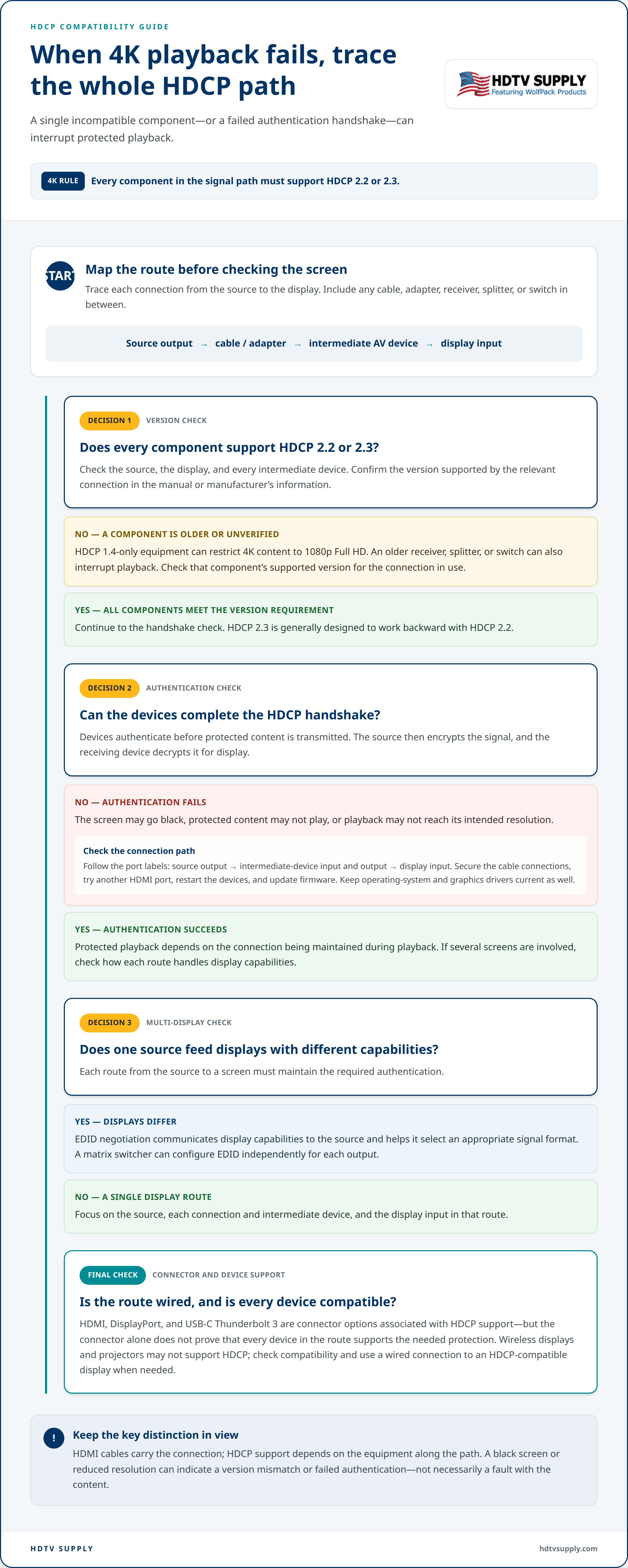
The cable isn’t always the problem; HDCP compatibility depends on the entire signal path. HDCP 2.3 compliance issues often arise when a source, cable, splitter or switch, and display can’t complete the required content-protection handshake. For 4K content, every component in the setup must support HDCP 2.2 or 2.3.
It’s easy to focus on the screen or source when playback suddenly shows a blank image or drops in resolution. But one incompatible device in the chain can disrupt protected content. HDCP devices authenticate before transmission, then encrypt and decrypt the signal as it moves between components.
This guide explains how HDCP works, how versions differ, and how cables, splitters, and switches can affect a setup. It also covers the role of EDID settings, device ports, and connection choices in troubleshooting. The goal is practical: pinpoint where compatibility breaks down and understand what a reliable distribution path requires.
Key Takeaways
- Trace compatibility across the full signal path, including the source, intermediate devices, and display, to pinpoint where protected playback may fail.
- Understand how authentication and encryption help HDCP-compatible devices protect digital content during transmission.
- Compare HDCP versions to see why legacy equipment may limit resolution and why newer content can require newer support.
- Learn how splitter and switch settings, including EDID configuration, can affect content distribution across displays with different capabilities.
What is HDCP Compliance?
HDCP compliance means AV equipment can use the High-bandwidth Digital Content Protection protocol to protect digital content. For 4K playback, each component must support HDCP 2.2 or 2.3.
Compatibility Across the Signal Path
Compatibility is the ability of the source, cable connections, intermediate AV equipment, and display to carry protected content together. For 4K, every component in the signal path must support HDCP 2.2 or 2.3; HDCP 2.3 also protects premium 8K content. A receiver, splitter, or switch with an older HDCP version can interrupt playback, even when the source and display are compatible. If authentication fails, the screen may go black or the content may not play at its intended resolution. That’s why the full path matters, not just the television’s HDCP version.
Older Device Compatibility
Older devices can work in a newer setup when their HDCP version supports the content and the other connected equipment. HDCP 2.3 is generally designed to be backward compatible with HDCP 2.2, but HDCP 1.4-only equipment can restrict 4K content to 1080p Full HD. This matters when a legacy receiver or display sits between a current source and screen. HDCP compliance describes technical support for content protection; it does not, by itself, establish a manufacturer’s legal or licensing duties. A black screen or reduced resolution can signal a version mismatch, rather than a fault with the content itself.
Checking Device and Cable Support
To check a TV, receiver, or GPU, consult its user manual or the manufacturer’s website and find the HDCP version supported by the relevant connection. Check every device in the signal path, since one older component can limit playback. HDMI cables carry the connection between devices, but HDCP support depends on the equipment. If an HDCP error appears, secure the cable connections, try another HDMI port, restart the devices, and update firmware. Firmware updates can help resolve HDCP errors. Operating system and graphics drivers can also affect playback, so keep them current when troubleshooting.
What is HDCP Content Protection?
HDCP, developed by Intel Corporation, protects digital content over HDMI, DVI, and DisplayPort connections. Devices authenticate before transmission, then encrypt and decrypt protected content.
Authentication Between Sources and Displays
An HDCP handshake is the authentication exchange between a source and a receiving device. Protected playback depends on both devices establishing this connection. The source’s output port sends the signal, and the display’s input port receives it. A receiver or switch between them adds another component to the path.
Before protected content travels, connected devices authenticate. Once authentication succeeds, the source encrypts the signal, and the receiving device decrypts it for display. HDCP verification repeats during playback to help maintain the protected connection. If a receiver’s input or output cannot complete authentication, the source may not transmit protected digital content to the screen.
Follow the port labels through the signal path: source output, intermediate-device input and output, then display input. For example, a laptop’s HDMI output can feed a receiver’s HDMI input, whose output connects to a television input. Each connection plays a role in the handshake.
Protection Across Displays and Devices
With multiple displays, each route from a source to a screen must maintain the required authentication. This matters when one source feeds displays with different capabilities. EDID negotiation communicates display capabilities to the source, helping it select an appropriate signal format. A matrix switcher can configure EDID independently for each output, supporting different displays on separate routes.
Personal-device playback uses the same principle. A phone, laptop, or tablet must send protected content through a supported output and connection to an HDCP-compatible display. HDMI, DisplayPort, and USB-C Thunderbolt 3 are connector options associated with HDCP support. The connector alone doesn’t establish that every device in the route supports the needed protection.
For example, connect a laptop to an external display with a wired HDMI connection, accounting for any adapter or receiver in between. Wireless displays and projectors may not support HDCP, so check compatibility and use a wired connection to an HDCP-compatible display when needed. These route details matter for both personal viewing and multi-display installations.
HDCP 1.x, 2.0, 2.2, and 2.3 versions
HDCP versions define how compatible devices protect content during transmission. The version matters because it can affect resolution, encryption, and playback across an AV system.
HDCP Version Capabilities and Standards
HDCP 1.x serves legacy equipment, while HDCP 2.x supports higher resolutions and more advanced encryption. HDCP 1.4 was designed for Full HD content, and versions 1.0 through 1.4 remain widely used. HDCP 2.0 added improved encryption for Blu-ray players and streaming devices. HDCP 2.2 appeared alongside HDMI 2.0, and HDCP 2.3 followed as a newer standard.
HDCP 2.3 was introduced for HDMI connections in 2018 and DisplayPort, including USB-C, in 2019. It’s generally designed to work backward with HDCP 2.2. DisplayPort is a connection standard that can carry HDCP-protected content; HDCP itself provides content protection, rather than replacing DisplayPort’s signal standard. For a switch or other intermediate component, the supported HDCP version affects whether protected signals pass through.
HDCP Versions and 4K Video
For 4K content, every component in the signal path must comply with HDCP 2.2 or 2.3. In practical terms, check the source, any receiver or switch, and the display, since one older component can limit playback. HDCP 1.4-only equipment may cause 4K content to be downgraded to 1080p Full HD.
For 4K HDR streaming and gaming, the protected signal path typically needs HDCP 2.2 or later, supported by each connected component. HDCP 2.3 is designed for 4K content and supports resolutions up to 8K@60Hz. A compatible resolution alone doesn’t ensure seamless playback: the source, display, and any intermediate equipment must also complete protected transmission.
HDCP 2.2 and 2.3 use different encryption methods from HDCP 1.4 and earlier. That distinction explains why older equipment can interrupt newer protected content, even when its ports physically connect.
Cables, splitters, and switches in HDCP setups
An HDMI cable carries the signal, a splitter duplicates it, and a matrix switcher routes it to selected displays. Each device in the distribution path can affect protected streaming. The cable must support the signal’s bandwidth, and its connectors must be secure. If the image drops out, reseat the HDMI connections before changing other settings.
Active splitters and switches also handle protected content. The source, intermediary, and receiving monitor need compatible HDCP support for authorized playback. If a device cannot pass the required protection, a display may show a black screen or fail to play content. A splitter serving monitors with different capabilities can complicate routing because the source and outputs must agree on a usable signal.
Matrix switchers add configuration options. Independent EDID settings for each output can accommodate displays with different capabilities, such as a 4K screen on one output and a lower-capability display on another. EDID communicates display capabilities to the source; it doesn’t replace HDCP authentication. HDCP 2.3-compliant matrix switchers can distribute 4K HDR and 8K streams when the connected path supports the content.
Connection type matters, too. Connection conversions can affect whether protected content plays, so check compatibility across the entire signal path. For example, a setup that converts HDMI to SDI won’t preserve protected streaming through that conversion. Check the whole route, including adapters and intermediate equipment, rather than judging compatibility by the monitor alone.
For centralized distribution, control options may include front-panel buttons, an IR remote, or API commands. API control can support automated switching sequences and remote management over RS232 or IP. Choose the routing approach around the source, display capabilities, and HDCP version needed. Explore HDMI distribution options for systems that route content across multiple displays.
HDTV Supply
HDTV Supply offers AV equipment for systems that route and manage protected content across displays. For multi-screen distribution, WolfPackSecure 4K 60 4:4:4 HDMI Matrix Switchers support signal routing, while HDMI Video Wall Processors handle video wall configurations. WolfPad TV Control Systems provide a control option for compatible AV setups.
HDTV Supply’s AV equipment can help you plan around source devices, display capabilities, and HDCP requirements. Match equipment to the signal path and the role each component must perform, rather than choosing by resolution alone.
For guidance on AV equipment for your setup, contact HDTV Supply.
Plan Your Next AV Connection
Make the next step a system-level decision. If HDCP 2.3 compliance issues arise, consider how each source, switching point, and display fits the intended setup before changing individual components. A clear signal-path plan can help focus troubleshooting and guide equipment selection around the content and displays involved.
HDTV Supply offers professional modular matrix switchers, robust commercial video distribution systems, and advanced touch-panel control solutions for different AV system needs. These products provide starting points for planning distribution and control. Choose based on the role each component needs to play in your setup.
Share your AV requirements and discuss the next step with Contact HDTV Supply about HDCP setups. A well-planned signal path gives you a practical foundation for moving forward with confidence.
Frequently Asked Questions
How Does HDCP Work?
HDCP authenticates compatible devices before protected content is sent. Once the connection is authorized, the source encrypts the signal and the receiver decrypts it for playback. For example, a streaming player connected through an AV receiver must maintain protection across that route. If authentication later fails, playback can stop even if the devices initially displayed an image.
What is HDCP and Why is It Important in 4K?
HDCP is a content-protection standard designed to help prevent unauthorized copying of digital audio and video. It matters for 4K because protected content may require newer HDCP support throughout the equipment path. A streaming player, receiver, and display each contribute to compatibility. If one component cannot handle the required version, the content may fail to play or display at a lower resolution.
Are There Different Versions of HDCP?
Yes. HDCP versions include 1.4, 2.0, 2.2, and 2.3, with different equipment supporting different versions. HDCP 1.4 is associated with Full HD, while HDCP 2.2 or later is typically needed for protected 4K content. HDCP 2.3 is designed for 4K and supports resolutions up to 8K@60Hz. Check each device’s specifications to identify its supported version.
How Does HDCP Affect 4K?
HDCP can determine whether protected 4K video plays at its intended resolution. For instance, a 4K streaming player connected through an older receiver may not deliver 4K if that receiver lacks the required HDCP support. The display’s resolution alone doesn’t resolve that mismatch. Consider the entire equipment chain, including any adapters or routing devices, when diagnosing reduced-resolution playback.
What are the most common HDCP 2.3 compliance issues?
Common HDCP 2.3 compliance issues include incompatible versions in the signal path, failed authentication, loose HDMI connections, and routing through equipment that doesn’t support protected content. EDID settings can also affect how a source negotiates with connected displays. A useful clue is whether playback works when a component is bypassed. That can help isolate the part of the route disrupting protected output.
How do I troubleshoot HDCP 2.3 authentication failures and black screens?
Start by securing each HDMI connection. Then try another HDMI port and restart the source, intermediate devices, and display. Install available firmware updates, which can help resolve HDCP errors. If a wireless display or projector is involved, use a wired connection to an HDCP-compatible display. Test the source directly with the display to find out whether an intermediate device is affecting authentication.
Leave a Reply
Want to join the discussion?Feel free to contribute!