
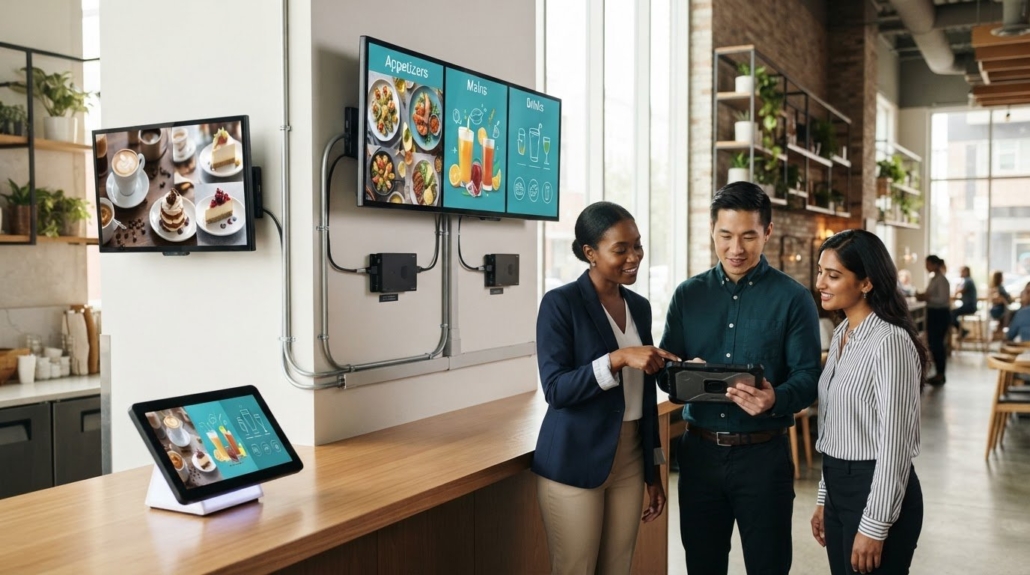
How to Choose Digital Menu Board Screens and Players
One player per independently controlled screen is a practical starting point for meeting digital menu board hardware requirements. Match each player to the screen’s inputs and your content system, then plan for power, network access, mounting, ventilation, and cable routing. A modern TV with HDMI can serve as a screen, but the right setup depends on its viewing conditions and how often the menu changes.
Choosing the display first may seem quickest, but mismatched players, awkward cable runs, or a poor installation location can complicate setup. Plan the complete system before selecting components. This guide explains how to match screens and players, choose an installation method, and select an update workflow that suits your operation.
You’ll also learn what to consider for resolution, viewing distance, brightness, mounting, ventilation, and secure connections. Use these steps to build a practical hardware plan, whether you’re setting up a single menu screen or coordinating several displays.
Key Takeaways
- Assign a player to each independently controlled screen, and match its connections and operating system to the display and content platform.
- Choose screen size and resolution based on viewing distance, placement, and whether customers need to interact with the menu.
- Pick a content update method that suits your workflow, from manual USB changes to networked or cloud-based management.
- Plan mounting, ventilation, power, and cable routing together to keep the installation accessible and connections secure.
- For multi-screen control or distribution, explore how WolfPad TV Control Systems, HDMI Video Wall Processors, and matrix switchers can fit into the system.
One player per independently controlled screen
Plan the number of players around screen control, then match each device to its display and software. This helps breakfast menus, promotions, and other content appear as intended.
-
Determine independent screen control needs
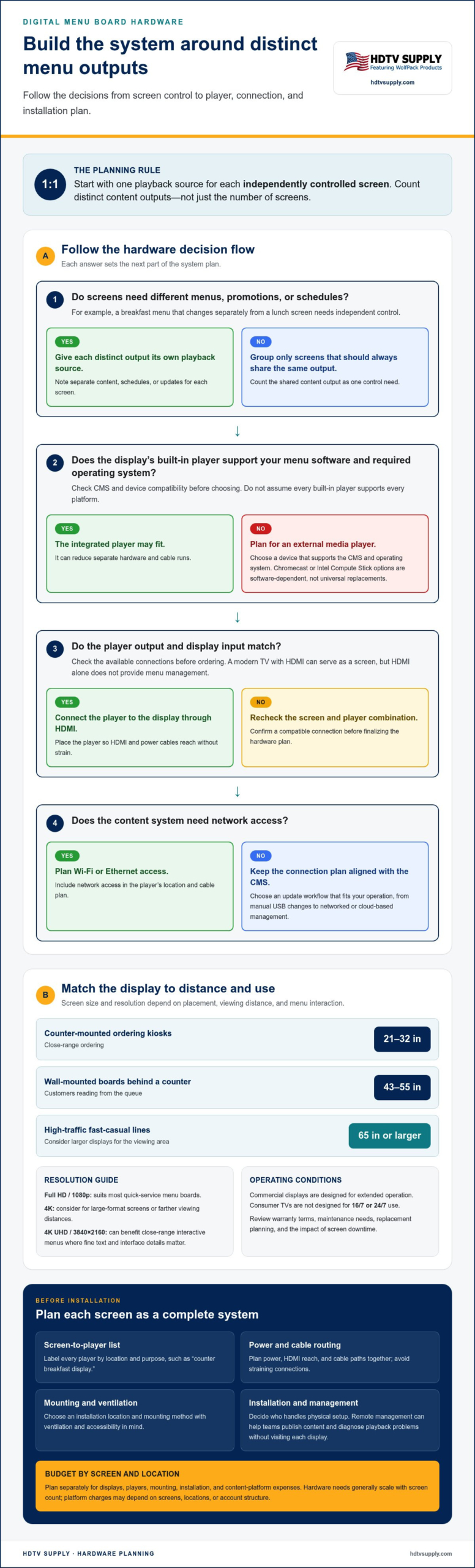
Map each screen to the content it needs to show, then group only the screens that should always share the same output. Assign a playback source to each independently controlled display. For example, a breakfast menu that changes separately from a lunch screen needs independent control.
Don’t count screens alone. Count distinct content outputs and note which displays need separate schedules or updates. This control plan determines how many media players your setup needs.
-
Choose built-in or external media players
Check whether the display includes a built-in player that supports your menu software. A built-in unit can reduce the need for separate hardware and cable runs, while an external media player gives you a separate device to connect and manage.
Compare the player’s supported software and operating system with your content platform before choosing. Don’t assume every built-in player supports every CMS. If the display’s integrated option can’t run the required software, plan to use an external player.
-
Match a media player to each screen
Assign a media player to each independently controlled screen. A single player can’t provide different content to multiple displays unless the system is designed to distribute separate outputs. For different menus, promotions, or schedules, provide a separate playback source for each independent output.
Make a simple screen-to-player list before ordering hardware. Label each player by location and purpose, such as “counter breakfast display.” This makes it easier to identify which device controls each screen during setup and routine operation.
-
Check operating system compatibility
Confirm that the media player’s operating system works with your digital menu software. Platforms may require Apple or Windows compatibility, and some software supports only specific devices. A player that connects to the display but can’t run the CMS won’t deliver the intended menu.
Some systems may work with devices such as Google Chromecast or Intel Compute Stick, but users may need to select, purchase, and troubleshoot compatible hardware themselves. Treat these options as software-dependent, not universal replacements for a dedicated player.
-
Connect and power each player
Connect each digital signage media player to its display through HDMI, then power both devices. Place the player where its HDMI and power connections reach without straining the cables. Choose brightness settings based on the display and viewing conditions, independently of your player selection.
Connect the player to the restaurant network through Wi-Fi or Ethernet if the content system needs network access. A Raspberry Pi is a miniature computer system about the size of a deck of cards. As with other player options, its suitability depends on software compatibility and setup needs.
Screen size, installation method, and viewing distance
Measure the viewing area and identify each screen’s role before choosing its size, resolution, or mounting method. In a restaurant, counter menus and interactive ordering displays serve customers at different viewing distances.
Commercial displays are designed for extended operation; consumer TVs aren’t designed for 16/7 or 24/7 use. Review warranty terms, maintenance needs, and replacement planning because coverage, operating conditions, and screen downtime can affect the total ownership decision.
- Match screen size to viewing distance. Counter-mounted ordering kiosks typically use 21-32-inch displays. Wall-mounted boards behind a counter often use 43-55-inch screens; high-traffic fast-casual lines may call for displays of 65 inches or larger. Check that customers can read menu text from the queue without crowding the ordering area.
- Choose resolution for the content and distance. Full HD, or 1080p, suits most quick-service restaurant menu boards. Consider 4K for large-format displays or screens viewed from farther away. Interactive menus viewed at close range can benefit from 4K UHD resolution of 3840×2160 pixels, where fine text and interface details matter.
- Confirm the display and connection. A modern TV with an HDMI port can serve as a digital menu board screen. Check the screen’s available inputs against the player output, then plan a direct connection. A connected display still needs a compatible player and content platform. An HDMI port alone doesn’t provide menu management.
- Select an installation method and management plan. Businesses can install equipment themselves or hire a hardware installation company. Decide who will handle physical setup, then plan how staff will manage screens across locations. Remote management through a platform can help teams publish content and diagnose playback problems without visiting each display. Tie screen labels to location and menu purpose, so troubleshooting starts with the correct unit.
- Build a per-screen and per-location budget. Plan separately for displays, players, mounting, installation, and content-platform expenses. Hardware needs generally scale with the number of screens, while platform charges may depend on screens, locations, or account structure. Compare total setup and ongoing costs for each restaurant location, rather than treating one screen’s cost as the project budget.
For connected displays that need coordinated routing, consider how multi-screen AV equipment fits the system design.
Content updates through USB, LAN, Wi-Fi, or cloud CMS
Choose an update workflow based on who changes the menu, how often it changes, and whether playback must continue offline. USB suits manual changes; network-connected players support remote content delivery.
- Use USB for occasional manual changes. Prepare the menu file on a USB flash drive, then load it onto the display or player using its supported presentation software. This approach can suit a single screen with infrequent changes, such as a fixed specials board.
Plan the update window, since the menu must be taken off screen while files are replaced. Check the new content on the display before reopening service. For multiple screens, label each USB drive by location and menu, so staff don’t load the breakfast file onto the wrong player.
- Choose LAN, Wi-Fi, or a cloud CMS for network updates. Connect each player to the restaurant network through Ethernet or Wi-Fi if the content platform supports network delivery. A cloud CMS lets authorized staff prepare and publish changes through its management interface, rather than carrying a USB drive to each screen.
Map players to screen locations before publishing. For example, assign lunch promotions to the counter display and evening specials to the dining-area screen. Confirm that your chosen platform supports the player and network method you plan to use. Ethernet provides a wired connection; Wi-Fi avoids a network cable at the device.
- Plan local playback for internet outages. Choose a digital signage player that can store menu content on the device. It can keep playing that stored content during an internet outage, leaving the last loaded menu visible while the connection is unavailable.
Before relying on offline playback, load the content and test what remains available without internet access. Distinguish locally stored items from changes that still need cloud delivery. A new special won’t appear on a disconnected player until it receives the update, so publish important changes while the device is connected.
- Export graphics at the screen’s resolution. Build landscape Full HD menu graphics at 1920 × 1080 pixels. For a 4K landscape display, prepare assets at 3840 × 2160 pixels. Matching the file dimensions to the screen helps the player show the intended layout without relying on scaling.
Check text, prices, and image placement on the actual display after upload. A 1920 × 1080 breakfast graphic can be scheduled for one screen, while a separate 3840 × 2160 promotion fits a 4K display. Keep master files organized by resolution and menu type before distributing them to players.
Mounting, ventilation and cable management
Plan the mount, airflow, power, and data route before installing each digital signage display. These decisions affect screen access, player placement, and how clearly dynamic content appears.
- Choose a mounting position around the viewing area. Place interactive elements 15-48 inches above the floor for wheelchair users and standing customers. Keep frequently used controls within a comfortable reach, and position menu images where customers can see them from the ordering area.
For wall-mounted displays, limit how far the screen projects into the room: the recommendation is no more than 4 inches. This keeps the display profile compact in corridors and customer queues. Before drilling, map the screen, player, power outlet, and cable path on the same wall plan.
- Keep the display and player ventilation paths clear. Identify the vents on both devices before choosing an enclosure or mounting position. Don’t block those openings with a wall, shelf, decorative panel, or bundled cables. A player placed behind a screen still needs open airflow around its vents.
For example, don’t press a media player tightly against the back of a display. Keep equipment accessible for cleaning and troubleshooting, and position it so routine service won’t require removing the entire mount. Follow each device’s installation guidance for its ventilation needs.
- Route and secure every cable. Use locking HDMI 2.0 cables where suitable, and secure power cords to reduce accidental disconnection. Separate the cable path from areas where staff move carts or handle supplies. Keep enough slack for service access, but don’t leave loops hanging beside the screen.
Label both ends of each cable run by screen or location. For example, mark the HDMI connection “counter display” at both the player and the display. This makes it easier to trace the correct signal during troubleshooting, especially when several players are close together.
- Coordinate mounting with cloud-based menu management. Cloud CMS software can send content updates to connected players, so position devices where they can maintain network access. A fixed player location also helps staff identify which screen receives each promotion or menu format.
Keep the equipment layout consistent across screens where practical. Place each player near its display and document its network connection. If dynamic specials stop appearing, staff can trace the relevant player, network path, and display without guessing which device controls the screen.
- Test the full installation before opening. After mounting, check the display image, player connection, power, airflow, and cable security. Confirm that menus appear in the intended format and that content updates reach the correct screen. Recheck the mount and connections after any service that moves equipment.
Digital menu board hardware basics
Start with the installation environment, then match the display’s brightness, duty cycle, and durability to its location. In the U.S., electrical, accessibility, and building considerations depend on the installation and applicable local requirements; plan power, mounting, and screen placement accordingly. For accessibility planning, position interactive elements 15-48 inches above the floor and limit wall-display projection to 4 inches.
-
Check electrical, accessibility, and building requirements
Map power connections, screen position, and customer access before finalizing the hardware. Make the installation plan specific to the site: a wall-mounted menu, counter display, and outdoor drive-thru screen each bring different placement and wiring considerations.
For interactive menus, use the 15-48-inch placement range as an accessibility planning guide. Keep wall-mounted displays from projecting more than 4 inches into the space. Route power cords securely, keep walkways clear, and plan how staff can reach equipment for maintenance without obstructing customers or menu visibility.
Electrical and building requirements depend on the installation details and local rules. Include power, mounting, and access in the same site plan, rather than treating the display as a standalone device.
-
Set display brightness for the environment
Match brightness to ambient light. Indoor digital menu board displays generally need 400-700 nits, while outdoor or drive-thru screens call for at least 1000+ nits. Displays facing windows or bright lighting may need 1,500-2,500 nits to prevent washout.
Assess the screen from the customer’s viewing position under actual operating conditions. A menu near a sunlit window faces different glare from one in a dim dining area. Check that prices, images, and menu items remain legible, then adjust brightness without letting motion or promotional content distract from ordering.
- Match outdoor ratings to actual exposure. Select outdoor hardware with an operating-temperature range suited to the expected conditions. Review the display’s environmental and durability ratings for exposure to weather, dust, and other site conditions. Don’t assume an indoor commercial display is suitable outdoors: its enclosure and operating range must fit the location.
For indoor use, consider the display’s expected active hours. Consumer TVs aren’t designed for 16/7 or 24/7 operation. High-quality commercial displays typically last 5-7 years, making duty cycle and replacement planning important parts of the selection.
- Check the complete signage system before purchase. Confirm that the display, media player, content platform, and installation location work together. A commercial display handles the visual output, the player supplies content, and the platform determines how menus and promotions are managed.
Test representative menu items, still images, and motion content on the intended screen. For a bright drive-thru, prioritize outdoor brightness and environmental suitability. For an indoor counter, assess viewing conditions and daily operating hours. Explore professional AV hardware options when planning how displays fit into a wider system.
HDTV Supply: WolfPad TV Control Systems
HDTV Supply offers WolfPad TV Control Systems for venues that need coordinated control of multiple screens. They can form part of a digital menu board setup when staff need to manage connected TVs alongside other venue displays.
For projects involving several menu screens, HDMI Video Wall Processors support video wall configurations, while WolfPackSecure 4K 60 4:4:4 HDMI Matrix Switchers address HDMI signal routing. Choose based on the system layout: TV control, a video wall, or distributing HDMI sources across displays. These components complement the screen, player, network, and mounting choices covered above; they don’t replace a compatible content platform or a suitable display.
Contact HDTV Supply to discuss AV equipment for your screen-control and distribution needs.
Build a System That Can Grow With Your Menu
Think beyond the first screen. Your menu and venue layout may change, so choose an AV design that can accommodate future display routing and control needs. Treat digital menu board hardware requirements as part of the wider system plan, not just a screen decision.
HDTV Supply offers WolfPad TV Control Systems for managing TV setups, WolfPack Modular Matrix Switchers for routing video sources, and a Sports Bar TV Distribution System. These products may suit venues that need menu displays to work alongside other screens. The right configuration depends on how your displays and sources need to connect.
Bring your screen layout, player plan, and content workflow into the conversation. Discuss your setup with HDTV Supply and explore AV options for your project. A clear system plan gives you a practical starting point for your next menu board installation.
Frequently Asked Questions
What display specifications are needed for digital menu boards in restaurants?
Choose a display that suits the restaurant’s lighting, operating schedule, and menu content. Beyond resolution and brightness, consider whether the screen will show static prices, food photography, or motion graphics. Test the smallest menu text and key images from the customer’s actual viewing position. For a screen near windows, assess glare during bright periods, not only under indoor lighting during setup.
What screen size and resolution should a digital menu board use?
Choose screen size by testing menu readability from the customer’s queue and ordering position. Digital menu board hardware requirements for a compact counter differ from those for a long service line. Match resolution to the display and the detail in your artwork, then preview the menu at its intended aspect ratio. This can reveal clipped text, scaled images, or crowded layouts before publishing.
What media player or signage hardware is required to run digital menu boards?
Choose a player that supports your content management system, the display’s input, and the media formats in your menu. Check that it can handle the resolution and video playback your content uses. For example, a menu built around animated food clips needs a player capable of decoding those files smoothly. Confirm the display, player, and software work together as a complete signal chain before deployment.
What internet, network, and connectivity requirements do digital menu boards have?
Network needs depend on how you publish content and manage players. A locally stored playlist can keep displaying during an internet interruption, while remote publishing requires a working network connection. Consider the size of your media files and whether several players will download updates together. Test a content change on one screen first, then confirm it reaches the correct location before updating the rest of the restaurant.
What mounting hardware and installation requirements apply to digital menu board screens?
Choose a mount that matches the display’s mounting pattern and weight, and suits the wall or ceiling surface. Plan access to power, signal connections, and the player before fixing the screen in place. For example, a screen above a service counter should remain reachable for maintenance without disrupting staff workflow. Check the final viewing angle from customer positions and reduce reflections from nearby lights.
What power requirements and energy costs do digital menu board displays have?
Use the display’s rated power draw and expected operating schedule to estimate energy use. Multiply wattage by operating hours to calculate watt-hours, convert the result to kilowatt-hours, then apply your electricity rate. Actual consumption varies with the display model, brightness setting, and runtime. Compare the display’s power information with your planned schedule, including periods when it can be switched off or run at reduced brightness.
How much does digital menu board hardware cost in the United States?
Digital menu board hardware costs vary based on screen size, commercial durability, media player capabilities, and mounting hardware. Complete setups from providers like HDTV Supply typically range from several hundred to over a thousand dollars per screen, depending on whether you purchase entry-level displays or high-brightness commercial panels designed for 24/7 operation and complex content management.
Leave a Reply
Want to join the discussion?Feel free to contribute!